In this article, you'll learn how to turn on location tracking for someone on your team, what it does once it's on, and who gets told when a phone's location is off.
Location tracking does two jobs. When a job goes on its way, the tech's phone can share its location, so the customer's tracking link shows them coming. And once a tech gets to the job, the job's Timeline shows when they arrived and when they left. You don't have to call anyone to ask.
Turning on Track location for a team member
To open a team member's profile:
- In the menu, click Team. (You can also get there from Settings under Users & roles, then Team management.)
- Click the person's row. Their User Profile opens on the Profile tab.
To turn on tracking:
- Tick the Track location box under the profile picture.
- Click Save at the bottom of the page.
Untick the box and click Save to turn it off. The change kicks in the next time that person opens the phone app.
You can do the same thing in the phone app. Open the person from your team list and turn on the Track location switch.
Setting it when you invite someone
You can set this when you add someone to the team, too.
- On the Team page, click Add New.
- Keep the User tab selected and fill in their details.
- Set Track Location to Yes or No. It starts on Yes.
- Click Invite user to send the invitation.
The Subcontractor tab doesn't have this setting.
What the team member needs on their phone
Tracking only works through the CRM phone app, and only if location is allowed for the app on that phone. Turning the box on doesn't make the phone ask for permission.
If location is off, the app reminds them once a day when they open it. A pop-up says Please turn on location, with Open Settings and Not now buttons. Open Settings takes them to the phone's settings so they can allow it. When location is already allowed, they never see the reminder.
On Android, a notification that says Track Location is on shows while the phone is reporting.
What tracking does
Arrived and left stamps on the job's Timeline
When you set a job to an on-my-way status, the CRM starts watching for the techs assigned to it. When a tech with Track location on gets close to the job's address, the job's Timeline gets "*Name* arrived". A few minutes after they leave, it gets "*Name* left".
Nothing gets stamped before the job goes on its way, so a tech who drives past the address earlier in the day won't show as arrived.
To see the stamps:
- Open the job in the phone app.
- Tap Timeline.
On the web, the job's Timeline tab shows up when you're on a phone-sized screen.
The customer's tracking link
If your company uses phone tracking for on-my-way texts, the tech's phone is what the customer's link follows. Before the customer gets the text, the CRM checks the phones of the techs on the job. It uses the first one that sends back a location. Anyone with Track location off is skipped. If no phone answers, the customer still gets the on-my-way text, just without a tracking link.
Phone tracking is set under Settings, then OMW, in the How customers follow the crew box. Pick Phone GPS.
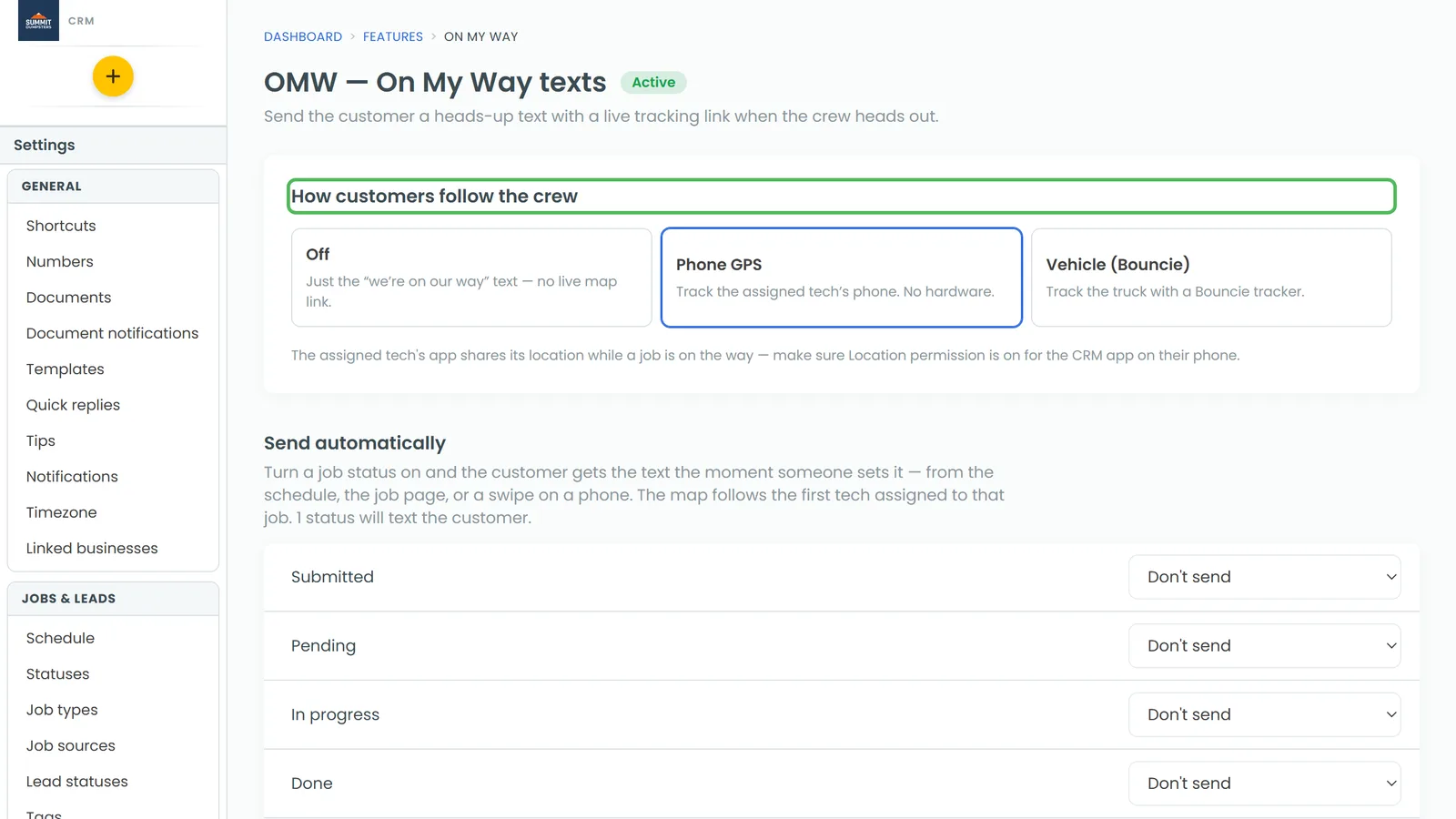
For more on the text itself, see Send an On My Way text.
Choosing who hears when a phone's location is off
When a tech's phone can't share its location, the customer's tracking can't start. You can choose who gets told.
- Go to Settings, then Notifications.
- Find the On-my-way location alerts · company setting box.
- Tick The tech, The owner, or both.
- To add someone else, type a phone number or email under Anyone else and click Add.
- Under How, tick Text them, Push to the app, or both.
Your changes save as you go. Each person gets one alert a day at most, however many jobs run into the problem.