In this article, you'll learn how to add the people who work with you, like techs, dispatchers and office staff, to your CRM. Once they're on your team you can put them on jobs, see them on the schedule, and decide what each person can see and do.
To open the Team page:
- In the menu, click Team.
You can also get there from Settings, under Users & roles, by clicking Team management. It's the same page.
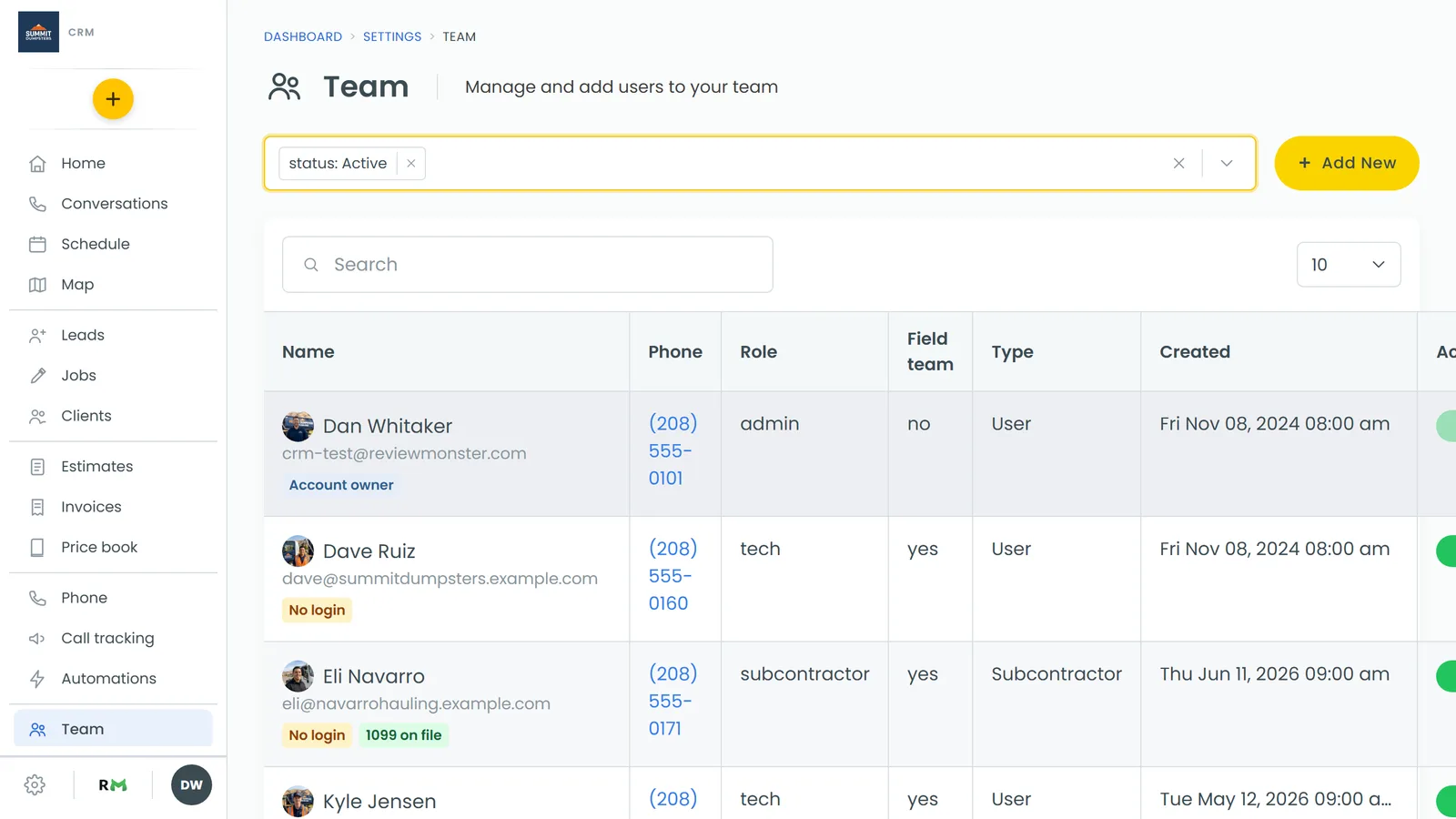
The list opens filtered to status: Active. Each row shows the person's phone, role, whether they're on the field team, whether they're a user or a subcontractor, and when they were added. Click the filter bar to narrow it by Status, Role or User type, or type in Search. Click a row to open that person's profile.
Inviting a team member
Everyone you add this way gets their own login to your company's CRM.
- On the Team page, click Add New.
- Make sure User is selected at the top of the Add team member panel.
- Type their Email Address. This becomes their username.
- Type their Name.
- To pick the color they show up in on the schedule, click the paintbrush button beside the name and choose a color.
- Type their Phone. Use a mobile number, because the invitation is texted there.
- Choose a Permission level. This is their role, and it decides what they can see and do.
- Set Field tech to Yes if you want to assign jobs to them, or No for office-only staff.
- Set Track Location to Yes or No. With it on, their phone is asked to share location for On My Way texts, and they get a reminder once a day when location is off.
- Click Invite user.
You'll see Invitation sent, and the new person shows up in the list.
Picking the right role
The Permission level list holds every role your company has. Admin and Tech are built in, and new people start as Tech unless you pick something else. Admins can do everything.
If none of the roles fit, set up your own on Roles & permissions, under Users & roles in Settings. You can change someone's role any time from the Role field on their profile.
What the new team member receives
As soon as you click Invite user, the CRM sends them:
- A text, if you entered a phone number, saying they've been added to your team, with a link to set up their login.
- An email with a link to set their password.
The link opens a Welcome to the team page, where they choose a password, type it again to confirm, and click Save password. From then on they sign in with their email address and that password.
Finishing their profile
Click the person's row to open their User Profile. It has four tabs: Profile, Availability, Documents and History. On the Profile tab you can:
- Upload a profile picture.
- Turn Track location, Show in schedule and Send location alerts on or off.
- Add a Home address and Additional phone numbers.
- Change their Role and whether they're a Field team member.
- Set their Labor cost per hour, Tax classification and Schedule color, and leave Notes for other admins.
On the Availability tab, leave User availability same as business hours on, or turn it off and set their own hours.
Click Save when you're done.
Adding a subcontractor instead
The Add team member panel also has a Subcontractor tab. Subcontractors can take jobs and get messages, but they don't get a CRM login. Enter their First name, Last name, Mobile and hourly Pay rate, then click Invite. The invite is texted to that mobile number, along with the form that collects their W-9. See Users vs subcontractors for the difference.
On the phone app
Open the menu and tap Team, then tap Add New. You get the same fields, except the schedule color. You can set that later from the person's profile on the web.
Related articles
- Managing team member profiles
- Customizing team roles and permissions
- Users vs subcontractors
- Setting a team member's availability
- How to reset a team member's password