In this article, you'll learn how to send an On My Way text and how to add a live map link the customer can follow. It means fewer "where are you?" calls, and the customer knows you're coming before you pull up.
There's no send button for this. When you set a job's status to OMW, the text goes out on its own from your CRM number.
To send the text from a job:
- Open the job.
- Next to Status:, click the status box.
- Pick OMW. It's listed under In Progress.
A few seconds later the customer gets the text, with their first name and your business name in it.
The phone app works the same way. Open the job, tap the status and pick OMW under In progress. You'll see "On-my-way text is going out to the customer."
From the Home screen
On the web, each card under Upcoming work has a three-dot menu. Click On my way, then click OK when it asks "On my way to …?". On a touch screen you can also swipe a card in Needs attention to the left, tap On my way, then tap Yes, on my way.
On the phone app, tap the three dots on an Upcoming work card, tap OMW, then tap Yes, on my way. You can also swipe a Needs attention card to the left and tap On my way. If you track more than one truck, there's one entry per truck.
Change the wording
Every job gets the same text. To change it:
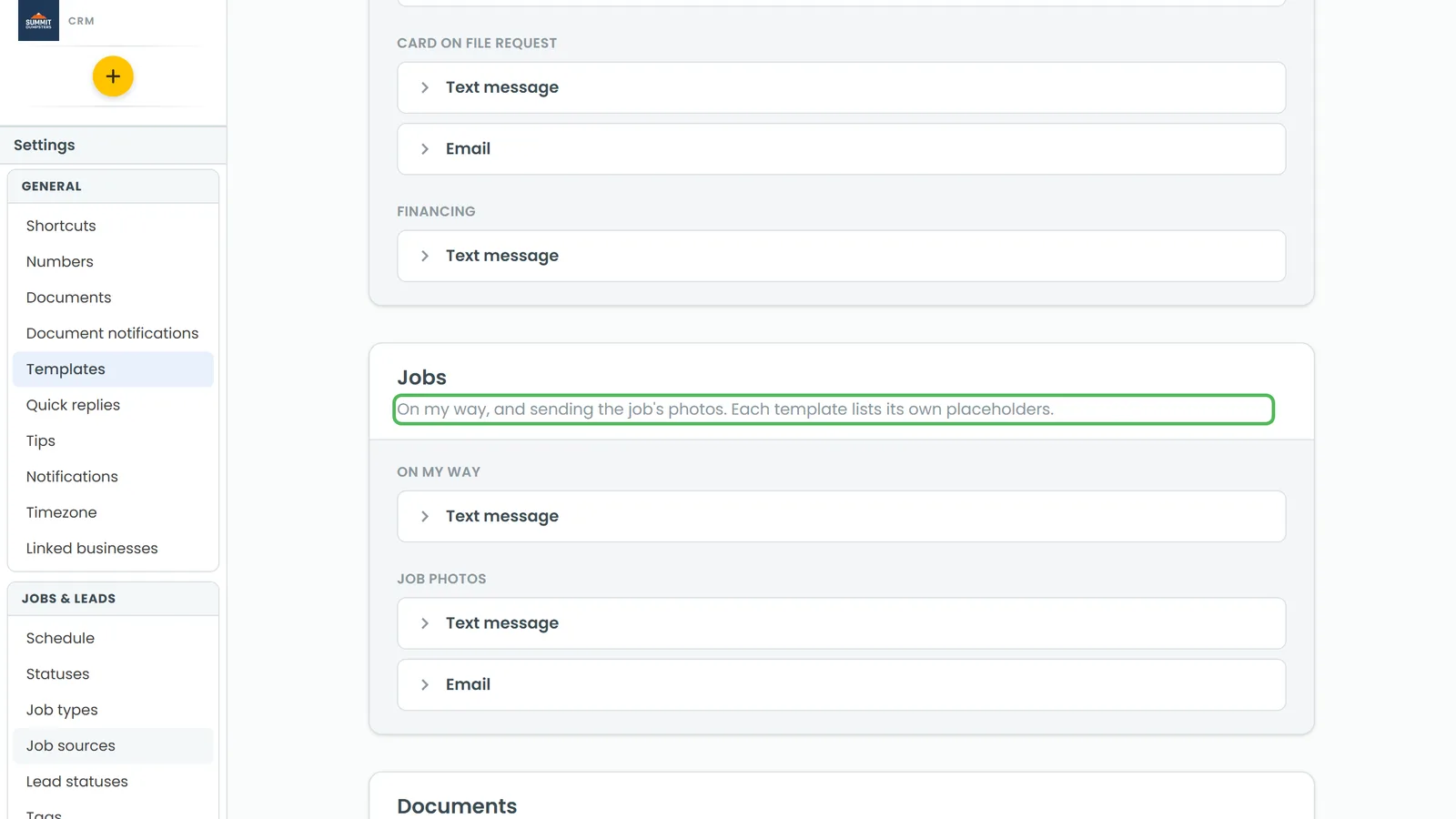
- In the menu, click Settings, then Templates.
- Under Jobs, open On my way and edit the Text message.
You can use {firstName}, {business} and {trackingUrl}. Keep {trackingUrl} in there, because that's where the map link goes. The CRM won't save the text without it.
Add a live map link
Out of the box, the text just says you're on your way. To add a live map, turn the feature on first.
To turn on OMW:
- In the menu, click Features.
- Under Customer messages, flip the switch on the OMW tile. The OMW page opens.
To set it up:
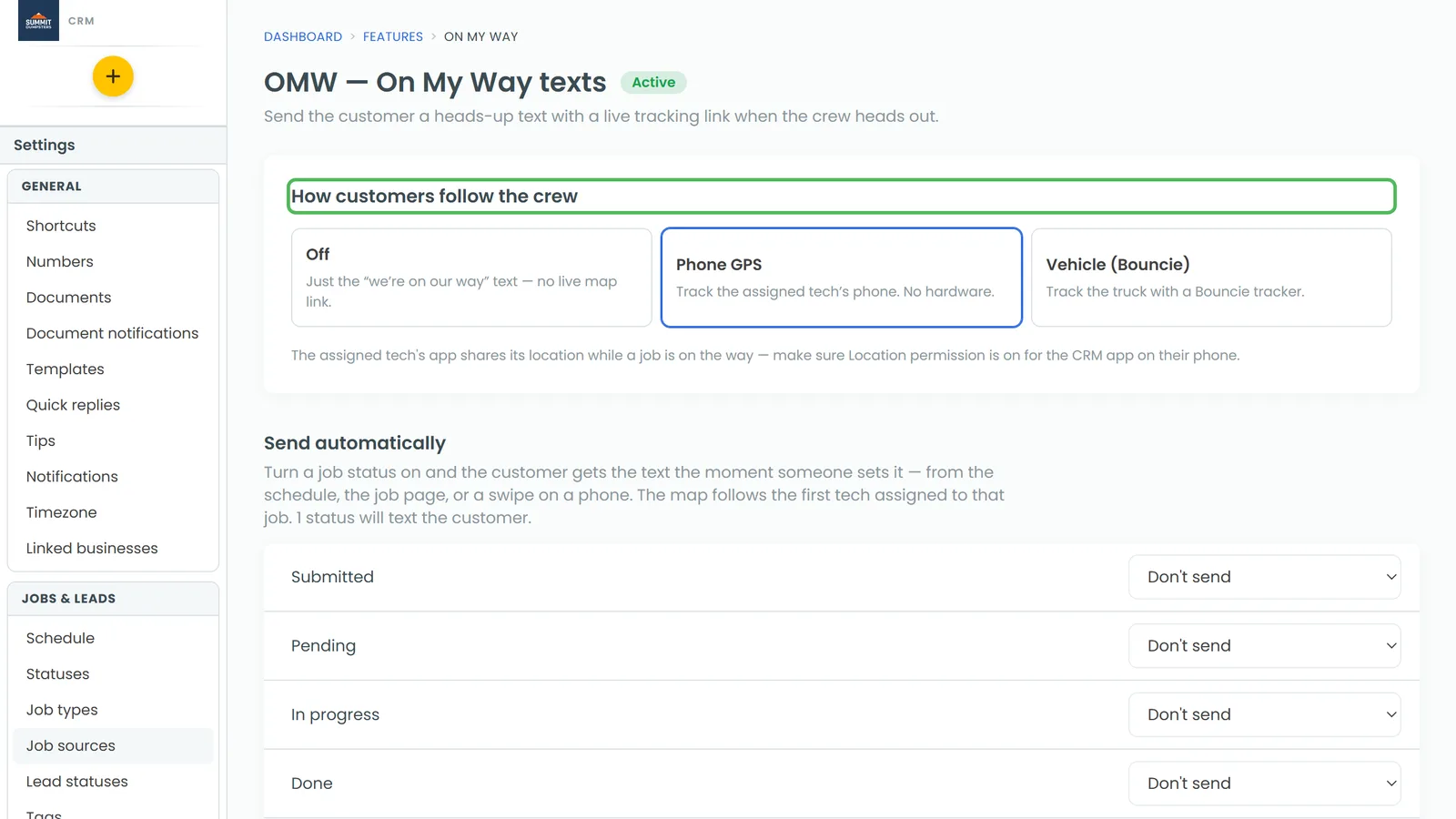
- Under How customers follow the crew, pick one:
- Off sends the plain text with no link.
- Phone GPS follows the phone of the tech on the job. You don't need any hardware.
- Vehicle (Bouncie) follows a Bouncie tracker in the truck.
- If you picked Vehicle (Bouncie), click Connect with Bouncie under Connect your trackers and sign in. You can't finish setup until the trackers are connected.
- Click Complete setup.
That's it. The text uses your company name, and the link works for two hours or until you arrive, whichever comes first.
To come back to this page later, click Settings, then OMW under Phone & booking. On the phone app, tap OMW in the menu. You can switch modes there, but you can only connect Bouncie on the web.
Choose which statuses send
After setup, the OMW page lists your job statuses under Send automatically:
- On Phone GPS, set each status to Send or Don't send.
- On Vehicle (Bouncie), pick which truck each status follows, or Don't send.
When you connect Bouncie, every truck gets its own status under In progress, named after the truck, and the plain OMW status is hidden. Pick the truck's status when it heads out. To rename a truck status, type over its name in this list.
What the customer sees
The link opens a map with your business name and their street. It shows roughly how many minutes away you are, your speed (or "Stopped"), and when your position last updated. Once you arrive, it says "has arrived". After the link runs out, the page says "This tracking link has expired".
Sending it again
If the job already got an on-my-way text in the last six hours, the CRM asks first: "This customer was already sent an on-my-way text 20 minutes ago. Send it again?" Say yes if it's really a second trip. Say no if you picked the status twice by mistake.
When there's no GPS or tracker
- Phone GPS, nobody on the job: You'll be asked "Who's on their way?" The person you pick is added to the job, and the customer follows their phone. To send the plain text instead, click Send without a map link.
- Phone GPS, the tech's location is off: The CRM checks the crew's phones before it texts. If none of them can share a location, the customer still gets the text without the link, and the tech is told their location is off. To choose who hears about it, go to Settings, then Notifications, then On-my-way location alerts. That section only shows while you're on Phone GPS.
- The Bouncie tracker hasn't reported in over a day: No text goes out, because the link would show nothing. Check the tracker, or switch to Off so plain texts go out.
Related articles
- How to update a job's status
- How to create sub-statuses
- Assigning team members to jobs
- Creating automations that run when a job's status changes
- What's on your Home screen