In this article, you'll learn how to connect your Bouncie GPS trackers to the CRM. Once they're connected, the office can see every truck on the job map without calling around, and customers can watch the truck coming to them in your On My Way text.
Truck tracking is part of the OMW feature, so it has to be switched on first. Open Features and turn on OMW. It's off until you do.
You'll also need a Bouncie tracker in each vehicle. It's a small plug-in that goes in the OBD-II port under the dash, on the driver's side, and you activate it in the Bouncie phone app. The OMW page puts the price at about $90 a device plus $9 a month, and there's a Buy Bouncie on Amazon link right on the page.
To open the OMW page:
- In the menu, open Settings.
- Under Phone & booking, click OMW.
You can also go straight to OMW.
Connecting your Bouncie account
You do this once, on the web. The phone app shows your trucks, but connecting happens in the web CRM.
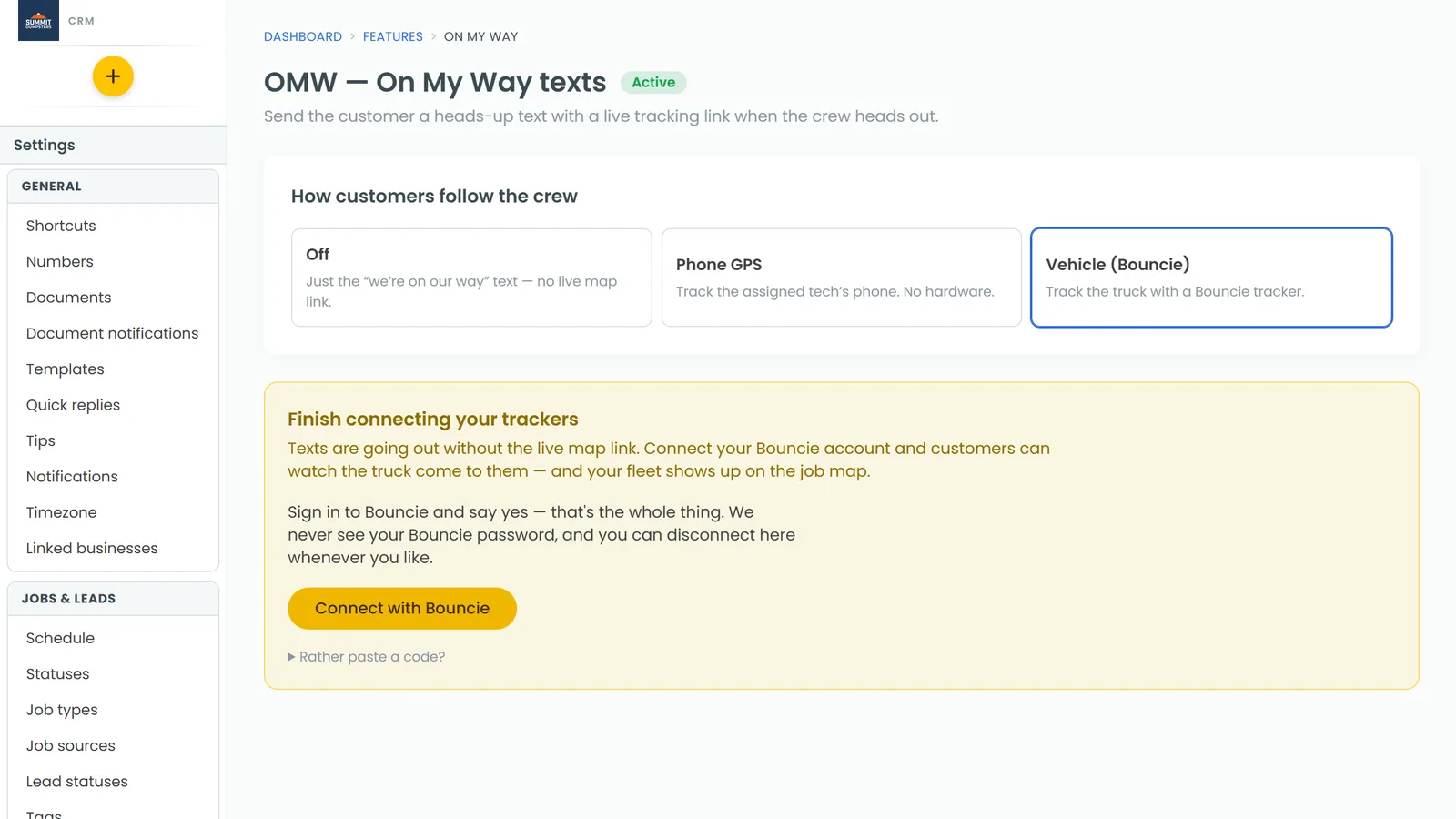
- Under How customers follow the crew, click Vehicle (Bouncie).
- In the Connect your trackers card, click Connect with Bouncie.
- Sign in to your own Bouncie account and approve the Review Monster app.
- Bouncie sends you straight back to the OMW page, where the card shows Connected.
- If OMW isn't set up yet, click Complete setup. The button stays greyed out until your trackers are connected.
Your trackers stay on your own Bouncie account and subscription. The CRM never sees your Bouncie password, and it only reads where your vehicles are.
Watching your trucks on the map
Once you're connected, your trucks show up on the job map along with the day's stops.
- Open the Map.
- In the toolbar, make sure Trucks is ticked. The number next to it is how many trucks are showing.
- Click a truck to see its name, its speed (or Stopped), the address if Bouncie has one, and when it last reported.
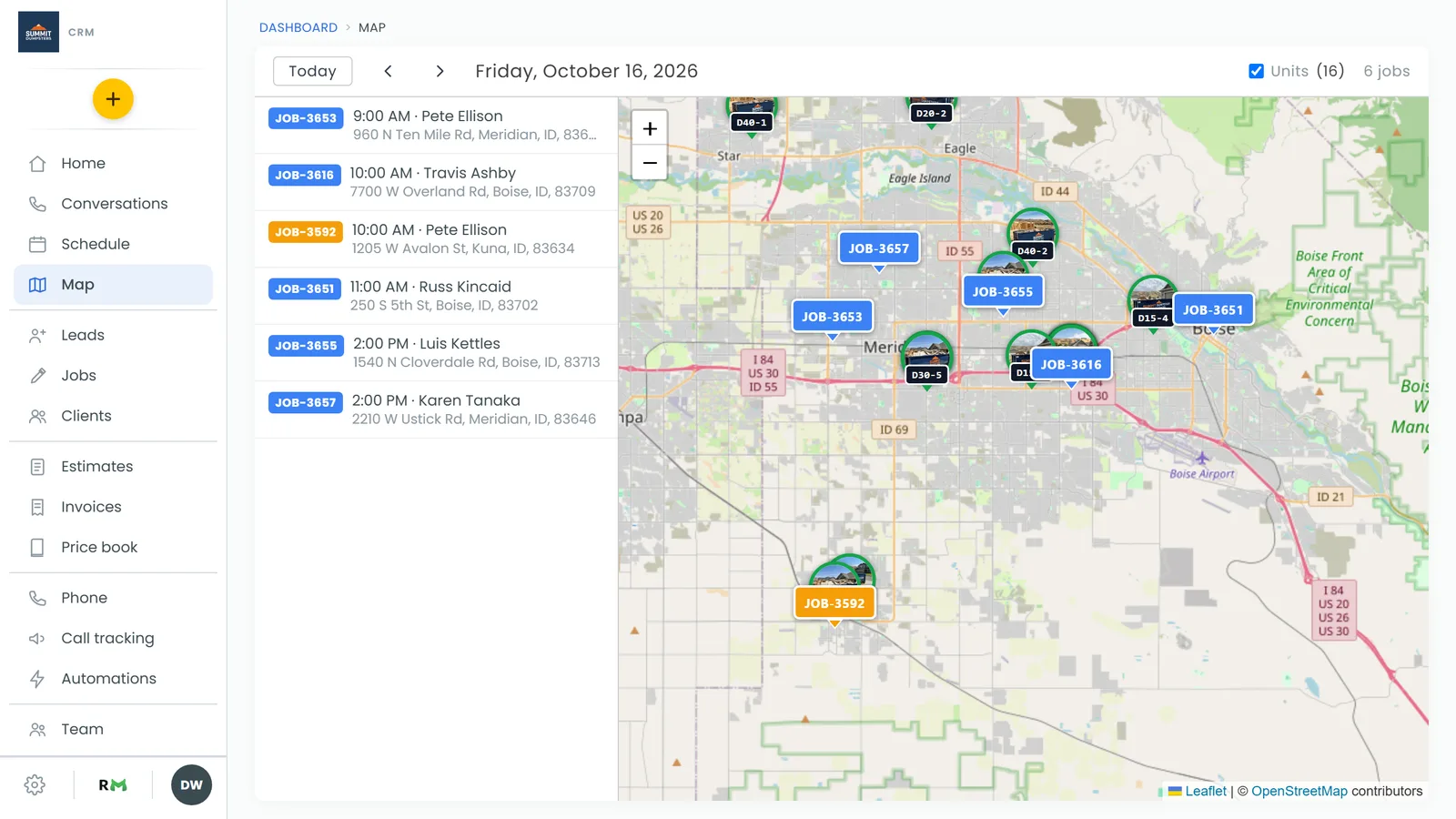
The trucks refresh about every 15 seconds on their own, so you don't need to reload the page. The map stays framed on the day's jobs, so a truck parked at the yard across town won't zoom everything out. Untick Trucks to hide them.
Giving each truck its own pin
By default every truck gets the same marker. A picture of the actual truck makes it easier to tell them apart.
- On the OMW page, scroll to Vehicles & map pins.
- On the truck's card, click Upload pin (or Change pin if it already has one) and pick a photo.
- Drag to frame the truck and slide Zoom to fit it in the circle.
- If you'd like a drawing of the truck instead of the photo, click Illustrate it.
- Click Use as pin.
Each card also shows where the truck is, or when it last reported.
A status for each truck
When you connect, the CRM gives each truck its own sub-status under In progress, named after the truck. When someone moves a job to that status, the customer gets the On My Way text with a live link to that truck. For how the text works and what the customer sees, see Send an On My Way text.
You'll find these statuses in the Send automatically list on the OMW page. Each one is already pointed at its truck.
- To rename one, type over its name and press Enter. That renames the real status, and any jobs already on it move with it.
- To stop a status from sending, change its truck to Don't send.
Related articles
- Send an On My Way text
- How to create sub-statuses
- How to update a job's status
- Choosing your shortcuts and features