In this article, you'll learn how to keep your techs from marking jobs Done. That's handy when you want someone in the office to look over a job — the items, the photos, the payment — before it's closed out for good.
Who can close a job comes down to one switch on their role, called Close Jobs ("Can move jobs to the Done status"). It's on for the built-in Tech role out of the box, so techs can close jobs until you turn it off.
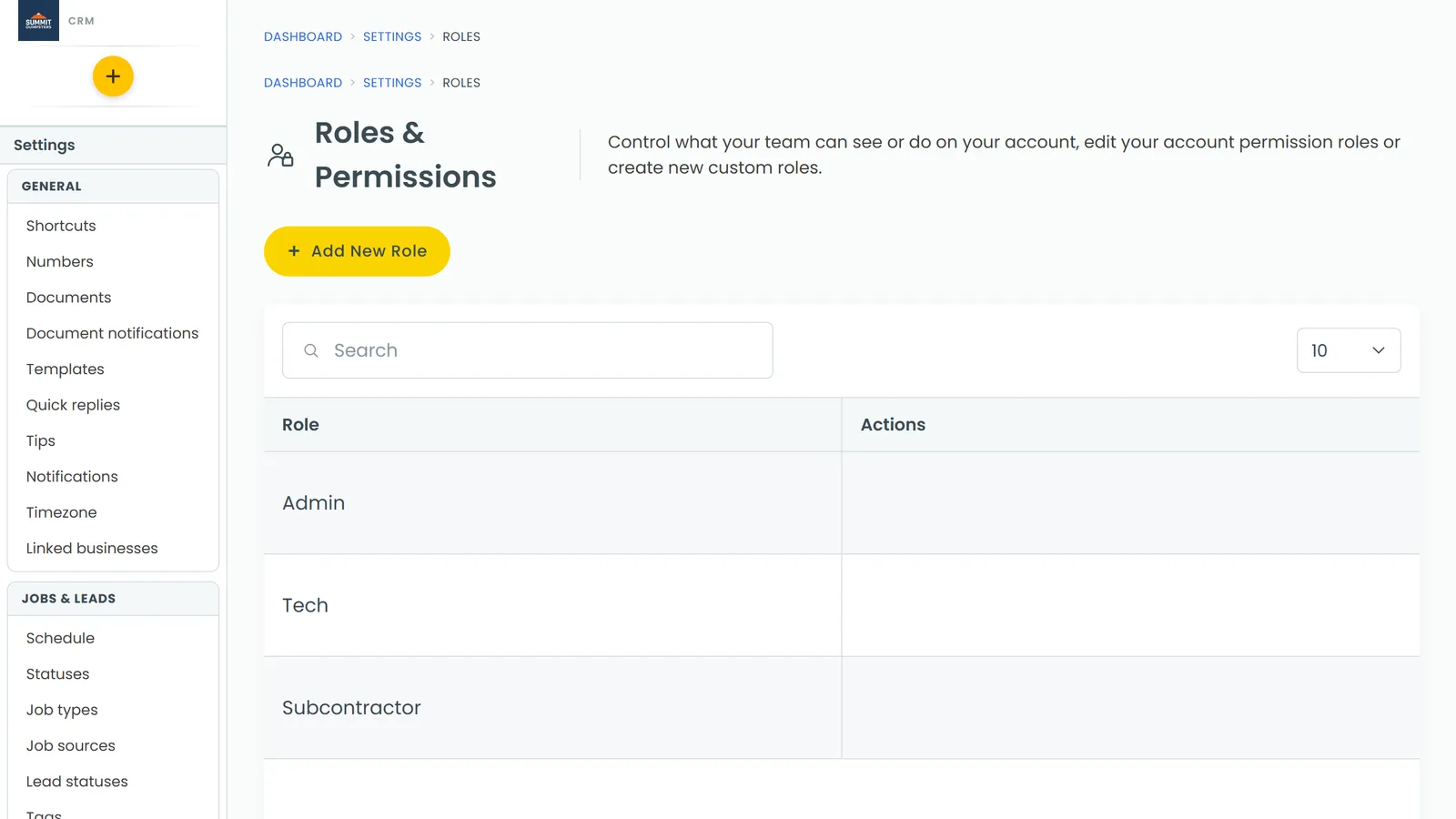
To open Roles & permissions:
- At the bottom of the menu, click the Settings gear.
- Under Users & roles, click Roles & permissions.
Turn off Close Jobs for a role
- Click the role you want to change, like Tech. A panel slides in titled "Edit permissions for role tech".
- Type close in the Search box to jump to the switch, or scroll down to Close Jobs.
- Click the switch so it turns grey.
- Click Save. You'll see "Permissions saved" at the top of the page.
This applies to everyone on that role. Admin can't be opened or changed, because admins can always do everything.
What your techs see after that
- On the phone app: Done is no longer in the job's status list. They can still pick any other status, like In progress.
- On the web: if someone on that role tries to set a job to Done, the CRM refuses the change and the job stays where it was.
When the work's finished, someone whose role still has Close Jobs, usually you or the office, moves the job to Done.
Two related switches
You'll find these on the same panel, and they're worth setting at the same time.
- Modify Done Jobs ("Can make changes to done jobs"). Without it, a person can't change anything on a job once it's Done. It's off for Tech by default, so a closed job stays the way the office left it.
- Cancel Jobs ("Can cancel jobs"). Without it, Canceled is taken off the status list in the app and refused on the web. It's on for Tech by default, so turn it off too if canceling should also go through the office.