In this article, you'll learn how to cancel a job, what the CRM does when you cancel one, and where canceled jobs end up.
When a job isn't going ahead, cancel it rather than deleting it. A canceled job keeps its record, so its notes, photos, timeline and payments stay put, and it still counts in your reports. That way you can see how often work falls through. Deleting takes the job out of your lists completely.
Canceling a job just means changing its status to Canceled, and you can do that from a few places.
Cancel a job from the job page
- Open the job you want to cancel.
- Click the status dropdown next to Status:.
- Pick Canceled. If your company has sub-statuses under Canceled, like "Customer changed their mind", they're listed underneath and you can pick one of those instead.
It saves as soon as you pick it. If the change can't be saved, for example because your role isn't allowed to cancel jobs, the dropdown goes back to the old status and the reason shows up next to it.
The phone app works the same way. Open the job, tap the dropdown next to Status: and pick Canceled. If your role can't cancel jobs, Canceled won't be in the app's list at all.
Cancel a job from the Jobs list
You don't have to open a job to change its status. This works on the web on a computer-sized screen.
- In the menu, click Jobs.
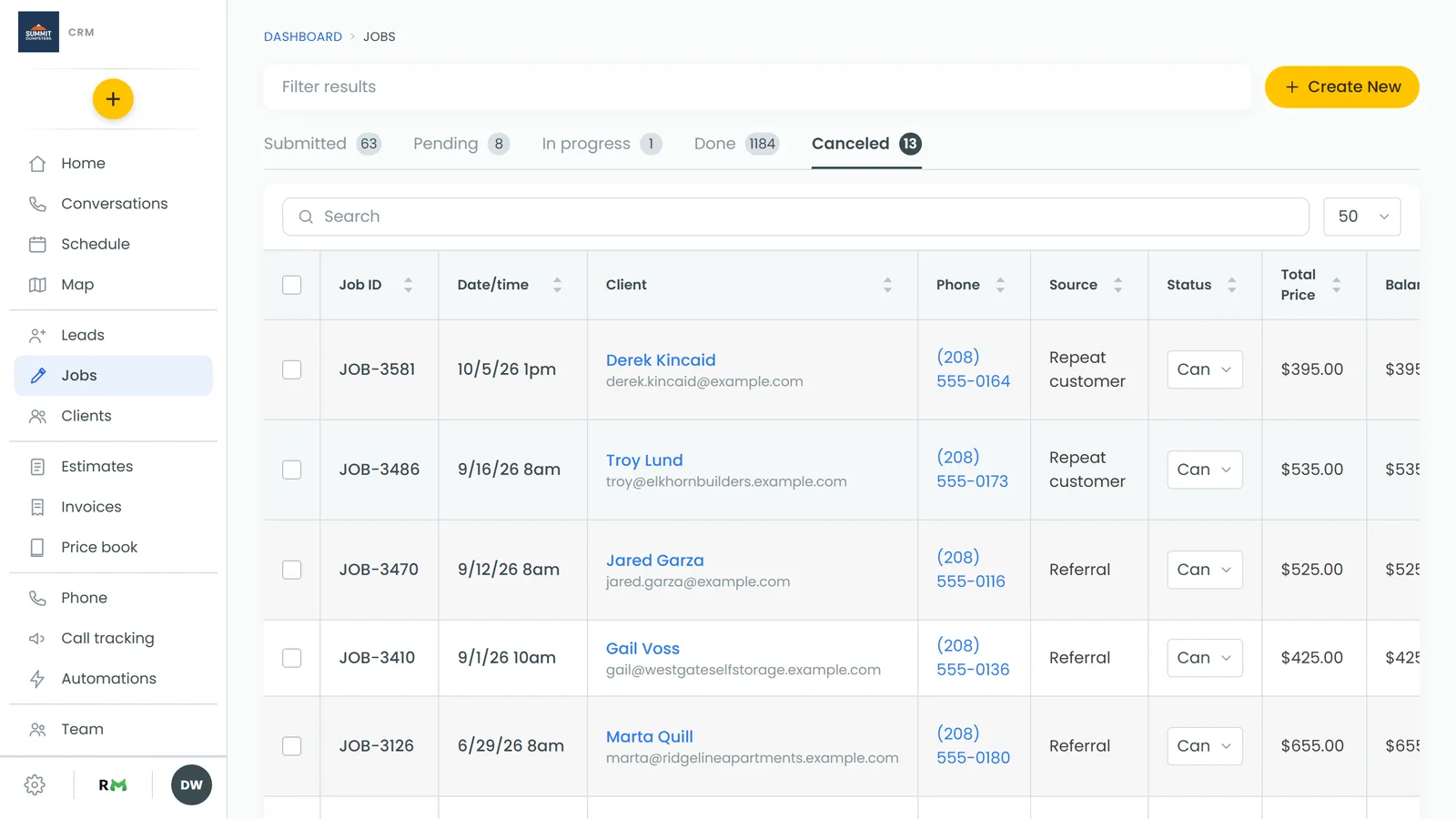
- Find the job. Every row has a status dropdown in the Status column.
- Pick Canceled from that row's dropdown.
Changing the status from the list clears any sub-status the job had. If you want a Canceled sub-status, set it from the job page instead.
Cancel a job from the Home screen
Your Home screen shows upcoming work as job cards, and each card has its own menu.
- On the job's card, click the ⋮ button.
- Click Cancel job.
- Confirm. On the web you'll be asked "Cancel this job?". In the phone app you'll see something like "Cancel JOB-1234?". Tap Yes, cancel it, or Keep it to back out.
In the phone app there's a quicker way for the jobs under Needs attention on Home: swipe the card left and tap Cancel job. You'll get the same confirmation.
What happens when you cancel
When a job moves to Canceled, the CRM tidies up what was attached to it:
- Unpaid invoices are voided. An invoice on the job that's a draft, due or past due, with nothing paid on it, is voided and its balance set to zero, so the customer isn't chased for it. An invoice with any payment on it is left alone.
- On-my-way tracking links stop. If the customer has a live link to watch your truck coming, it's closed.
- Queued automations for the job are skipped. Anything waiting to go out about that job, like an appointment reminder, won't send.
- It comes off the calendar. Canceled jobs don't show on the schedule unless you add Canceled to the calendar's filter.
Who can cancel jobs
Your role needs the Cancel Jobs permission. Admin always has it, and it's on by default for the built-in Tech and Subcontractor roles. An admin can turn it off for a role in that role's permissions. Without it, the job keeps its status and you'll see "your role can't cancel jobs".
Finding canceled jobs
- In the menu, click Jobs.
- Click the Canceled tab. The number on the tab is how many jobs are in it.
To bring a canceled job back, open it and set its status to whatever it should be now. Invoices that were voided stay voided, so create a new one if you need to bill for the work.
To see how many jobs you're losing, look at the Canceled figure and its cancel rate in the Job Statistics report.
Related articles
- How to update a job's status
- Finding done or canceled jobs
- How to delete a job
- How to create sub-statuses
- Reviewing business performance with the Job Statistics report