In this article, you'll learn how to change a job's status. The status tells your whole team where a job stands. A few statuses do more than label the job, too: picking them can text the customer, ask for a review or void an unpaid invoice.
What a status is
A status is the stage a job is at. Your list of statuses lives in Settings, and every place you pick a status shows that same list, in the order you set there.
A status can have sub-statuses listed under it. They split one stage into finer steps. A common one is an on-my-way sub-status under In progress. To learn how to add them, see How to create sub-statuses.
To see your statuses:
- Open Settings.
- Click Statuses.
Change the status from the job page
- Open the job.
- Near the top of the page, next to Status:, click the grey dropdown. It shows a coloured dot and the job's current status (and its sub-status, if it has one).
- Pick a status. Sub-statuses are indented under their parent status. Picking one sets both the status and the sub-status.
The change saves as soon as you pick it. There's no Save button. If it can't be saved, the dropdown goes back to the old status and a red message tells you why.
On the phone app
- Open the job.
- Tap the dropdown next to Status:.
- Pick the new status. Sub-statuses are indented under their parent.
Change the status from the Jobs list (web)
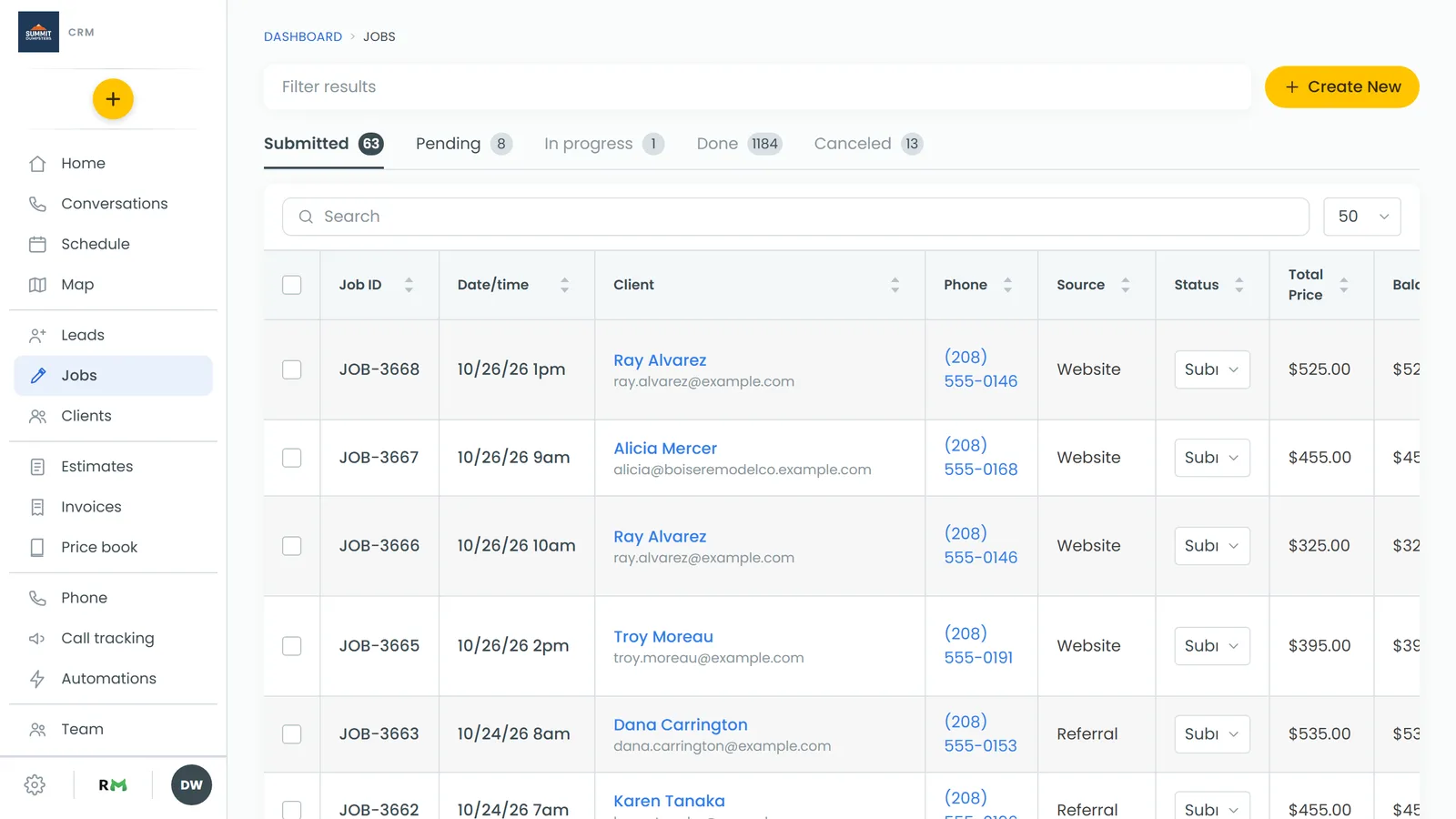
You don't always need to open the job. On the web, the Jobs list has a Status column with a dropdown in every row.
- In the menu, click Jobs.
- In the job's row, open the dropdown in the Status column and pick a new status.
This dropdown only offers your top-level statuses, and picking one clears any sub-status the job had. If you need a sub-status, set it from the job page.
The tabs across the top of the Jobs list are your top-level statuses, in your Settings order. Each tab shows how many jobs are in that status. Click a tab to see just those jobs.
What happens when you pick certain statuses
Done
- The job locks. Only the status and payments can change on a Done job. To edit anything else, move the job off Done, make your change, then set it back to Done. The phone app shows a note at the top of a Done job saying the same.
- A review request can go out. Moving a job to Done asks the customer for a review if your review request automation is on and the job's type allows it. It only happens on the move to Done, so editing or re-saving a job that's already Done won't ask again.
- Some customers have to pay first. If a customer's billing terms say they pay before a job is done, you can't mark the job Done while they still owe money. The message tells you how much is due. On the phone app, you also get a Record payment button right there.
Canceled
- Any invoice on the job that nobody has paid against is voided, so the customer isn't chased for it.
- Any live tracking link for the job stops working.
An on-my-way status
If a status or sub-status is set up to send your on-my-way text, picking it texts the customer. If they already got one in the last 6 hours, you're asked first whether to send it again. Say yes for a real second trip, or cancel if it was a double tap.
If tracking follows a tech's phone and nobody is on the job yet, you're asked Who's on their way? The person you pick is added to the job. Or click Send without a map link to send the text with no map.