In this article, you'll learn how to close a job once the work is finished. Closing a job keeps your active lists clean, locks the job so nobody changes it by accident, and can send the customer a review request on its own.
What closing a job means
Closing a job means setting its status to Done. Only do this for work that actually got finished. If a job isn't going ahead, set it to Canceled instead. That keeps your reports honest, because Done jobs count as completed work. See How to cancel a job for that side of it.
Closing a job from the job page
This works the same on the web and in the phone app.
To close a job:
- Open the job.
- Next to Status:, click the status dropdown.
- Choose Done.
The status saves straight away. There's no extra confirmation step.
Closing a job from the Actions menu (web)
On a computer, the job page also has an Actions button at the top right, next to Create Invoice.
To close a job from Actions:
- Open the job.
- Click Actions.
- Click Job done.
The page reloads with the job closed. On a job that's already closed, the menu item reads Job done ✓. The Actions button only shows on the desktop layout, not on a phone-sized screen.
Closing a job from the app's Home screen
In the phone app, you can close a job without opening it.
To close a job from Home:
- On the Home screen, swipe through Upcoming work to the job.
- Tap the three dots on the job card.
- Tap Mark done.
- When it asks "Mark JOB-… done?", tap Yes, done.
The card drops off your Upcoming work once it's closed. For more on the app, see Closing jobs on the phone app.
What happens when a job is Done
- The job locks. A yellow banner reads "This job is done — change the status to reopen it before editing." The items, schedule, tags and details become read-only.
- Money still works. You can still take payments and create or view the invoice on a Done job.
- A review request can go out. If the job's type has Review when Done switched on (under Settings, Job types) and your review requests are switched on, the customer gets asked for a review when the job moves to Done. Moving a job that's already Done doesn't ask them again. See Asking customers for reviews.
Finding closed jobs
Done jobs leave your other status tabs. To see them, go to Jobs and click the Done tab. The number beside it is how many Done jobs you have.
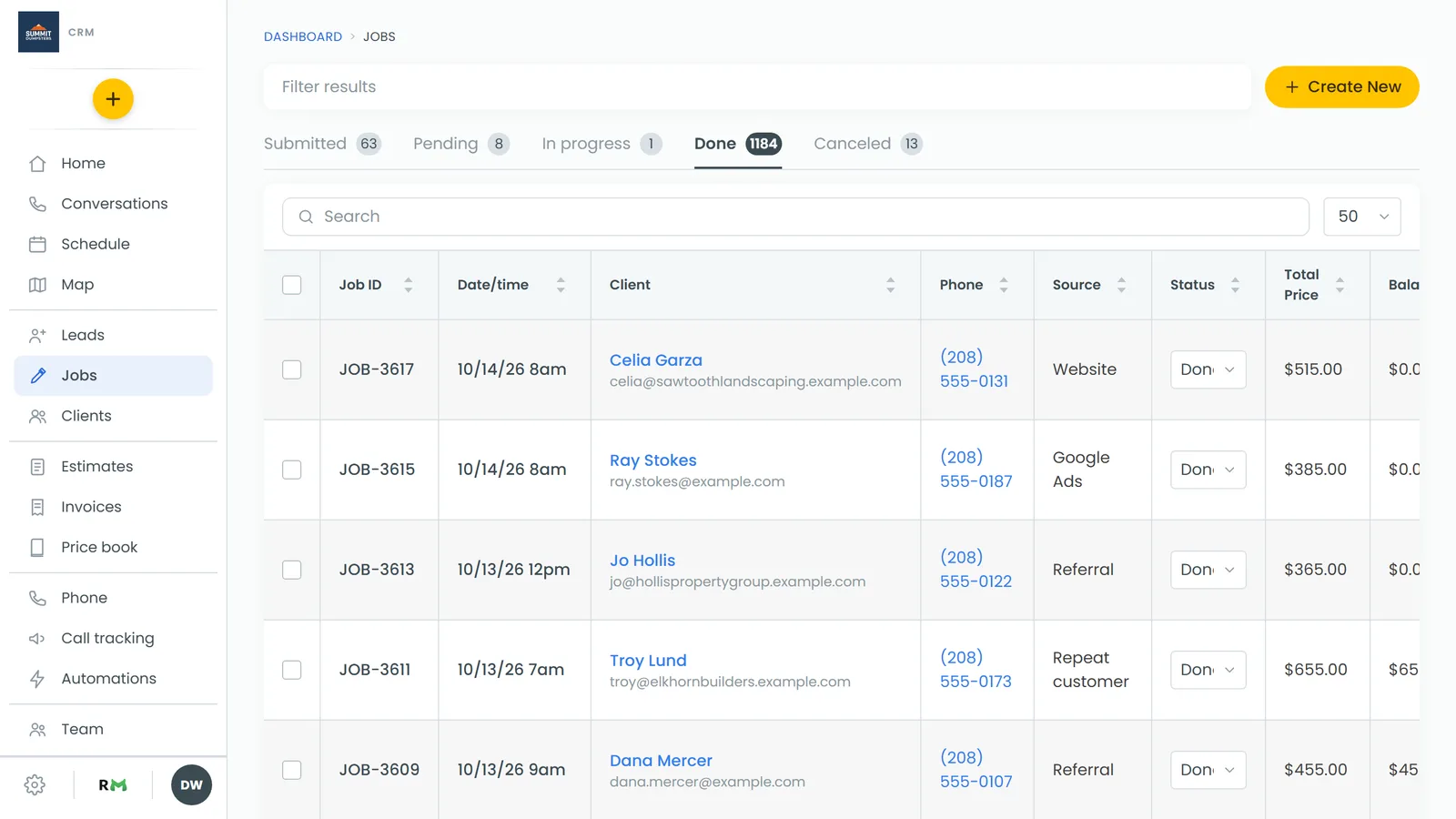
For more ways to find them, see Finding done or canceled jobs.
Related articles
- How to update a job's status
- How to cancel a job
- Finding done or canceled jobs
- Closing jobs on the phone app
- Asking customers for reviews