In this article, you'll learn how to share your best Google reviews on your Facebook page without doing anything by hand. Once it's on, a fresh five-star review goes up as a picture once a day, so people who follow your page see what real customers say about you.
To open the Facebook posting settings:
- In the dashboard menu, click Social Posts.
- Under it, click Facebook.
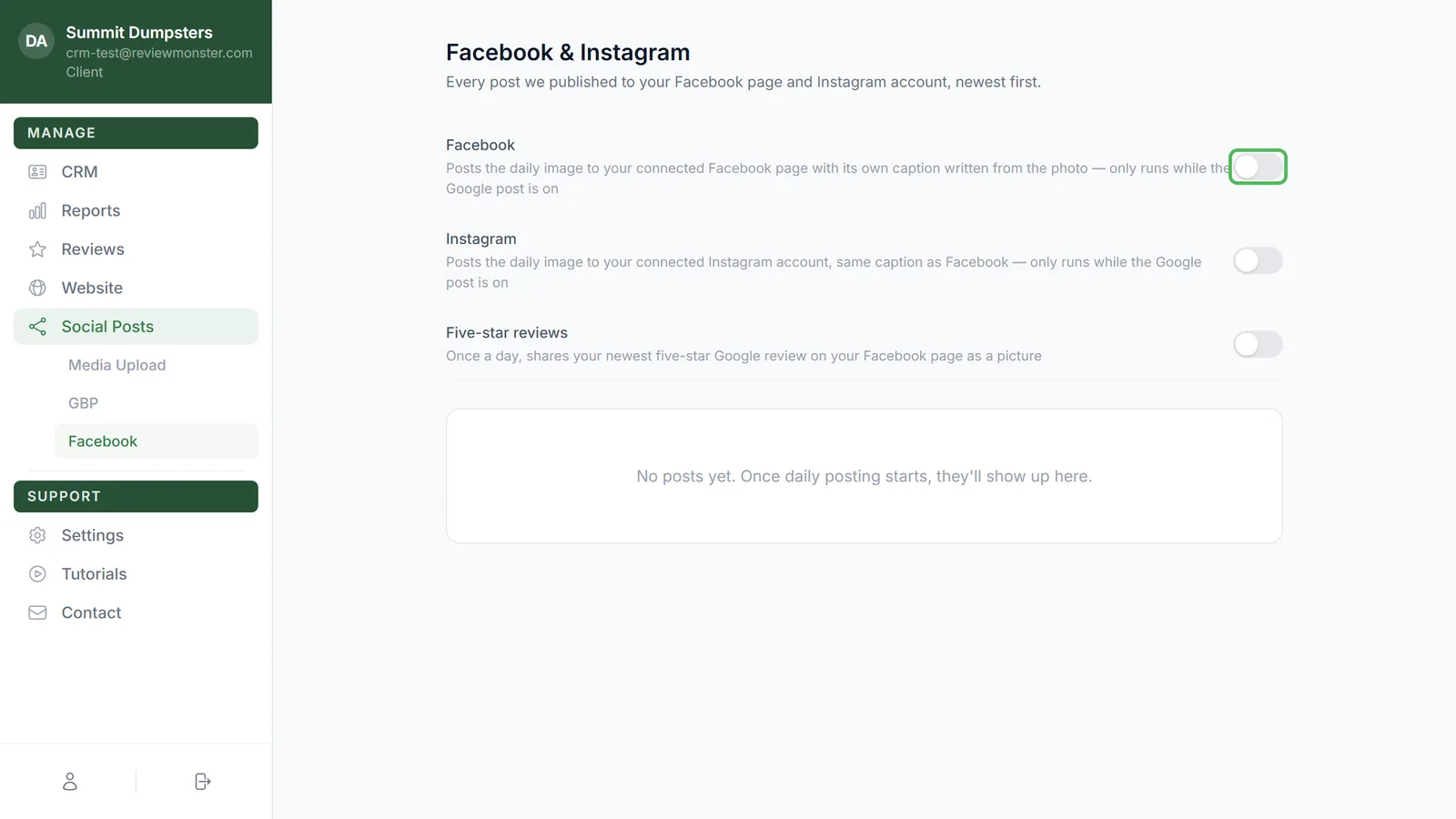
The switches sit at the top of the Facebook & Instagram page, above the list of your past posts.
Before you start: connect your Facebook page
Review posts go out through your own Facebook page, so the page has to be connected first. If it isn't, the switch can be on and nothing will post. See Connecting Facebook and Instagram for daily posts for the steps.
Turning on five-star review posts
- Open Social Posts > Facebook.
- Find the Five-star reviews row. Its description reads "Once a day, shares your newest five-star Google review on your Facebook page as a picture".
- Click the switch so it turns green.
That's it. The change saves as soon as you click. If it can't save, the switch flips back to where it was, so try again.
To stop review posts, click the same switch so it turns gray.
What gets posted
Once a day, the dashboard looks at your Google reviews and picks one:
- It has to be a five-star review.
- It has to have a written comment of at least 40 characters. Star-only ratings and very short comments like "Great job" are skipped.
- It can't have been shared already. Each review goes up once.
- If more than one qualifies, the newest one goes first.
The review is turned into a picture card with your business name, the reviewer's name and their comment, and posted to your Facebook page with a short caption. Only one review post goes up per day. If there's no new review that fits, nothing posts that day, and it picks up again when one comes in.
It runs separately from the daily photo post
The Five-star reviews switch doesn't depend on the Facebook or Instagram switches above it. You can turn the daily photo post off and still have review posts go out, or the other way around. It doesn't need the Google photo post to be on either.
The switch in your onboarding steps
When you set up your account, the Facebook step had a Post 5-star reviews switch. That records what you wanted at the time. The Five-star reviews switch on Social Posts > Facebook is the one that actually turns review posts on or off, so check it there to be sure.