In this article, you'll learn how to pause one of your daily social posts or stop all of them. That's handy when you're short on fresh photos, between seasons, or just want a break from posting for a while.
Every switch lives on the Social Posts pages in your dashboard. The Google switch is on the GBP page, and the Facebook, Instagram and five-star review switches are on the Facebook page.
To open your posting switches:
- In the menu, click Social Posts.
- Click GBP to see the Google switch, or Facebook to see the Facebook, Instagram and five-star review switches.
The switches sit at the top of each page, above the list of posts that have already gone out.
How the switches work together
It helps to know how the posts depend on each other before you flip anything:
- The Daily photo post switch on the GBP page runs the whole daily photo post. Facebook and Instagram only post while it's on, because they share the same daily photo.
- The Facebook and Instagram switches each control just that one network.
- The Five-star reviews switch runs on its own. It isn't tied to the daily photo post at all.
Stop all your daily photo posts
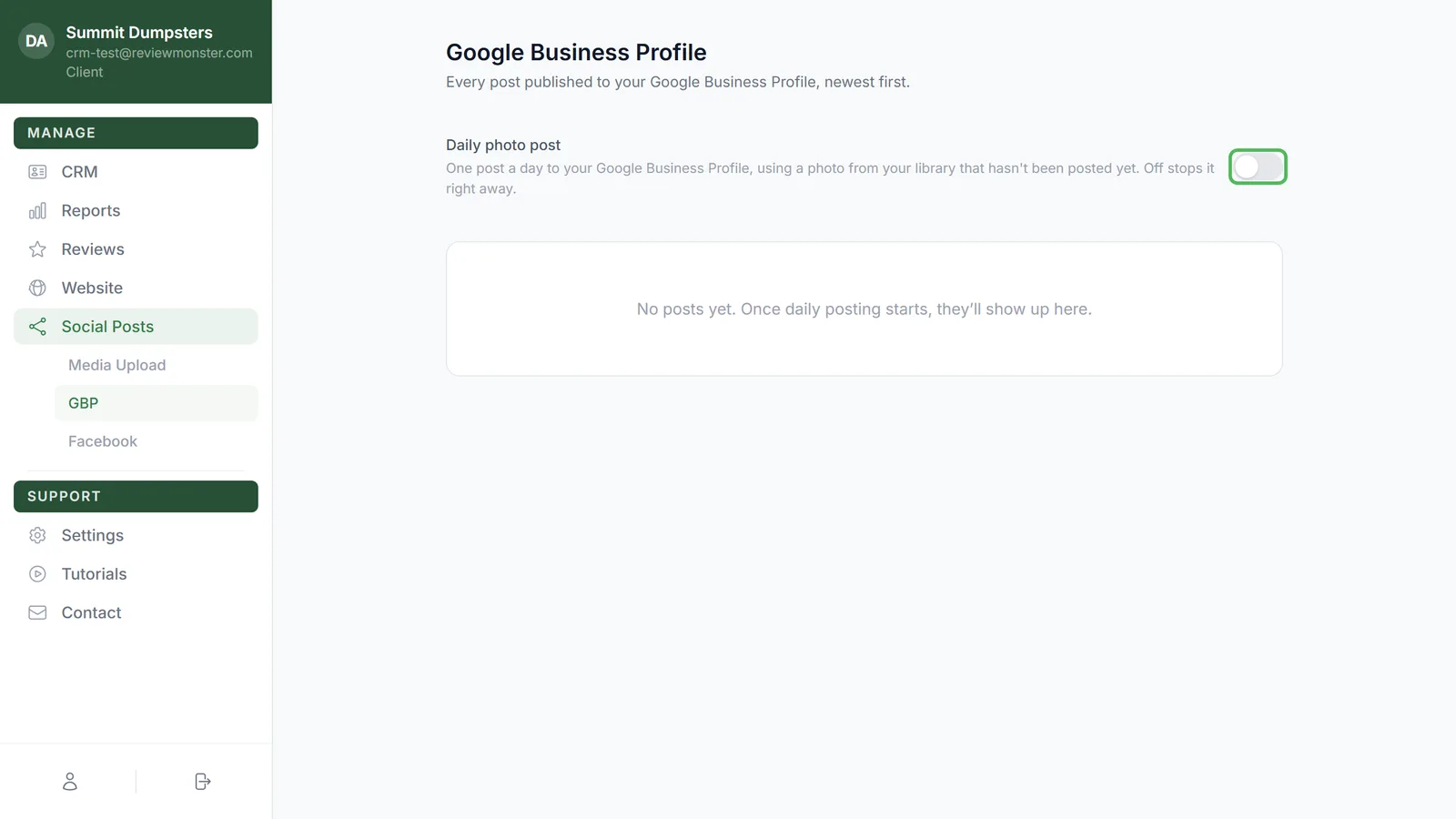
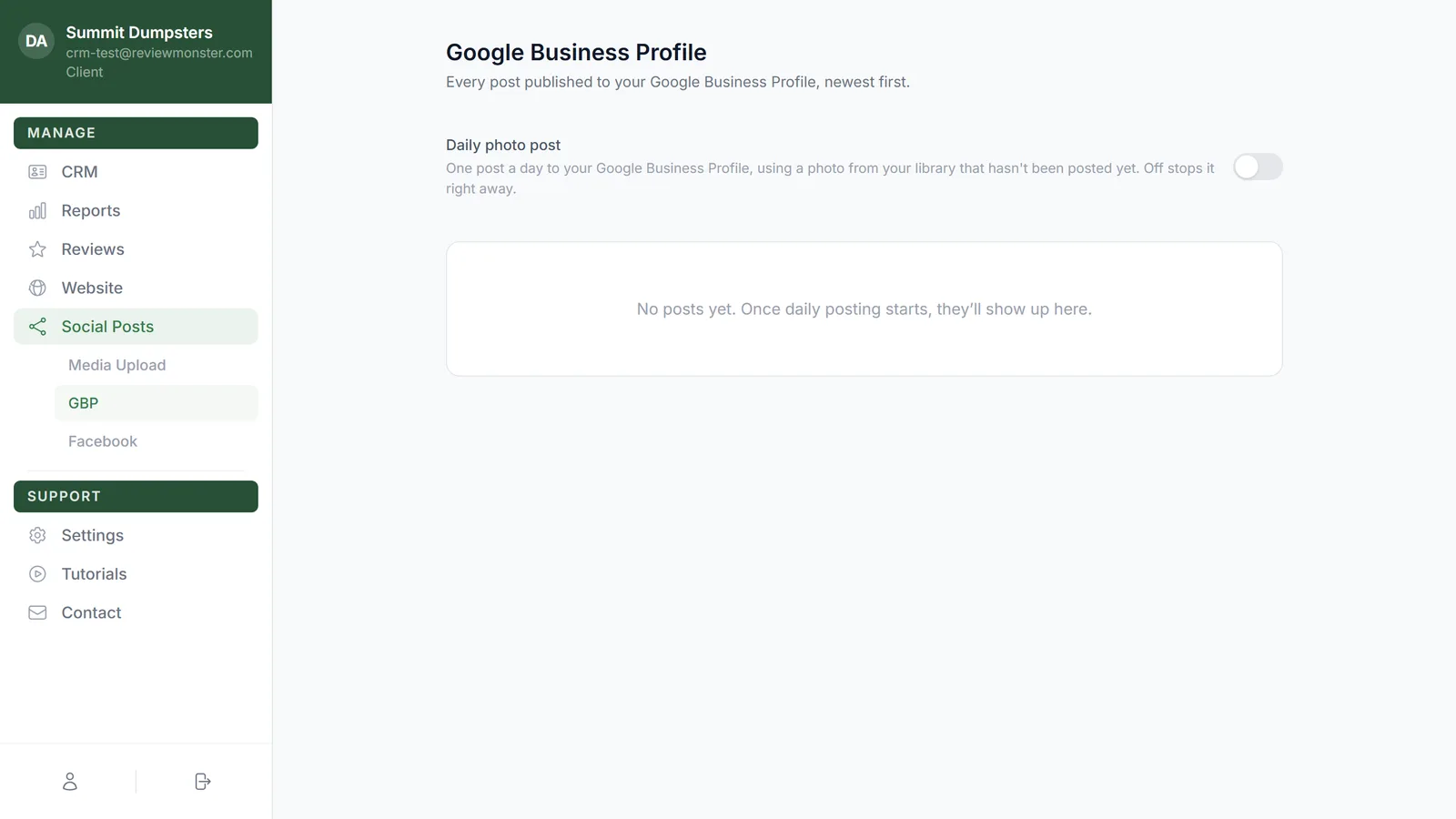
- In the menu, click Social Posts, then GBP.
- Click the switch next to Daily photo post so it turns gray.
That stops the Google post right away. Since Facebook and Instagram only run while the Google post is on, they stop too, even if their own switches are still on. When the Google post is off, the Facebook and Instagram switches say so in their descriptions: "only runs while the Google post is on."
Stop just Facebook or Instagram
If you want Google to keep posting but don't want posts going to Facebook or Instagram:
- In the menu, click Social Posts, then Facebook.
- Click the switch next to Facebook, Instagram, or both, so it turns gray.
Your Google post keeps going every day. The network you switched off just stops getting a copy.
Stop five-star review posts
Once a day, your newest five-star Google review gets shared on your Facebook page as a picture. To stop that:
- In the menu, click Social Posts, then Facebook.
- Click the switch next to Five-star reviews so it turns gray.
Your daily photo posts aren't affected.
What happens when you click a switch
There's no Save button. The switch saves the moment you click it, and it's dimmed for a second while it does. If the save doesn't go through, the switch flips back to where it was, so what you see is always what's actually set. If that happens, give it a moment and click it again.
Turning posts back on
Click the same switch again so it turns green. Posting picks up with the next daily run, not the moment you click. You won't get a burst of make-up posts for the days it was off.
Posts that already went out
Turning a switch off only stops new posts. Anything already published stays on your Google Business Profile, Facebook page and Instagram account, and still shows in the list on these pages. If you want an old post gone, delete it on Google, Facebook or Instagram directly.