In this article, you'll learn how to connect your Facebook Page so the photo we post to your Google listing every day also goes to Facebook and Instagram. It's one login. After that, the same photo reaches people on all three without you lifting a finger.
To open the Facebook step:
- In the dashboard menu, click Settings.
- Click Onboarding. Its steps open underneath it.
- Click Facebook & Instagram.
You can also get there from the Setup page. The Facebook connected item has a Connect Facebook button that opens your onboarding.
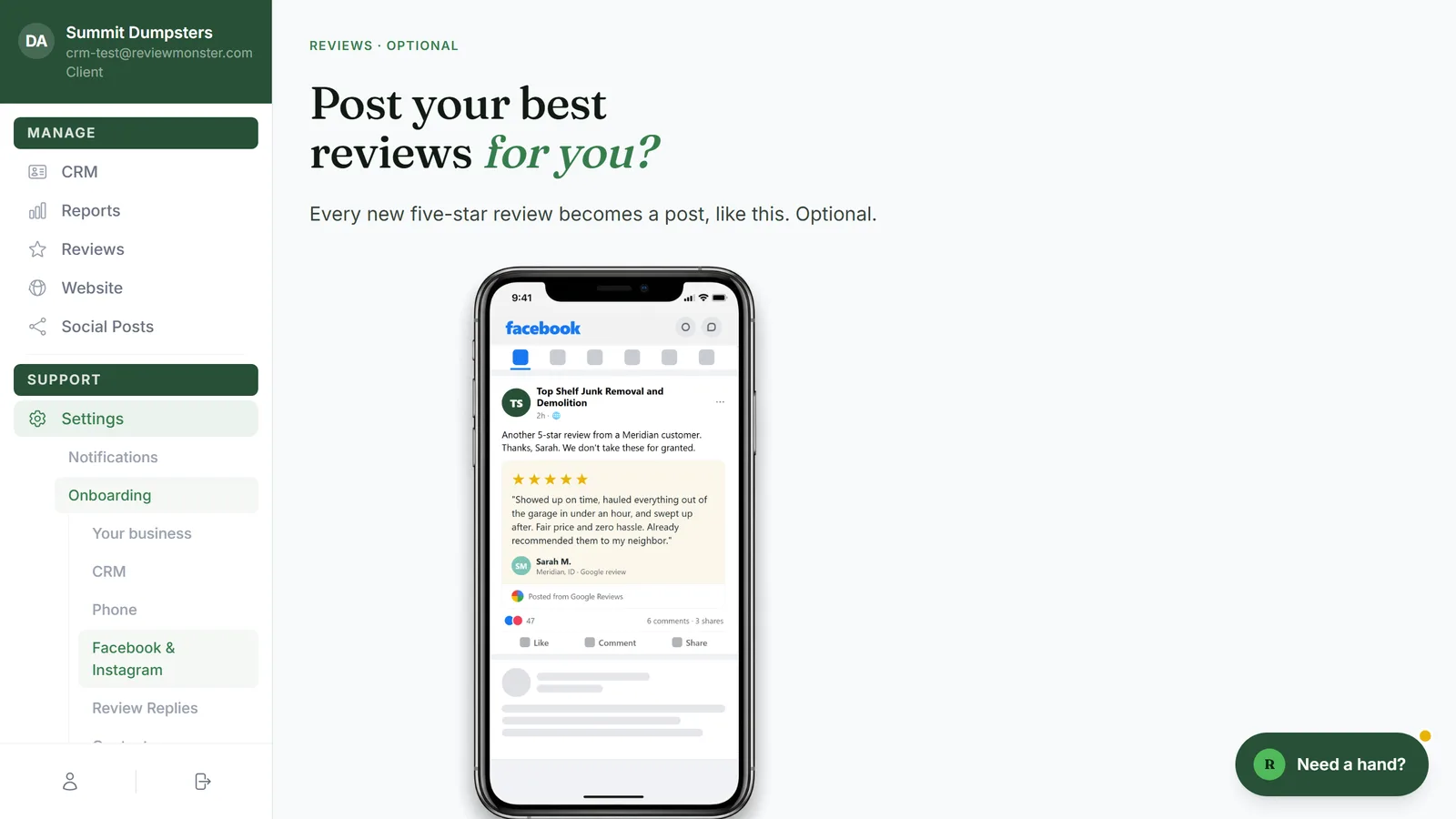
Choose what Facebook is for
Above the connect button are two switches:
- Post 5-star reviews: turns your new five-star reviews into Facebook posts.
- Daily content posts: sends the daily photo post to Facebook, and to Instagram too if it's linked.
Both start out on. If you turn both off, the Connect Facebook button is greyed out, because there'd be nothing to connect for.
Connect your Facebook Page
- Click Connect Facebook. Facebook opens in a small popup window.
- Log in with the Facebook account that runs your business Page and approve the access it asks for.
- When the popup closes, the step checks your connection.
If the account you logged in with doesn't run any Pages, the popup tells you so. Log in again with the account that's an admin on your business Page.
If you run more than one Page
If your login runs more than one Page, you'll see Which Page? with a button for each one. Click the Page for this business. Nothing is connected, and nothing posts, until you pick one.
When you're connected
The step shows Posting to and your Page's name. If an Instagram professional account is linked to that Page, you'll also see and Instagram @ followed by its username.
Click Continue to move on. Continue stays greyed out until a Page is connected. If you'd rather do this later, click Not now.
Connect a different Page
- Open Settings, then Onboarding, then Facebook & Instagram.
- Next to Posting to, click Change.
- Log in again in the popup and pick the Page you want.
Turn Facebook and Instagram posting on or off
Each account's on/off switch lives on its own page:
- In the dashboard menu, click Social Posts.
- Click Facebook.
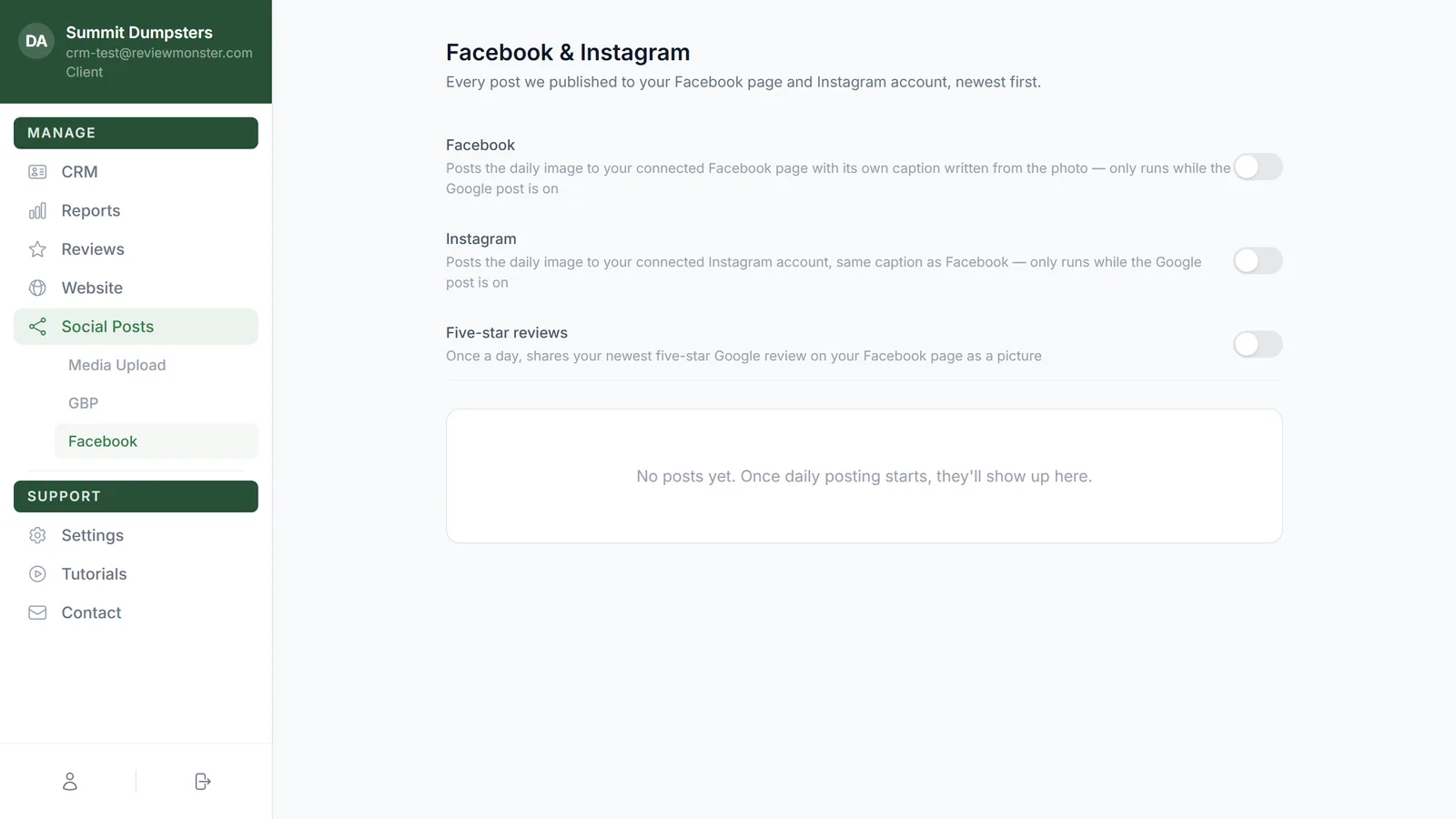
At the top of the page you'll find:
- Facebook: posts the daily photo to your Page, with its own caption written from the photo.
- Instagram: posts the same photo to your Instagram account, with the same caption as Facebook.
- Five-star reviews: once a day, shares your newest five-star Google review on your Page as a picture.
Each switch saves as soon as you flip it. Below them is every post we've published to Facebook and Instagram, newest first. Click one to see the full caption and its View on Facebook or View on Instagram link.
Related articles
- Social Posts overview
- Turning on daily Google Business Profile posts
- Sharing your five-star reviews on Facebook
- Pausing or stopping your daily posts
- Reopening your onboarding steps from Settings