In this article, you'll learn what the Social Posts menu in your dashboard does, what gets posted for you each day, and how to check every post that's gone out. It's worth a look once in a while: it's the easiest way to see your Google listing and Facebook page staying active without you lifting a finger.
To open Social Posts:
- In the dashboard menu, click Social Posts.
- It opens on Media Upload, its first sub-item. The other two sub-items, GBP and Facebook, sit right under it.
What gets posted, and where
Everything runs once a day on its own. There's nothing to approve or schedule.
- Google Business Profile: one photo from your library that hasn't been posted yet, with a caption written from your business details, like your services and the cities you serve.
- Facebook and Instagram: the same photo goes to your Facebook page and Instagram account, with its own caption written from what's actually in the picture.
- Five-star reviews: once a day, your newest five-star Google review is shared on your Facebook page as a picture.
The photos come from your library on Media Upload. Each photo is used once, so keep adding new ones to keep the posts going.
The GBP page
To open it:
- In the menu, click Social Posts.
- Click GBP.
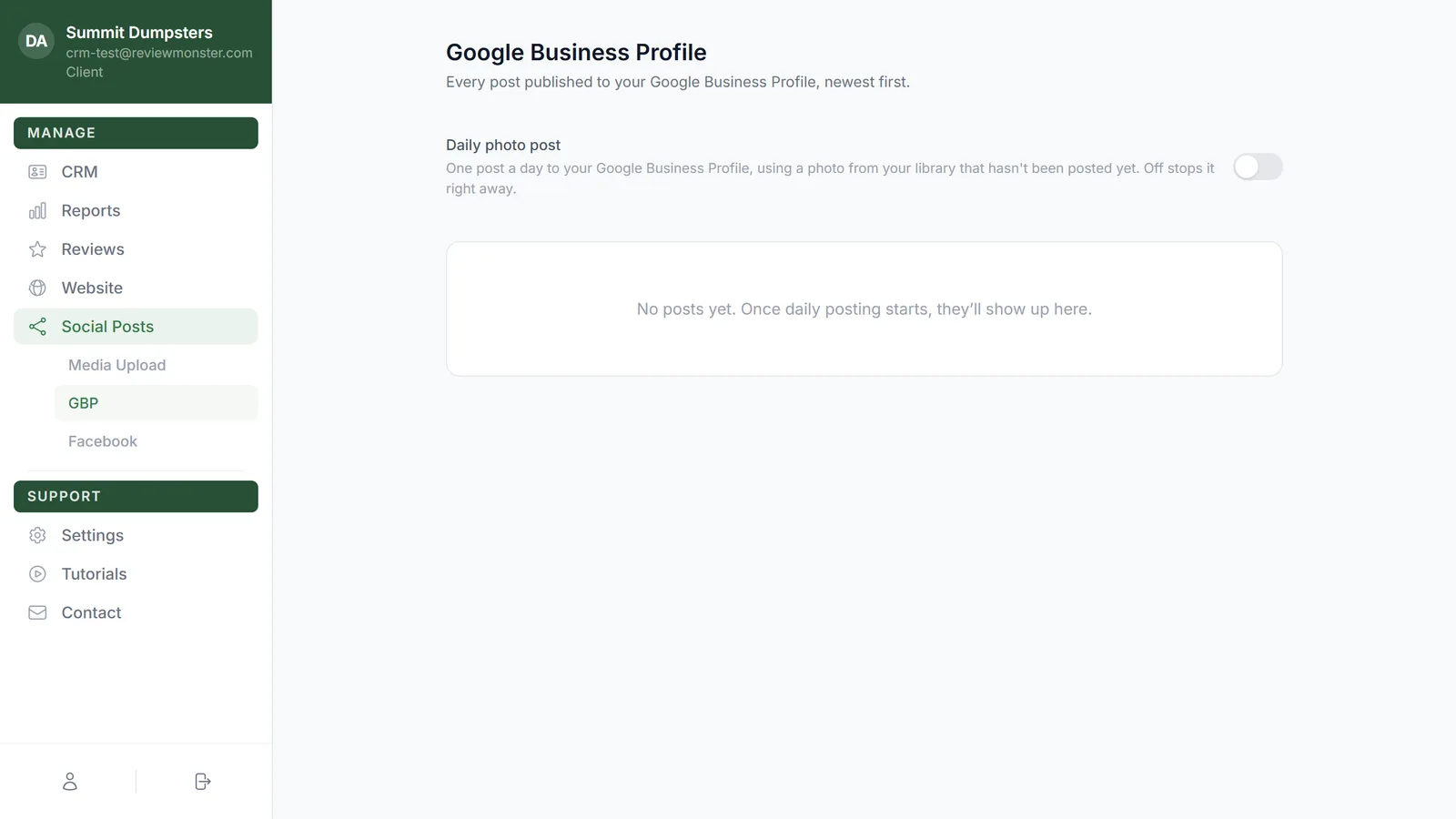
The page is titled Google Business Profile. At the top is the Daily photo post switch. Turn it off and posting to Google stops right away; turn it back on to pick up again.
Below the switch is every post published to your Google Business Profile, newest first. Each row shows a small picture, the start of the caption and the date it went out.
To see a whole post
- Click a row.
- It opens to show a larger image and the full caption.
- Click the row again to close it.
The Facebook page
To open it:
- In the menu, click Social Posts.
- Click Facebook.
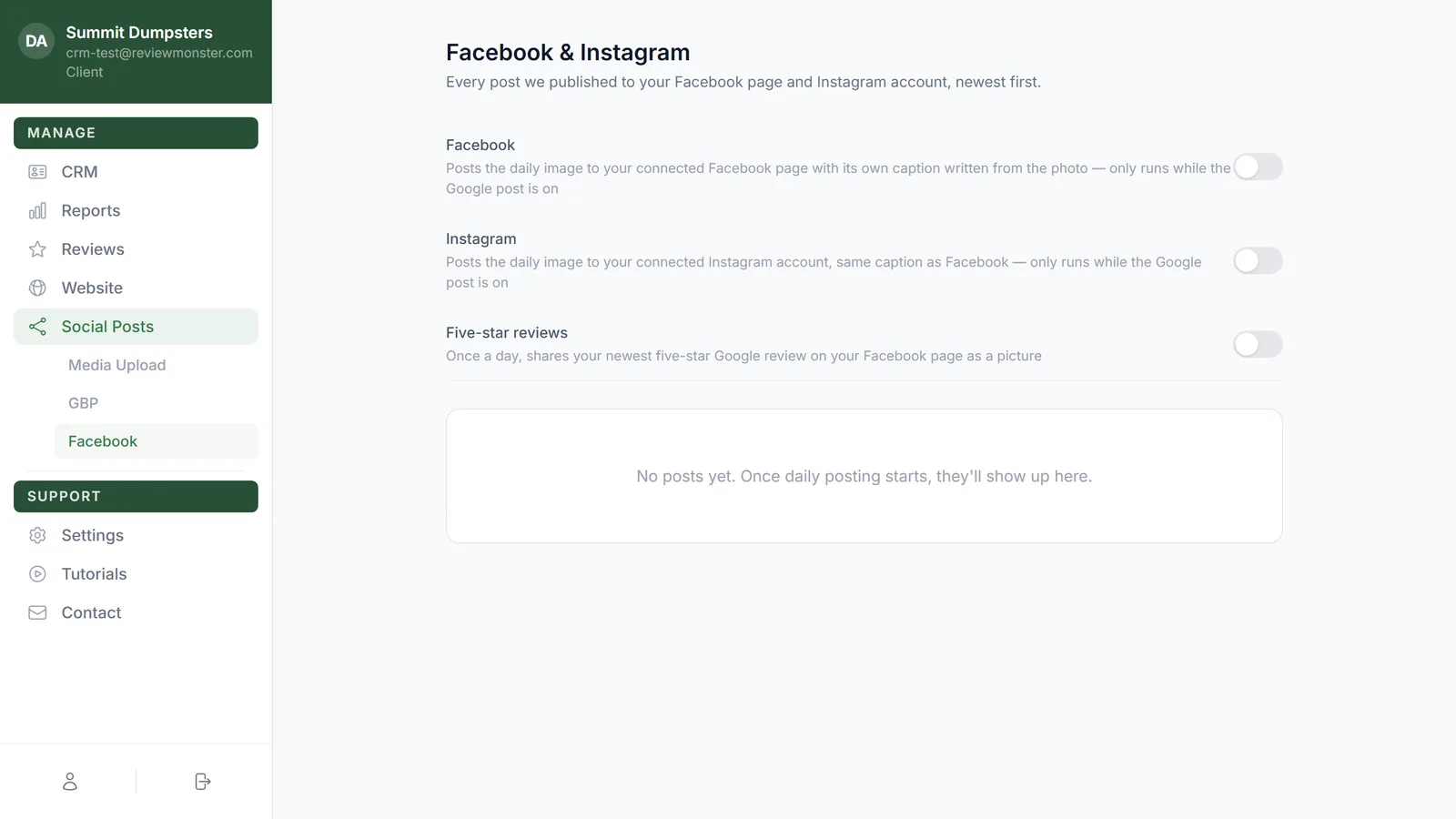
The page is titled Facebook & Instagram. It has three switches at the top:
- Facebook posts the daily photo to your connected Facebook page.
- Instagram posts the daily photo to your connected Instagram account, with the same caption as Facebook.
- Five-star reviews shares your newest five-star Google review on Facebook once a day.
Under the switches is every photo post published to Facebook and Instagram, newest first. Small Facebook and Instagram badges on each row show where it went.
To open a post and see it live
- Click a row to expand it. You'll see the larger image and the full caption.
- Click View on Facebook or View on Instagram to open the live post in a new tab.
When there's nothing yet
If posting hasn't started, both pages say No posts yet. Once daily posting starts, they'll show up here. If a page says it couldn't load your posts, click Try again.
On the phone app
The phone app doesn't have the Social Posts pages. It does have your photo library, on the Photos screen, so you can add pictures for your posts straight from a job site. To check what's been posted, use the dashboard on the web.
Related articles
- Uploading photos and videos for your posts and website
- Turning on daily Google Business Profile posts
- Connecting Facebook and Instagram for daily posts
- Sharing your five-star reviews on Facebook
- Pausing or stopping your daily posts