In this article, you'll learn how a review request gets from a finished job to your customer's phone and inbox, and what makes it stop. Once you know how it works, it's easier to leave it running on its own and to work out why a customer did or didn't hear from you.
To see the review request pages:
- In the dashboard menu, click Reviews.
- Click Contacts to add customers by hand, Requests Sent to see what's gone out, or Review Filter to see what your review link shows.
To edit the wording:
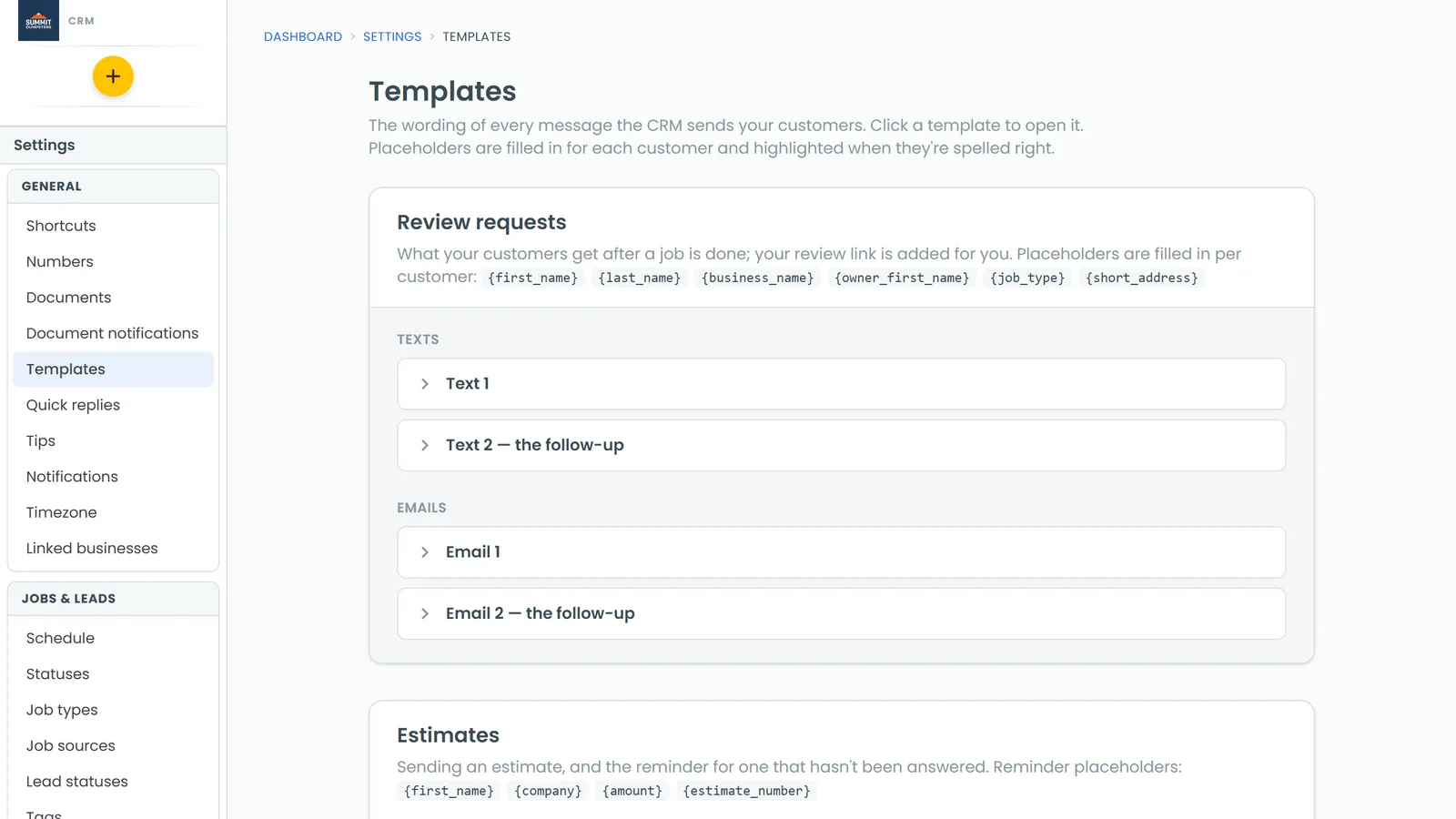
- Open the CRM and go to Settings > Templates.
- Find the Review requests group.
How a customer gets into the queue
There are two ways in, and both start the same sequence.
A job marked Done in the CRM
When a job's status changes to Done, its customer is handed to the review queue. Each job only does this once, so reopening and closing it again won't ask the same person twice. The customer needs a first name and a phone number or email.
You have a few ways to hold a request back:
- NR (no review) on the job means never ask this customer. It's copied onto their client record, so future jobs won't ask either.
- SR (skip review) skips this one job. The next job asks as normal.
- Review when Done in Settings > Job types. Switch it off for a job type, and jobs of that type never ask.
- The review request automation. If it's turned off, finished jobs don't ask.
- A customer marked Do Not Disturb isn't asked at all. If only texts or only emails are off for them, that channel is left out and the other one is used.
When a subcontractor marks a job Done from their crew page, they're asked Send the customer a review request? first. Yes, send it asks as normal. Done, no review closes the job without a request.
The Contacts page
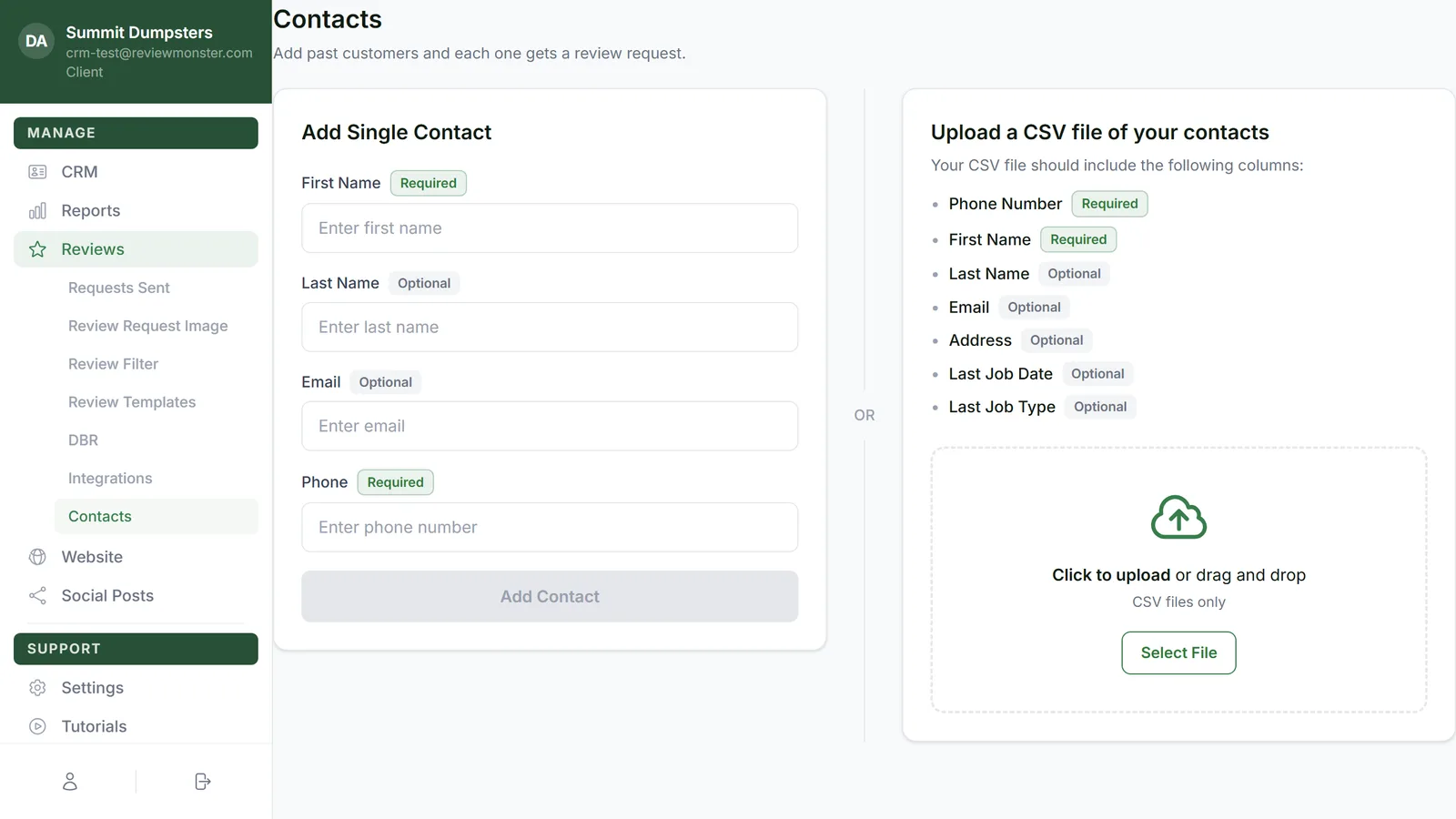
Under Reviews > Contacts, you can add past customers one at a time under Add Single Contact, or upload a CSV under Upload a CSV file of your contacts. Each person needs a first name and a 10-digit US phone number. The number (and the email, if you add one) is checked before anyone is contacted, and anyone who can't be reached is skipped, with the reason shown.
What gets sent, and when
A sequence is up to two texts and two emails. Text 1 goes first. Email 1 follows text 1 after a set delay, text 2 follows text 1, and email 2 follows email 1. Text 1 can carry your review request image above the words.
On the Review requests templates page, the cards are Text 1, Text 2 — the follow-up, Email 1 and Email 2 — the follow-up. Each has a tag: Sending or Not being sent right now. You can change the words and click Save. Which messages are on, the delays and the image aren't changed there.
The sending window
Nothing goes out outside your account's sending days and hours, in your time zone. A message that comes due at night waits for the window to open. If Review Templates is in your Reviews menu, you can see and change the days and hours there under Sending Days and Sending Hours, then click Save Sending Schedule.
The review link
Every message carries a short link to your review page. Each customer gets their own code, and it stays the same for them every time.
What they see depends on your review filter:
- Filter off: "Thanks for choosing" your business, a Continue to Google review button, and a box to Send feedback privately.
- Filter on: "How was your experience with" your business, with four faces: Excellent, Good, Ok and Bad. Happy ratings go on to Google. Lower ones get a private feedback form.
Emails also have an unsubscribe link at the bottom.
What stops a sequence
The follow-ups stop when:
- The customer clicks through to Google from your review page. They're marked as having left a review, and nothing more is sent.
- The customer is marked Do Not Disturb.
- The last message has gone out.
A few more rules keep people from being asked too often:
- 90-day cooldown. A new sequence won't start for someone who was sent a request in the last 90 days.
- One at a time. If a sequence is already running for a customer, a second finished job doesn't start another.
- Bad numbers and addresses. If a number can't take texts, texting is switched off for that customer and the sequence carries on by email. An email address that won't deliver is dropped the same way. A message that keeps failing stops the sequence after three tries.
- Long gaps. A sequence that hasn't sent anything in 21 days is retired rather than picking up late.
Related articles
- How to add customers for review requests
- Editing your review request texts and emails
- Setting when review requests and follow-ups go out
- Turning the review filter on or off
- Asking customers for reviews