In this article, you'll learn how to upload photos and videos to your media library, check how close you are to the 90 photos your daily Google posts need, and clear out the ones you don't want. Your daily Google Business Profile and Facebook posts are built from this library, so the more good pictures of your work it has, the longer those posts can run without repeating.
To open Media Upload:
- In your dashboard menu, click Social Posts.
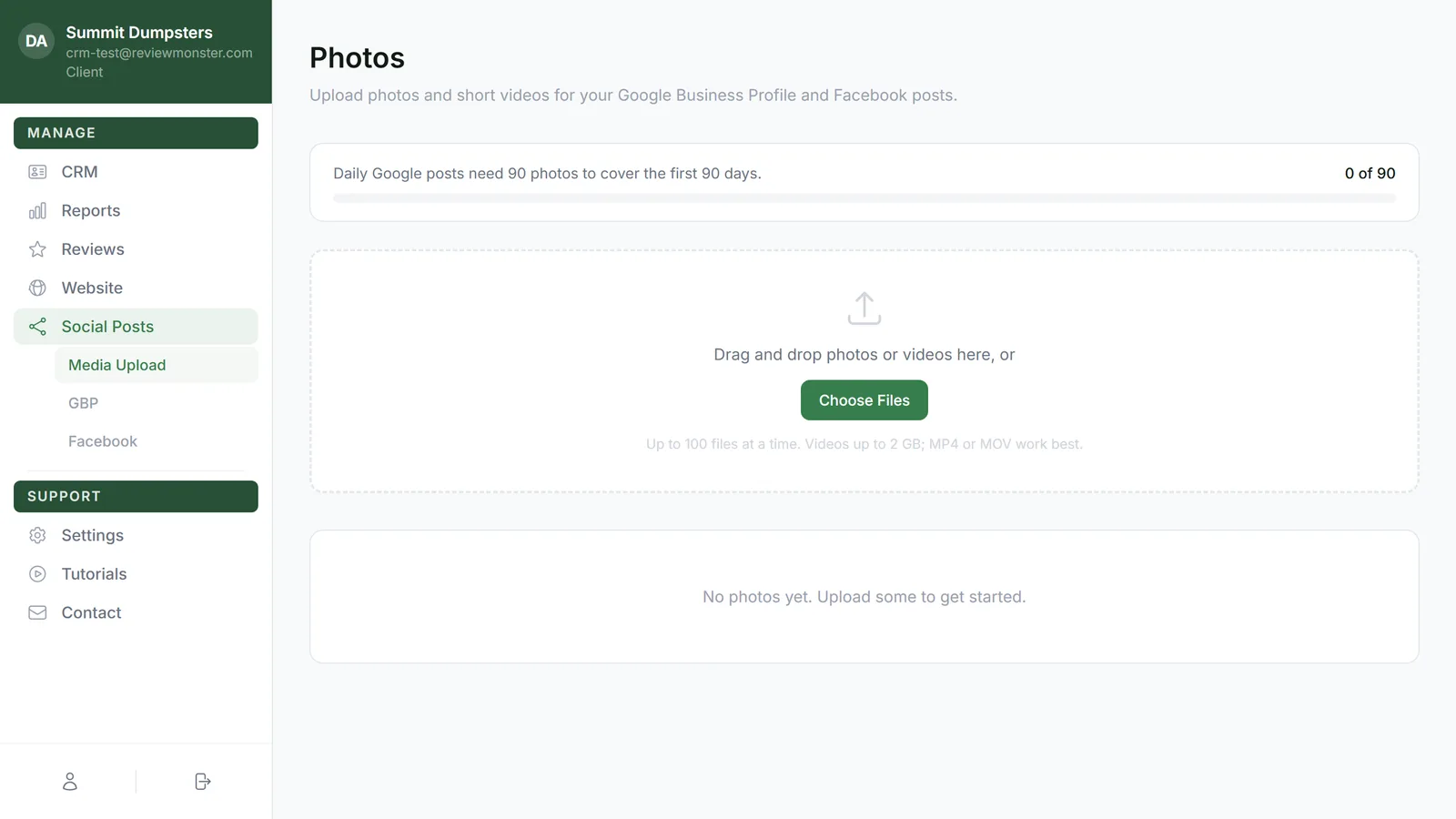
- Click Media Upload underneath it. The page that opens is titled Photos.
Check how many photos you have
The bar at the top counts toward 90 photos, because daily Google posts use one photo a day and 90 covers your first 90 days. On the right it shows how far along you are, like 42 of 90. Once you reach 90, the line above the bar changes to You have enough photos for daily Google posts.
Only pictures count toward the 90. You can upload videos, but they don't go into the daily Google posts, so they're not counted.
Upload photos and videos
- Drag your photos or videos onto the dashed box, or click Choose Files and pick them from your computer or phone.
- On a phone, you can tap Take Photo to open your camera and snap a picture right there. That button only shows on a phone.
- Wait for the files to finish sending (more on that below).
You can add up to 100 files at a time. Videos can be up to 2 GB, and MP4 or MOV files work best.
While files are sending
A yellow Keep this page open box shows how many files are still sending. If you close or leave the page before they finish, the ones still going will stop. Videos can take a few minutes on a slow connection.
When everything's in, the box turns green and says All uploaded — safe to leave this page.
If some files fail
If anything doesn't make it, a red box tells you how many files failed. The rest are saved. Choose the failed ones again to resend them.
Videos that say Optimizing…
A video you just uploaded shows Optimizing… in the corner of its tile for a few minutes while it's prepared in the background. You don't need to do anything, and you can leave the page.
Files with the same name
If a file has the same name as one already in your library, it's skipped, even if the file type is different. That keeps you from uploading the same photo twice. To add a different photo that happens to share a name, rename it first.
Look at and delete your photos
Everything you've uploaded shows in the grid below the upload area, newest first.
Delete one photo
- Click a tile to open a larger preview above the grid. Videos play right there.
- Click Delete under the preview.
You can also click the red trash button on a tile. On a computer it shows when you hover over the tile, and on a phone it's always there.
Delete several at once
- Click the checkbox in the top-left corner of each tile you want to remove.
- At the top of the page, check the count, like 3 selected.
- Click Delete selected, or click Cancel to clear your picks.
Other places to add photos
This is the same library you see in two other places, so a photo added in any of them shows up in all three:
- The CRM: open Photos and pick the Social posts tab.
- The phone app: the Photos screen lets you take a photo or pick up to 10 from your camera roll at a time.
When you're running low
When you're down to 10 or fewer photos that haven't been posted yet, we'll send you a text (or an email) with a link to upload more. You'll get that message once. When your library is back above 10, it resets for next time.
Related articles
- Adding photos for your posts from your phone
- Turning on daily Google Business Profile posts
- Social Posts overview
- Connecting Facebook and Instagram for daily posts
- Managing your website's photo gallery