In this article, you'll learn how to get a photo posted to your Google Business Profile every day, and what each day's post looks like. Regular posts keep your listing active and give people a look at your work.
The daily post needs three things: your Google account connected, photos in your library, and the Daily photo post switch turned on. Here's each one.
Connect your Google account
We post to your listing using your own Google account, so it has to be connected first.
To connect Google:
- In the dashboard menu, click Settings, then Onboarding.
- Click Your business.
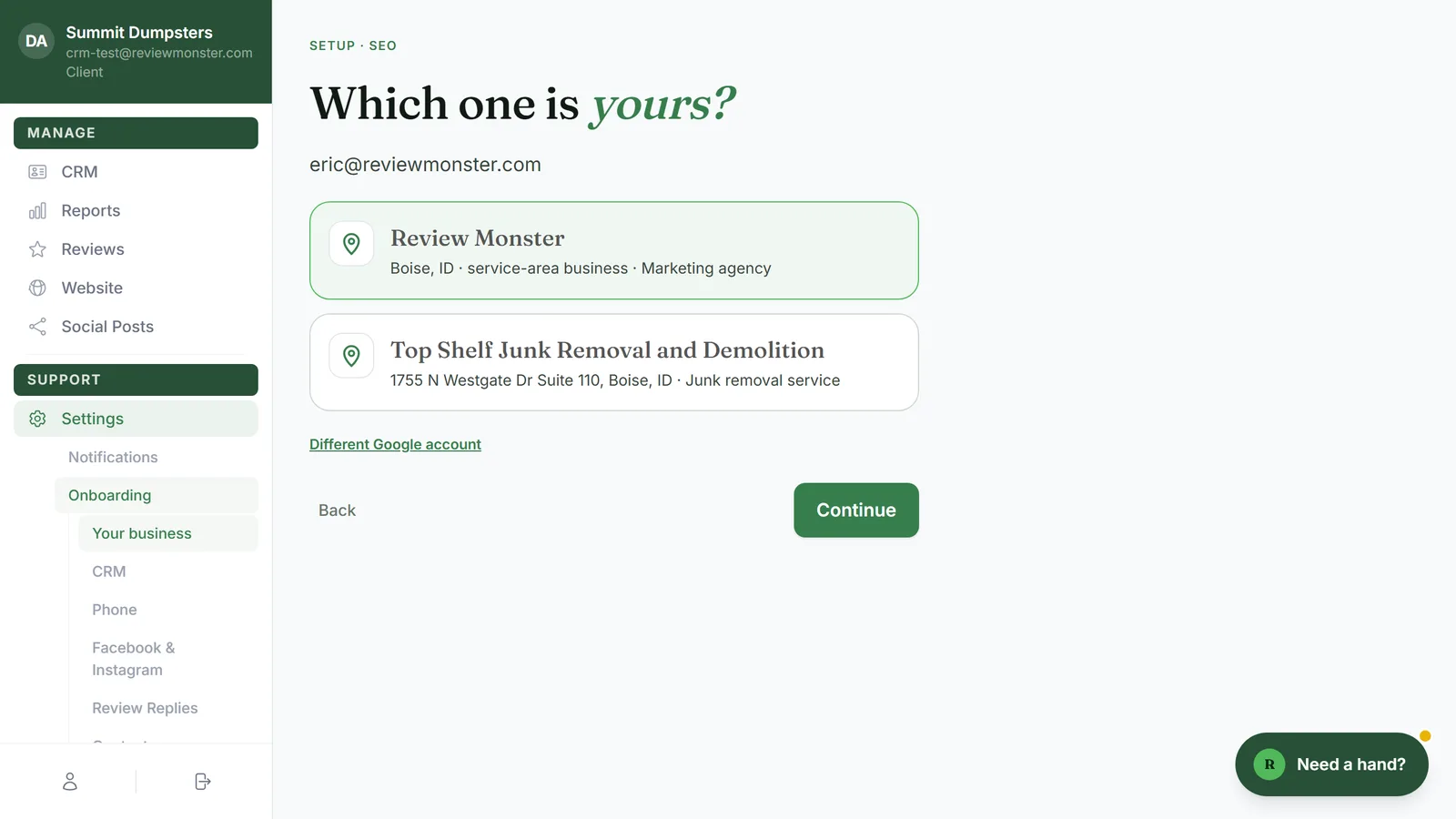
- Click Connect Google and sign in with the Google account that manages your Business Profile.
- Pick your listing from the list and click Continue.
If Google is already connected, the button says Connect a different Google account instead.
Add photos in Media Upload
Each daily post uses one photo from your library, so you need photos there before posting can start.
To add photos:
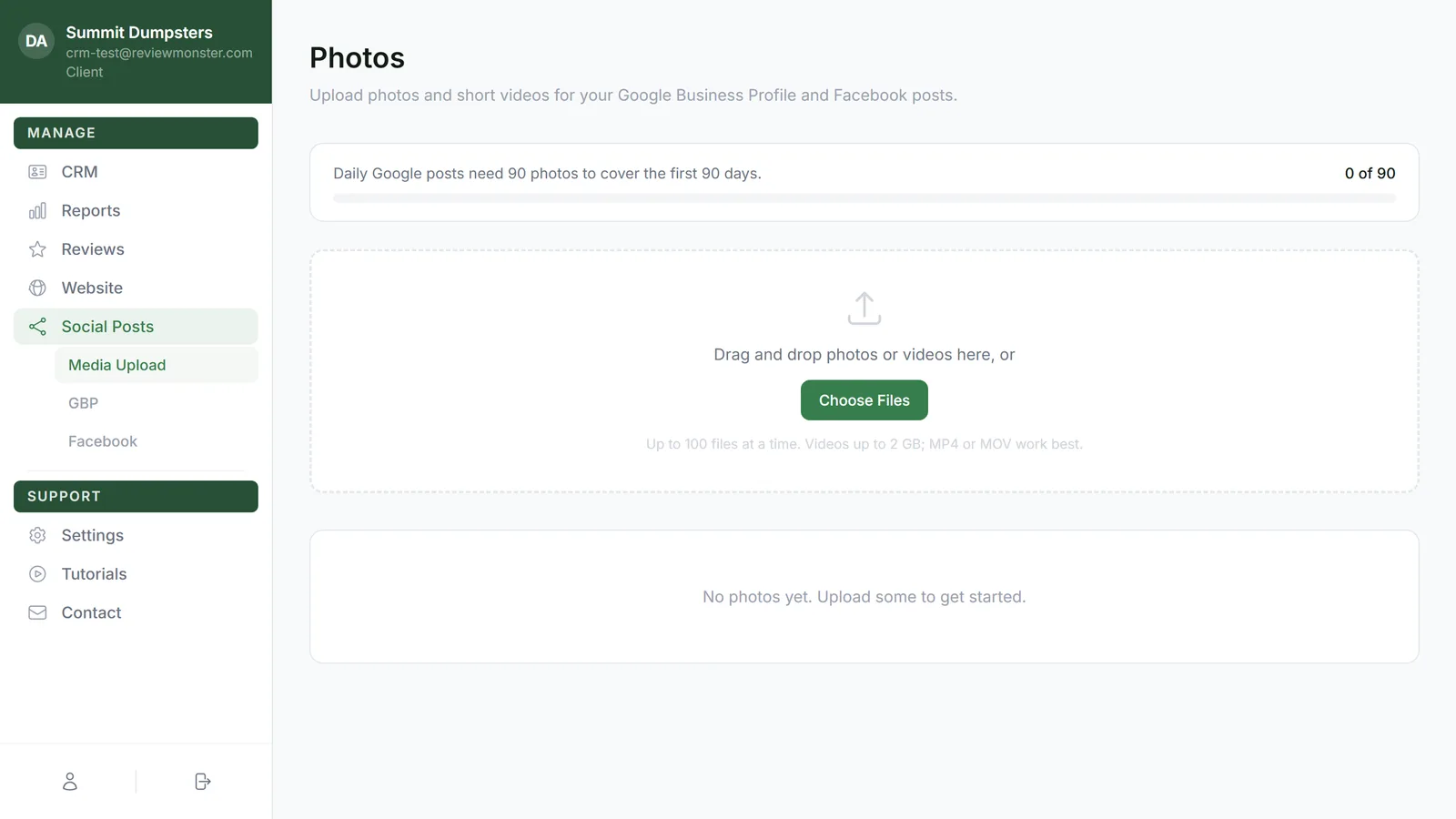
- In the dashboard menu, click Social Posts, then Media Upload.
- Drag your photos onto the page, or click Choose Files. On a phone, you can also tap Take Photo.
The bar at the top of the page counts your photos toward 90, which covers your first 90 days of posts. Only photos are used for Google posts. Videos you upload don't go into them.
Turn on the daily photo post
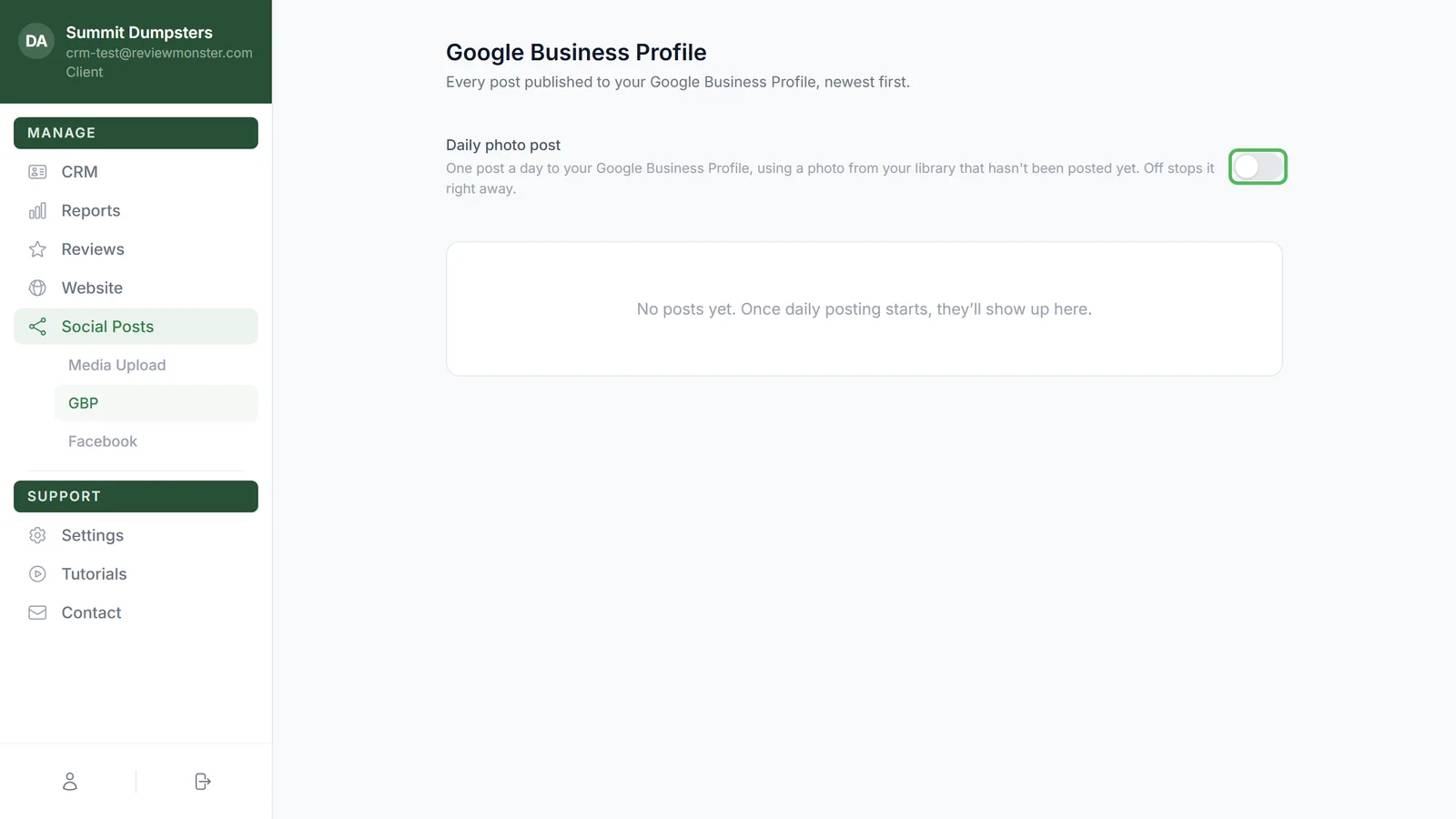
The switch lives at the top of the GBP page.
To find the switch:
- In the dashboard menu, click Social Posts, then GBP.
- At the top of the page, find Daily photo post.
- Click the switch to turn it on or off.
The first time Google is connected and you have photos, we usually switch it on for you. That only happens once, though. After that, the switch is in charge, so if you turn it off, it stays off until you turn it back on.
What happens each day
When the switch is on:
- We pick a random photo from your library that hasn't been posted yet.
- We write a caption for you, based on your business, services and cities.
- The photo and caption go up on your Google listing.
Every post shows up in the list on the GBP page, newest first. Click one to see the bigger photo and the full caption.
When you're down to 10 photos that haven't been posted yet, you get a message with a link for uploading more. Usually that's a text. You don't need to log in to use the link.
Turning it off
Click the Daily photo post switch on the GBP page to turn it off. No more posts go out after that, and earlier posts stay on your listing.
Related articles
- Social Posts overview
- Connecting your Google Business Profile
- Uploading photos and videos for your posts and website
- Adding photos for your posts from your phone
- Pausing or stopping your daily posts