In this article, you'll learn how to work through the Your Google listing itself tile on your Setup page. It's a one-time pass over the settings on your Google Business Profile: the name, categories, hours, service areas and the rest. Getting them right once helps you show up in more local searches, and after that the ongoing work is ours.
This tile is on SEO plans only, and it shows up once we've found your Google listing. It's on the web dashboard.
To open the checklist:
- In the dashboard menu, click Setup.
- Scroll down to the SEO & GBP profile section.
- Find the tile called Your Google listing itself.
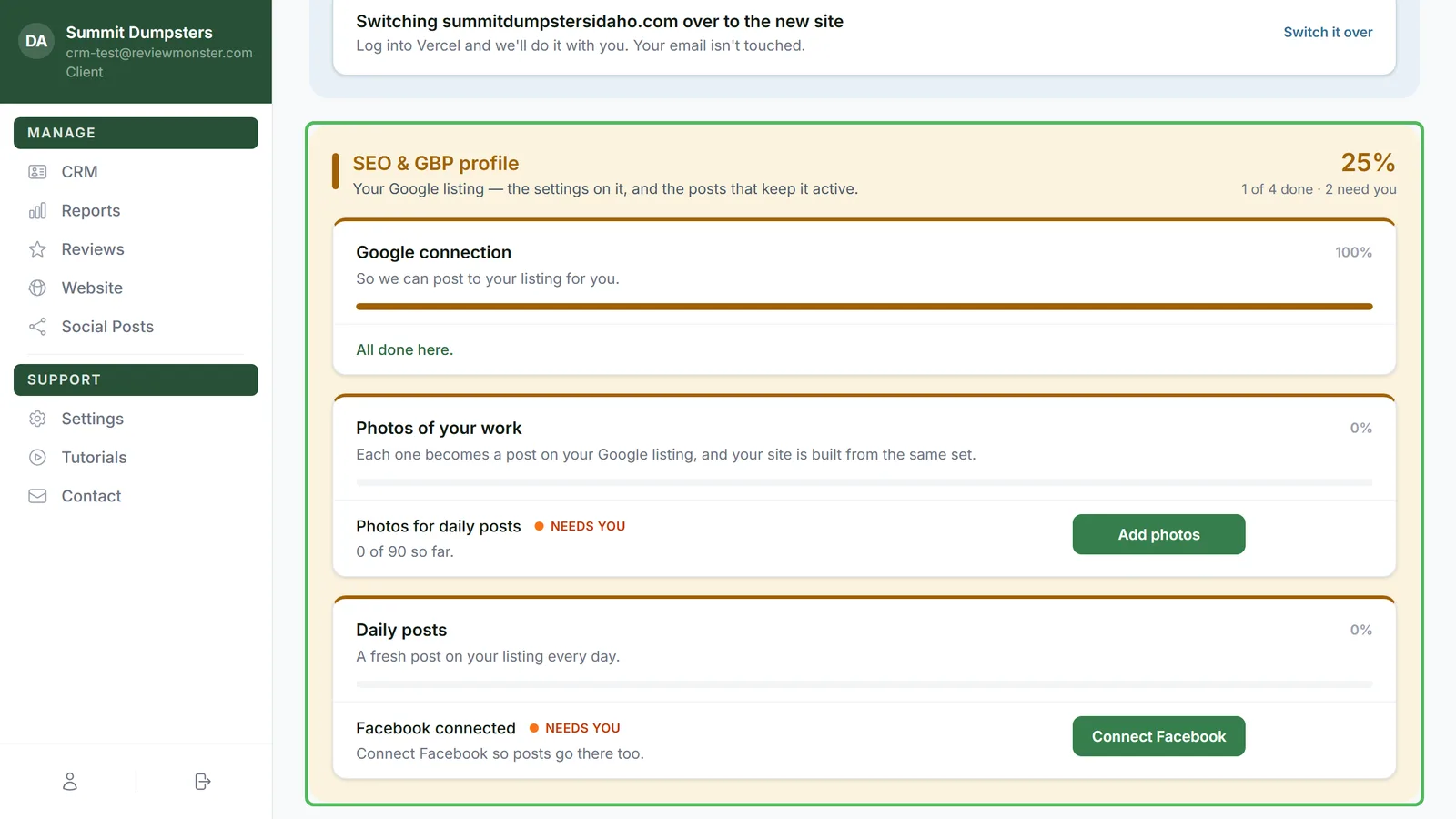
What the tile shows
Most tiles on the Setup page show one task at a time. This one's different. It's a checklist, so every setting that still needs you is listed at once, each one marked Needs you.
Each row has:
- The setting's name, like Hours, Service areas or Opening date.
- One sentence on what we'd change, or what we found.
- A How to change it button.
- On some rows, a second button: Approve or Mark done.
When you finish a setting, it drops off the list, and the percentage at the top of the tile goes up. Once everything's finished, the tile says All done here.
Opening the steps for a setting
You don't have to leave the page to find out what to do.
- On the setting's row, click How to change it.
- The steps open right below the row. The first line tells you where the setting lives in Google, for example Edit profile → Business information → Hours.
- Read the steps, then make the change on your Google profile.
- Some settings have more detail behind a link at the bottom of the steps, like How to change your name the safe way. Click it to open the extra steps.
- When you're done reading, click Hide steps to close them.
Settings we can check for you
Some settings, like your business name, categories, description and hours, are ones we can read straight off your public listing. These rows don't have a confirm button. Make the change in Google, and the row ticks itself off the next time we scan your listing.
Settings only you can confirm
Google doesn't show everyone some settings. Only someone who manages the profile can see them. That includes your opening date, services, products and service areas. Because we can't read them, they'd never finish by themselves, so you tell us when they're done.
- Approve shows when we can show you what's there now or what we'd use, like the address Google has you at or the towns your website lists. If it's right, or once you've made it match, click Approve.
- Mark done shows when there's nothing for us to show you. Make the change in Google, then click Mark done.
Either way, the row drops off the list and counts toward your setup percentage.
Why photos, posts and reviews aren't on this list
This checklist is only for settings you change once. Photos, daily posts and asking for reviews never really finish. They're the ongoing work we do for you, and they have their own tiles in the same section, like Photos of your work and Daily posts. Keeping them off this list means you can actually finish it.