In this article, you'll learn what every item on your Setup page means, what each status is telling you, and which items are waiting on you versus on us. It's the quickest way to know whether there's anything you need to do today.
To open the Setup page:
- Log in to your Review Monster dashboard on the web.
- In the menu, click Setup.
The Setup page is part of the web dashboard. It isn't in the phone app.
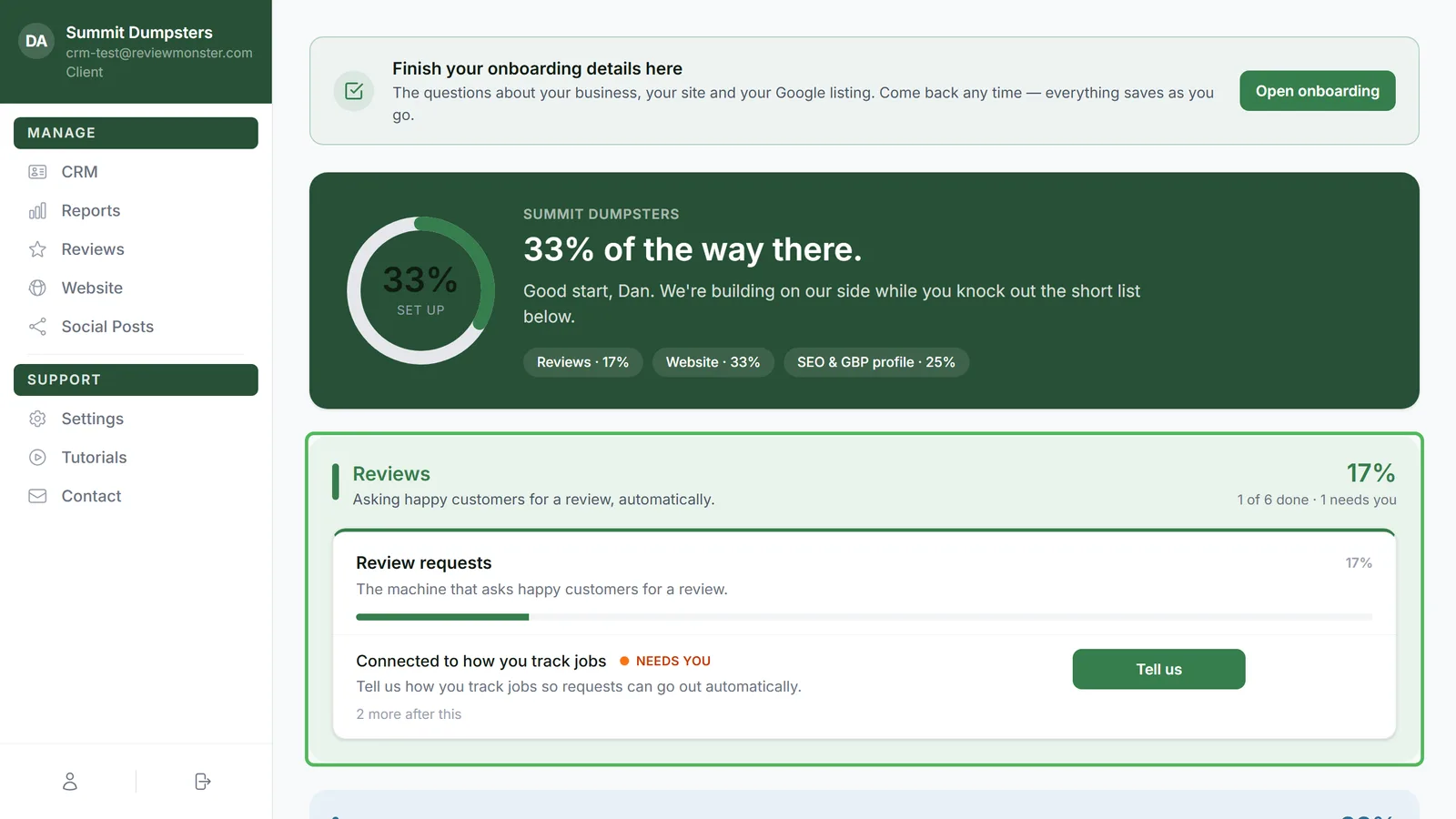
How the page is laid out
At the top you'll see how far along you are as a percentage, plus a small pill for each part of your plan. Below that are up to three boxes: Reviews, Website and SEO & GBP profile. You only see the boxes your plan includes. Each box shows its own percentage and a line like "3 of 5 done · 1 needs you".
Inside each box are tiles. A tile shows one thing at a time: the first item that needs you, or if nothing does, the item we're working on. If more is waiting behind it, you'll see "1 more after this" (or however many). When a tile has nothing left, it says All done here. When a whole box is finished, it folds down to a single line that says "all 5 done", and you can click show to open it again.
What the statuses mean
- Done: finished. Nothing to do.
- We're on it: we're doing this one. You don't need to act.
- Needs you: this one's yours. The tile has a button that takes you where you need to go.
- Up next: we haven't started it yet, usually because something else has to finish first. These don't show in the tiles.
The rule is simple: anything marked Needs you is yours, and everything else is ours.
Reviews
- Your review page: the page customers land on when they tap your review link. We set it up. Once it's live, the tile shows its address and a See it button.
- Review request image: the photo that goes out with each request. We make it, and Open reviews takes you to it.
- Texting registration (A2P): the carriers have to approve your business for texting. We register you. While it's with the carriers it shows We're on it, and approval usually takes a few days to a couple of weeks.
- Request messages written: the wording of your request texts and emails. We write it, and Read them shows you what we wrote.
- Connected to how you track jobs: this is how finished jobs trigger a request on their own. It needs you until you tell us how you track jobs (click Tell us). After that, we wire it up.
- Check your customer list: only appears when we've lined up a list of people for review requests. Click Check the list, tap DNC or Not a customer on anyone who shouldn't get a text, then hit Done.
- Past customers imported: needs you until you send your past customer list (click Upload your list). If your list is already waiting on you, it imports as soon as you hit Done on it.
- Email sending set up: the email address requests come from. We handle it, and once it's done, requests can go out by email as well as text.
Website
Photos for the site
Website photos needs you until you've added 20 photos of your work. It shows how many you have so far, like "8 of 20 so far". Click Add photos to upload more. (On the SEO plan, your site photos come from the SEO box instead, so you won't see this tile.)
Website
- Site built: we're writing the pages and laying the site out. It turns Done once every page is drafted.
- Your look-over: once the draft is ready, this needs you. Click Look at your site, take a look, and tell us what to change: wording, photos, anything.
- Live: done when your site is live on your own domain. The tile then shows an Open button.
Below the Website box you may also see a panel called "Switching your domain over to the new site". That's how your domain gets pointed at the new site, and it goes away once that's done. See Switching your domain over to your new site.
SEO & GBP profile
- Google account connected for posting: needs you until you connect Google so we can post to your listing. Click Connect Google.
- Photos for daily posts: each photo becomes a post on your Google listing, and your site is built from the same set. It needs you until you reach 90 photos, which is about three months of daily posts. Click Add photos.
- Facebook connected: needs you until you connect Facebook so posts go there too. Click Connect Facebook.
- Daily posting on: we switch this on once your photos and connections are in. After that, a post goes out every day, and See posts shows them.
This box also has a tile called Your Google listing itself, a checklist of settings on your profile to change once. It works a little differently, so it has its own article: Working through your Google listing checklist.
Related articles
- Setup page overview
- Working through your Google listing checklist
- Switching your domain over to your new site
- Onboarding overview
- Understanding texting registration (A2P)