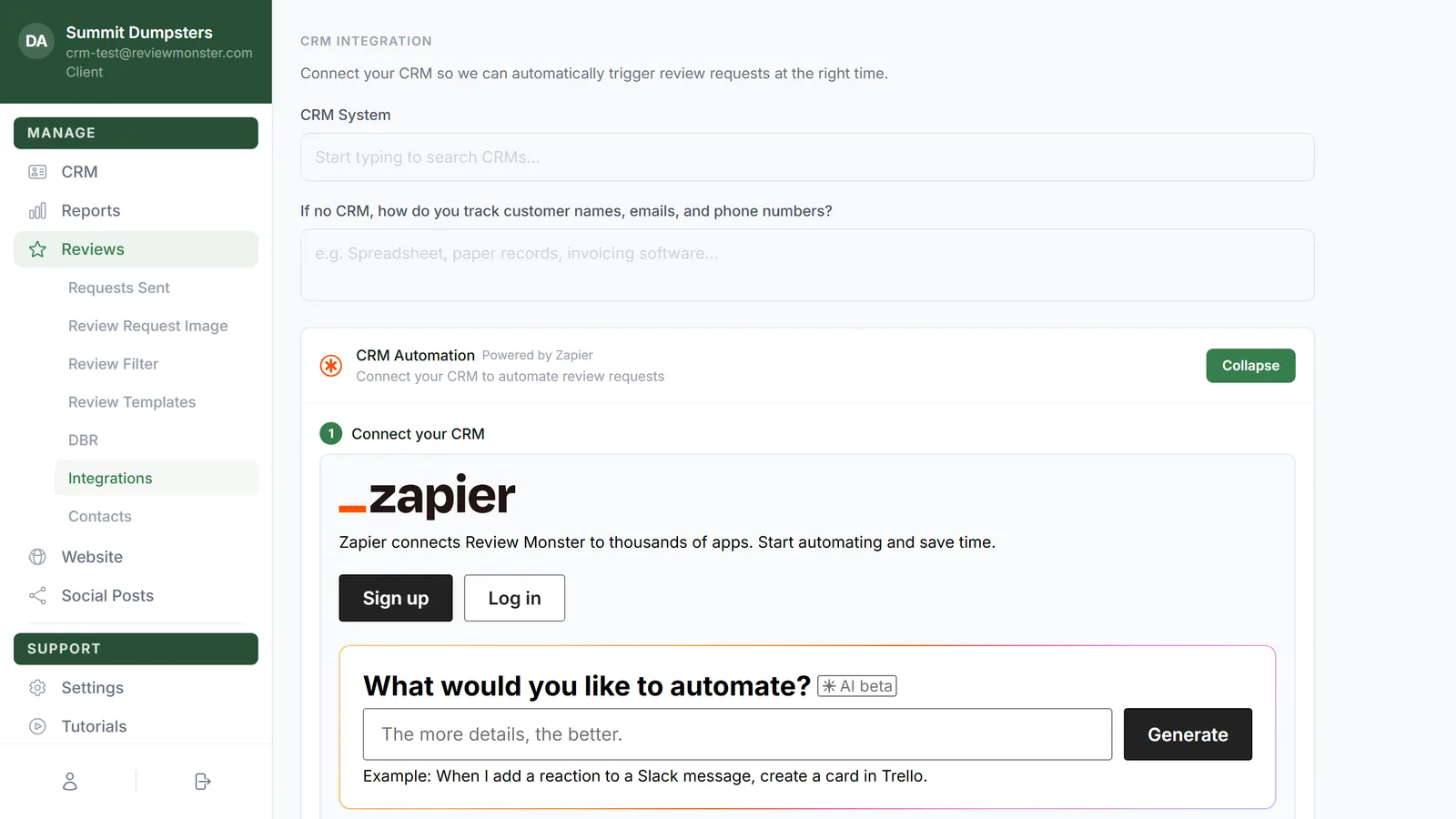
In this article, you'll learn how to connect the CRM you already use so a review request goes out on its own when a job wraps up, an invoice is paid or a deal closes. Once it's connected, you stop adding customers by hand.
To open Integrations:
- In your dashboard menu, click Reviews. The review pages are listed under it.
- Click Integrations.
The page opens on CRM Integration, with a line explaining that connecting your CRM lets us trigger review requests at the right time.
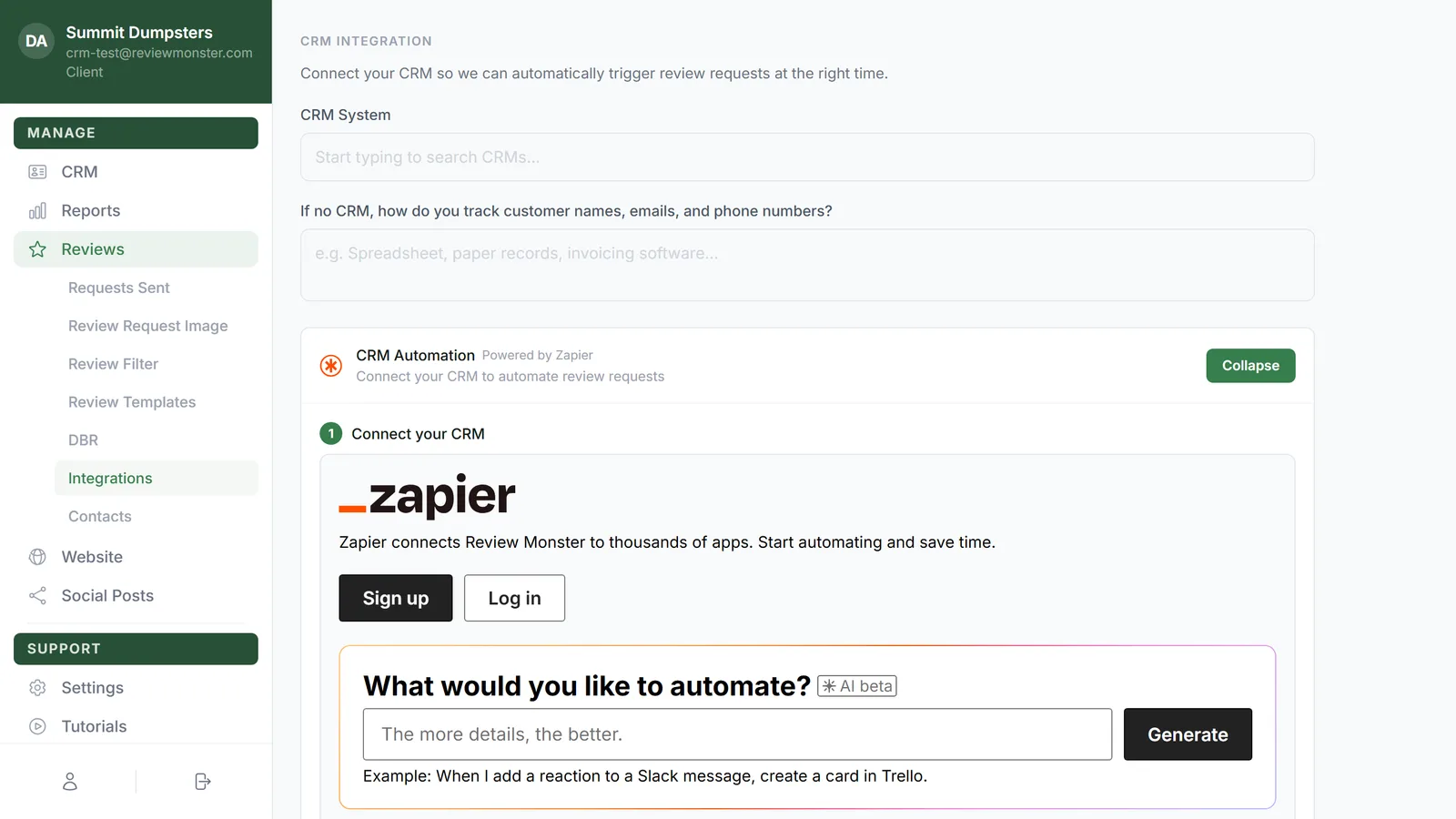
Telling us which CRM you use
- Click the CRM System box. The placeholder reads Start typing to search CRMs....
- Start typing. A list of matching CRMs drops down. It covers field service tools like Jobber, Housecall Pro, ServiceTitan and Workiz, storage systems like Sitelink and storEDGE, property tools like Buildium and DoorLoop, and sales CRMs like HubSpot and Salesforce.
- Click your CRM. It saves right away. A Saving spinner and then a green Saved mark show at the top right for a moment.
If yours isn't listed, pick Other, or type its name and click away from the box to save it. If you don't use a CRM at all, pick None.
If you don't use a CRM
Under the search box there's a question: If no CRM, how do you track customer names, emails, and phone numbers? Type a sentence or two, like a spreadsheet, paper records or your invoicing software. It saves when you click away. That tells us how to get your customers into the review queue another way.
Choosing what triggers a review request
Once a CRM is filled in, a list appears under What should trigger a review request? Click the one that matches how you finish work:
- Job / Service Completed
- Invoice Paid
- Appointment Finished
- Deal Closed / Won
- Customer Checkout
- Move-Out / Lease End
- Guest Checkout
- Custom Event
Your choice saves as soon as you click it. For some CRMs the list is trimmed to the triggers that fit, and Custom Event is always there. If none of the others match your CRM, you'll see the full list instead.
If nothing fits, pick Custom Event. A box appears with the placeholder Describe your trigger event.... Type what should set off the request, and it saves when you click away.
Connecting through Zapier
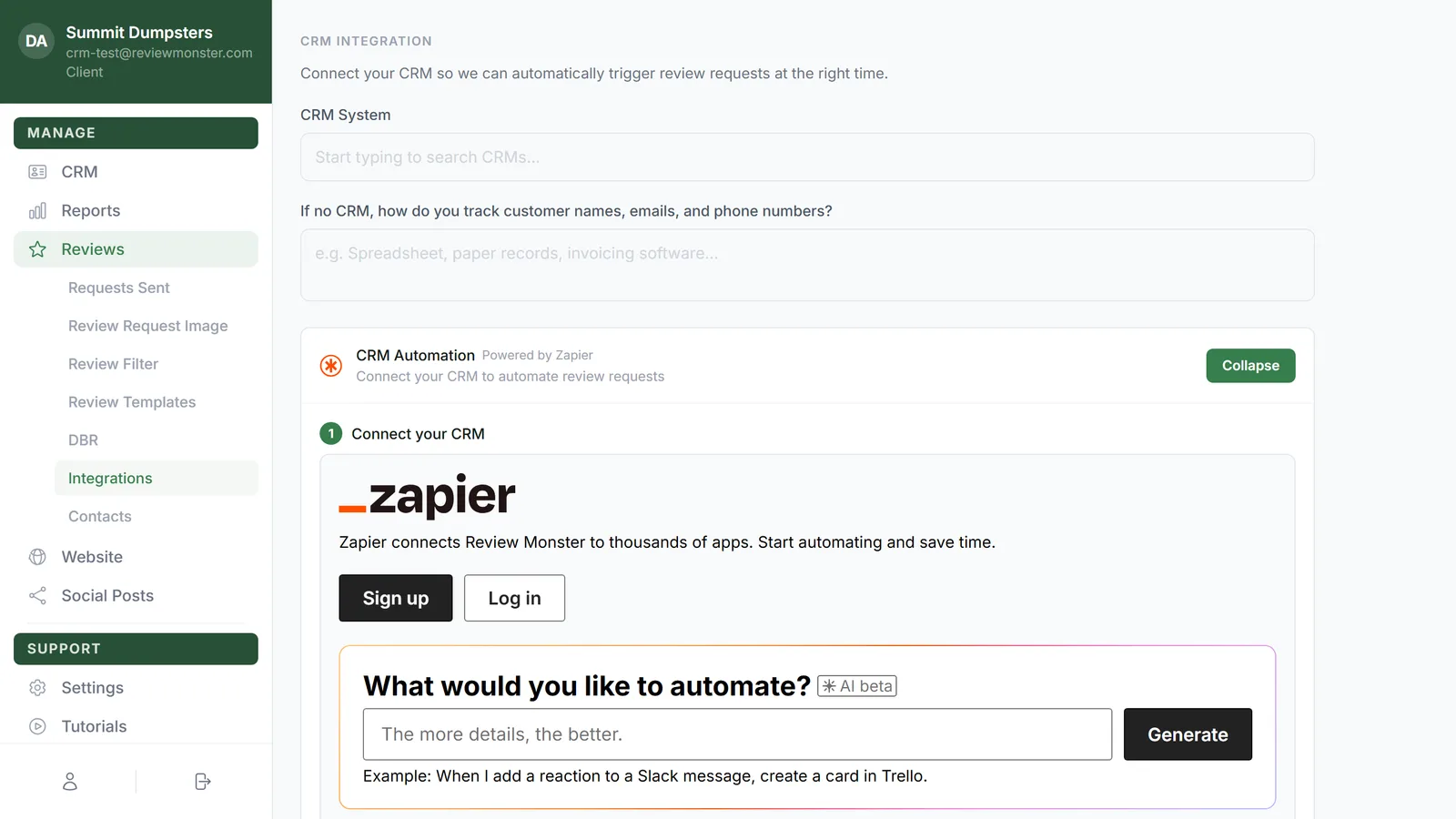
Below the triggers sits a tile called CRM Automation, marked Powered by Zapier. Until your CRM is connected it reads Connect your CRM to automate review requests.
- The setup steps are open under the tile. If they're folded away, click Set Up to open them. The same button reads Collapse while they're open.
- Under Connect your CRM, click the Zapier template that matches your CRM.
- Agree to create your free automation account. It's one click.
- When Zapier asks to connect Review Monster, click Authorize in the popup.
- Sign in to your CRM when you're asked.
- Turn the automation on.
Those same steps are listed on the page under Follow these steps, so you can glance back at them while you work.
What happens once it's connected
The first time your CRM sends us a customer, the tile turns green, its line changes to CRM automation is active and a Connected check appears where the button was. That customer is added to your contacts and their review request sequence starts. Requests go out from your own number, inside the sending days and hours you've set.
Each customer needs a first name and an email or a phone number. If an email comes through, we check it first and only email addresses that pass. If the email fails and there's no phone number, nothing is sent for that customer.
Connecting without Zapier
If you'd rather not use Zapier, you can give us your CRM login instead.
- Under the Zapier tile, click Don't use Zapier? Connect manually instead. The link only shows once you've filled in a CRM.
- A window opens titled with your CRM's name and Login, with the line Connect your account manually.
- Type your Username or Email.
- Type your Password. Click the eye icon to show or hide it.
- Click Save Credentials. The button stays greyed out until you've entered a username.
The window closes and Manual credentials saved appears next to the link. Click Cancel at any time to close the window without saving.