In this article, you'll learn where the Reviews menu is in your Review Monster dashboard and what each page under it does. Everything to do with asking customers for reviews lives here, so it's worth knowing your way around.
To open the Reviews menu:
- Sign in to your dashboard.
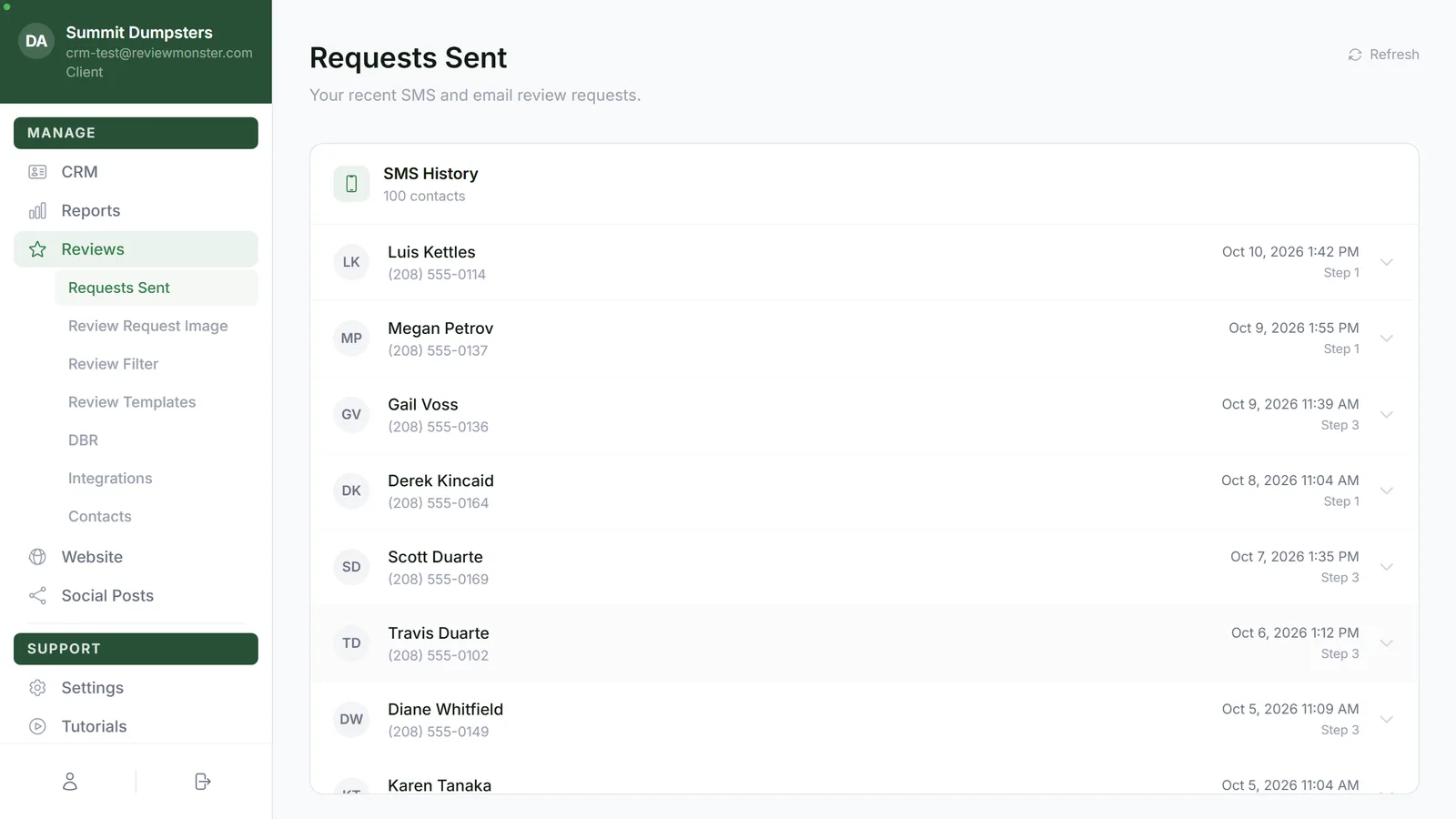
- In the menu on the left, click Reviews. It's right below Reports.
- The Reviews submenu opens underneath it, and you land on the first page in the list.
On a phone or a small screen, tap the menu button at the top left. The menu slides out with every submenu already open, so the Reviews pages are listed under Reviews straight away.
Which plans include it
Reviews shows up on every plan that includes review requests. If you're on a website-only plan, you won't see Reviews in your menu, and opening a Reviews page sends you back to the dashboard.
The pages in the Reviews menu
Here's what's under Reviews, in the order you'll see it:
- Requests Sent – a history of the review requests that have gone out to your customers.
- Review Request Image – the picture that goes out with your review requests.
- Review Filter – whether happy and unhappy customers are sent to different places, and which ratings go on to Google.
- Review Templates – the wording of your review request texts and emails.
- DBR – reaching back out to past customers.
- Integrations – connecting your CRM or other software so review requests go out on their own.
- Contacts – adding past customers, one at a time or from a CSV file, so they get a review request.
Click any of them to open that page. The page you're on is highlighted in green.
Why a page might be missing
Not every account sees every page. Review Monster can switch any of these pages off for your account, for example when it doesn't fit how you work. A page that's switched off just isn't in your submenu. Clicking Reviews always takes you to the first page you can still see, so if Requests Sent is off for you, you'll land on the next one down.
If you're a team member rather than the owner, the owner may have left Reviews out of your menu altogether. In that case it won't appear in your sidebar at all.
Related articles
- How review requests work
- Seeing the review requests you've sent
- Turning the review filter on or off
- Editing your review request texts and emails
- Connecting your CRM so review requests send automatically