In this article, you'll learn how to add a customer by hand so they get a review request. It's handy for a job that didn't go through your usual system, or a happy customer you just thought of.
To open Contacts:
- In your dashboard menu, click Reviews.
- In the Reviews menu, click Contacts.
You'll see two cards: Add Single Contact on one side and Upload a CSV file of your contacts on the other. This article covers the first one.
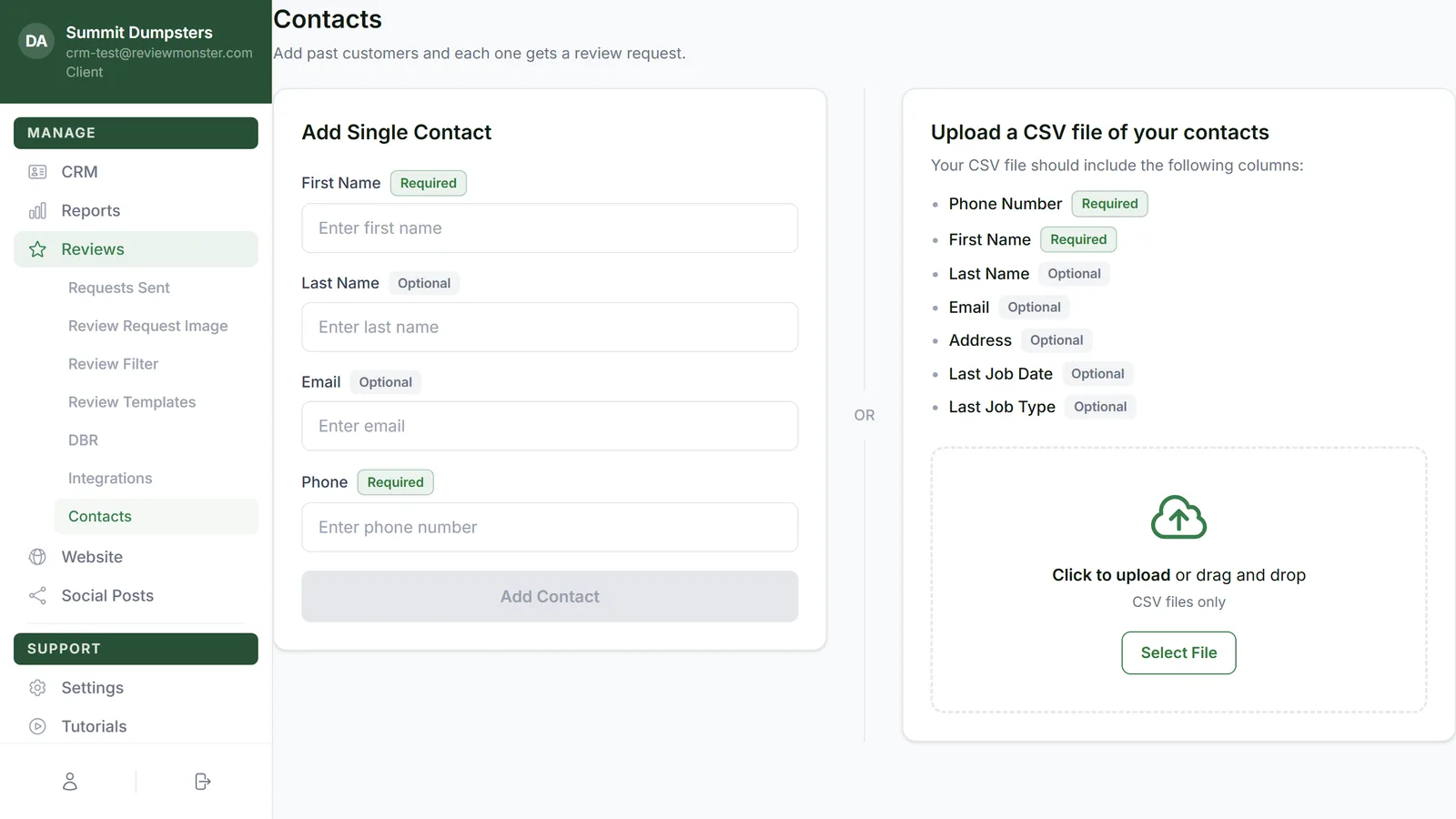
Add one customer
The card has four fields. Each one is marked Required or Optional.
- First Name: required
- Last Name: optional
- Email: optional
- Phone: required
- Type the customer's first name in First Name.
- Add their last name in Last Name if you have it.
- Add their email in Email if you have it.
- Type their number in Phone. Use a 10-digit US number. A leading 1 is fine too.
- Click Add Contact.
Add Contact stays grayed out until there's a first name and a phone number that looks right. If the phone or email isn't in a valid format, that field gets a red border so you know what to fix.
What the message under the button means
After you click Add Contact, a short line shows up under the fields.
- "[Name] added and queued for a review request." They're saved and in line for a request. The form clears so you can add the next person.
- "[Name] is already in the queue." They already have review requests going, so nothing new was started.
- "Not added: …" followed by the reason, like the customer already left a review, asked not to be contacted, or got a review request in the last 90 days.
If they're already a customer in your account, they aren't added a second time. The existing record is matched by phone or email.
The checks before anyone gets a message
Nobody is texted or emailed until their contact details are checked.
- The phone number has to be a real, working number. A number that isn't in service is turned away.
- If the number can't get texts, like a landline, they're only added when you've also entered an email. The landline is saved to their record but never texted.
- An email you enter is checked too. If it would bounce and the number can't take texts either, they're not added.
If your account isn't set up yet
If review requests aren't switched on for your account, you'll see: "Your account isn't set up for review requests yet. We'll finish that on the onboarding call." Nothing's wrong. Once that's done, you can add customers here.
Related articles
- How review requests work
- Uploading a CSV of past customers
- Seeing the review requests you've sent
- Reviews menu overview
- Editing your review request texts and emails