In this article, you'll learn how the CRM asks your customers for a review once their job is finished, and how to control which jobs get asked.
Reviews bring in new customers, but asking by hand is easy to forget, and a request sent a week late rarely gets answered. The CRM handles it for you. Every account comes with a review rule in Automations that's already switched on. When you mark a job Done, the customer gets a review request.
To open Automations:
- In the menu, click Automations.
- Click the My Automations tab.
On the phone app, tap the lightning bolt at the top of Home, or tap Automations in the menu.
The review rule
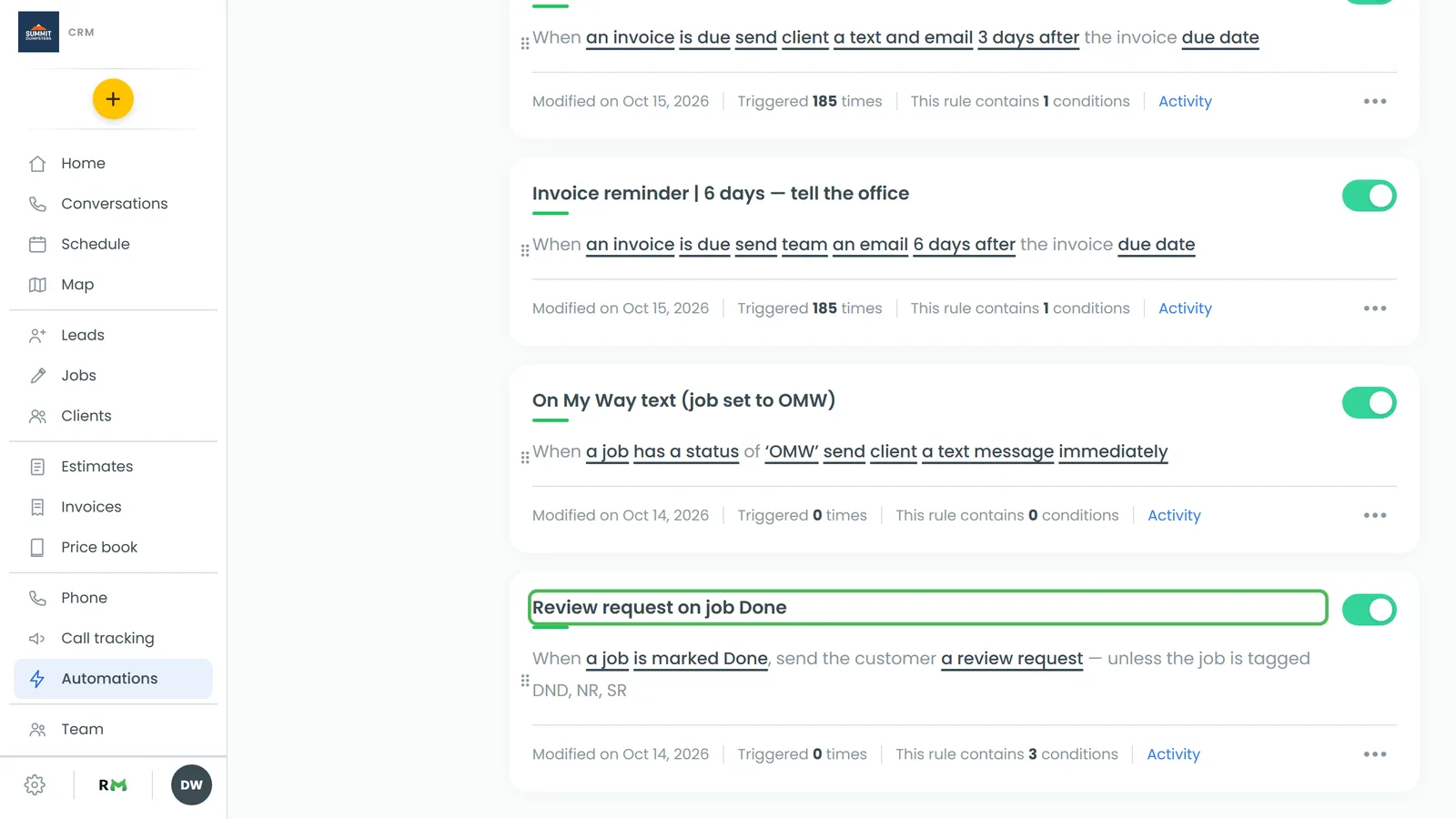
Look for the rule named Review request on job Done. Its card reads "When a job is marked Done, send the customer a review request", followed by the tags that keep a job from being asked.
You don't have to set anything up. Mark a job Done, and if the rule is on and nothing on the job says otherwise, the request goes out. That's true whether the office closes the job or a subcontractor closes it from their crew page.
The card also shows how many times the rule has been triggered, so you can see requests going out.
Turning review requests on or off
The switch on the right of the rule's card is the on/off switch for review requests from closed jobs.
- Open Automations and find Review request on job Done.
- Click the switch to turn it off. Click it again to turn it back on.
Keeping certain jobs from being asked
The rule starts with three conditions: it only asks when the job is not tagged DND, NR or SR. Every account has these tags:
- NR (no review) means the customer is never asked, for this job or any job after it.
- SR (skip review) skips this one job. Their next job still asks.
- DND (do not disturb) stops every message to the customer, review requests included.
To skip a job, put one of those tags on it before you mark it Done.
You can add your own tag too. For example, you could create a "Warranty" tag and keep those jobs from being asked:
- On the rule's card, click the underlined a review request to open the rule.
- Click Add condition.
- Choose job tag, pick ≠ is not, then choose your tag.
- Click ✓ Apply.
- Hover over Update automation and click it to save.
Turning off reviews for a job type
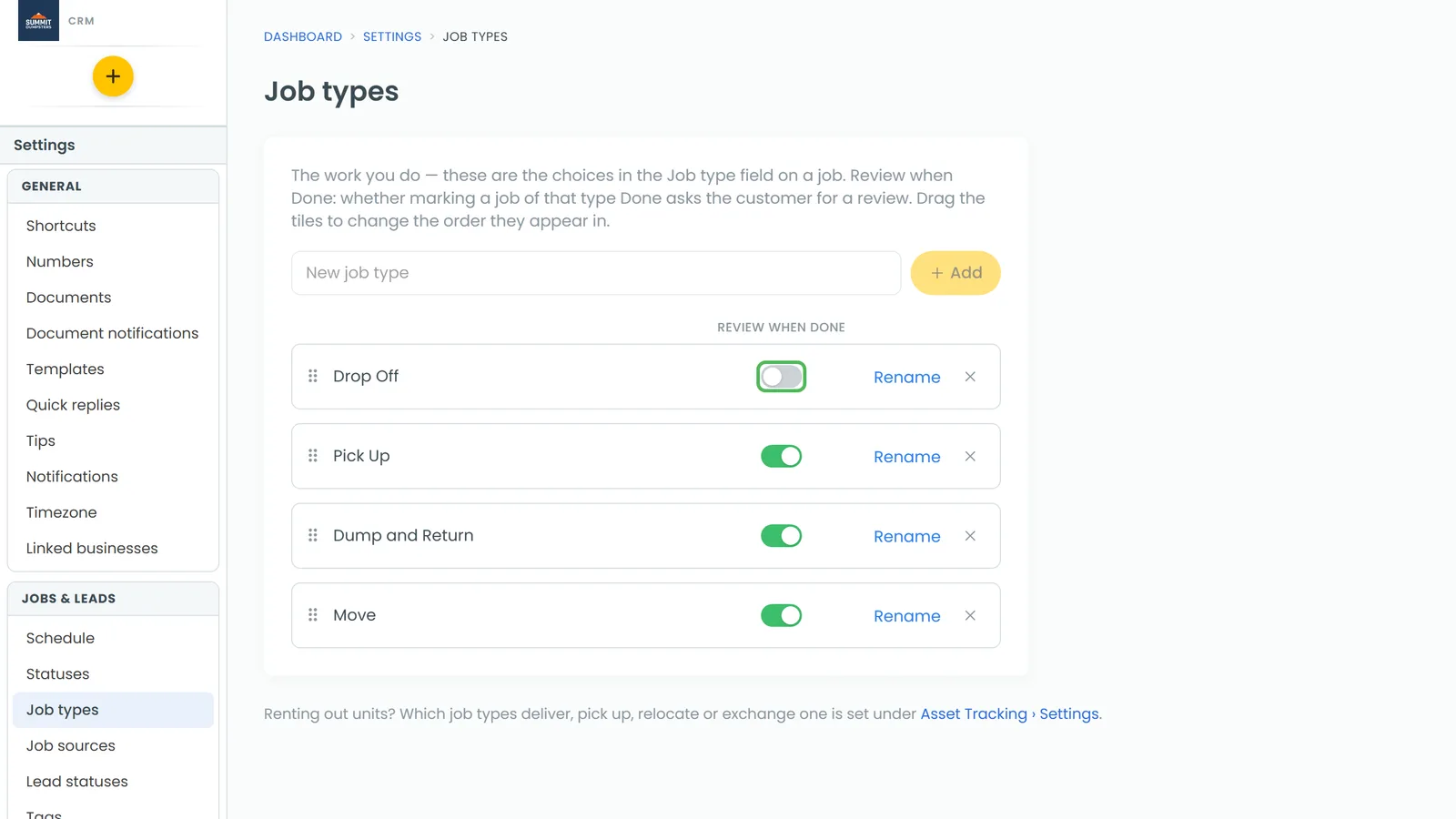
Some work shouldn't end in a review request, like a warranty visit or a free estimate trip. Each job type has its own switch.
- Go to Settings › Job types.
- Find the job type and turn off its Review when Done switch.
A job type switched off never asks for a review, even when the review rule is on and the job has no tags.
Checking what the customer gets
The wording, picture and review link aren't typed into the rule. They come from your review settings in the Review Monster dashboard, so they match every other review request you send.
- Open the review rule.
- Click Preview/edit message.
You'll see a sample of the text, addressed to you, with your review image. To change it, click Edit in Review settings.
The Collect Reviews template
The Discover tab has a Collect Reviews / 1 Day After template under Marketing. You don't need it: the built-in Review request on job Done rule already asks every customer when their job is marked Done. Keep using that rule's switch and tags to control review requests.
Related articles
- Adding conditions to your automation rules
- Keeping automations from going to certain clients
- How to add job types
- Editing your review request texts and emails
- Setting when review requests and follow-ups go out