In this article, you'll learn how to choose which ratings send a customer on to Google and which ones ask them for private feedback instead. It's where you set the line between "please leave us a review" and "tell us what went wrong."
To open the review routing settings:
- In the dashboard menu, click Reviews.
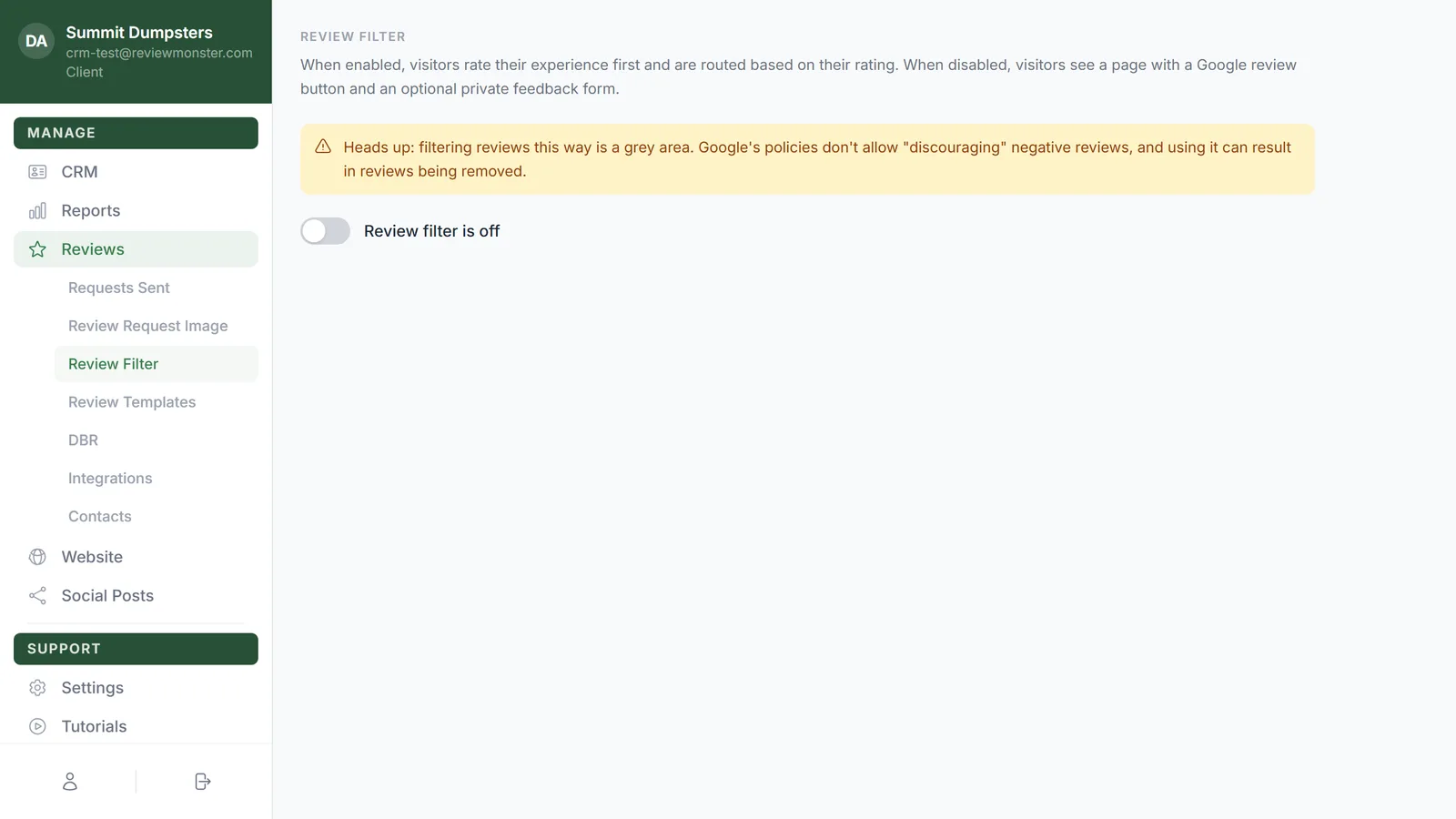
- Click Review Filter.
- Check that the switch reads Review filter is on. The Review routing block only appears below it while the filter is on.
How routing works
When a customer opens the link in your review request, they're asked how their experience was with your business and pick one of four faces: Excellent, Good, Ok or Bad.
The Review routing block has a row for each face, top to bottom in that order, with a picture of the customer's rating page above them. Each row carries a label:
- Review means a customer who picks that face goes on to your Google review page.
- Collect feedback means they stay on your page and get a short form asking for feedback instead.
The Review rows are always the top ones. So you can send Excellent and Good to Google and collect feedback on Ok and Bad, but you can't send Bad to Google while keeping Good private.
Setting the cut-off
The slider to the right of the rows sets where Review stops and Collect feedback starts.
- Grab the green handle on the slider.
- Drag it down to mark more faces as Review, or up to mark fewer. The labels change as you drag.
- Let go. Your choice saves the moment you release the handle. There's no save button.
You can also click a spot on the slider to jump the handle there. That saves when you let go, too.
- Handle at the very top: every face is Collect feedback, so nobody is sent to Google from the faces.
- Handle at the very bottom: every face is Review, so everyone goes to Google whichever face they pick.
What the customer sees
- A face marked Review: the customer is taken to your Google review page to write their review there.
- A face marked Collect feedback: the customer sees "We'd love to hear your feedback." and a box to type in. Submit Feedback stays greyed out until they've written something, and there's a Back button if they'd rather pick a different face.
- After they submit, they see "Thank you for your feedback".
When your Google review link is set up, the rating page also shows a small "Go straight to Google review here" line under the question. Any customer can use it to go to Google directly, whatever face they'd have picked.
Where private feedback goes
Feedback from the form doesn't go to Google. It's saved with the customer's rating and passed on to your business as a notification with the rating and the comment. When the customer came from one of your review request texts or emails, the notification also carries their name, phone and email from your CRM, so you know who to call back.