In this article, you'll learn how to edit the texts and emails that ask your customers for a review. It's worth a few minutes. A request that sounds like you, and uses the customer's name, gets more replies than a generic one.
To open your review templates:
- In the dashboard menu, click Reviews.
- Click Review Templates.
At the top of the page you'll find the Enable review follow-ups switch, your Sending Days and Sending Hours. Below those are two cards: SMS Template and Email Template. This article covers the two cards. For the schedule, see Setting when review requests and follow-ups go out.
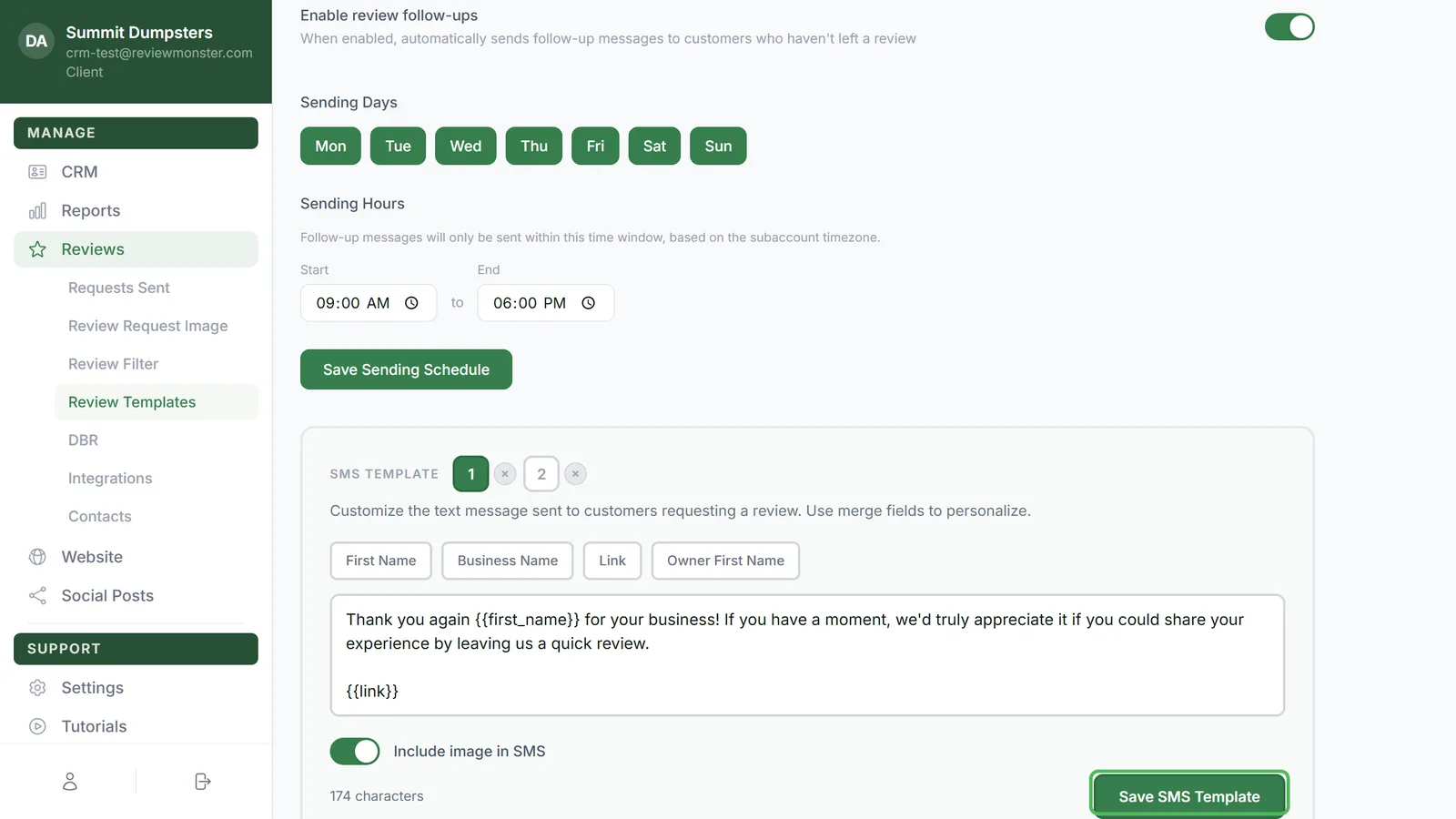
Switching between message 1 and message 2
Each card has two numbered buttons next to its title: 1 and 2. Message 1 is the first request. Message 2 is the follow-up for customers who haven't left a review yet.
- Click 1 or 2 to open that message in the editor.
- Look at the small dot next to each number. A green dot with a check mark means that message is on. A grey dot with an X means it's off.
- Click a dot to turn that message on or off.
Setting the wait before a message
Some messages have a delay box above the editor, with hours (hr) and minutes (min):
- On the SMS Template card, message 2 shows Delay after previous SMS.
- On the Email Template card, message 1 shows Delay after first SMS, and message 2 shows Delay after previous email.
Type the hours and minutes. The delay saves when you click out of the box, and again when you save the template.
Editing the text message
- On the SMS Template card, click 1 or 2.
- Type your message in the box.
- To add a detail that changes for each customer, put your cursor where you want it and click one of the buttons above the box:
- First Name: the customer's first name
- Business Name: your business name
- Link: the link they use to leave a review
- Owner First Name: your first name
- Turn on Include image in SMS if you want your review request picture sent with the text.
- Click Save SMS Template. You'll see Saved next to the card title when it's done.
The character count under the box helps you keep the text short.
Editing the email
- On the Email Template card, click 1 or 2.
- Next to Format:, pick Plain Text or HTML. Plain text reads like a normal email. HTML lets you add formatting and a link styled as a button, if you know a little HTML.
- If you picked HTML, you can turn on Include image at top to show your review request picture above the message.
- Type the Subject Line. Its buttons are First Name, Business Name and Owner First Name. There's no Link button for the subject.
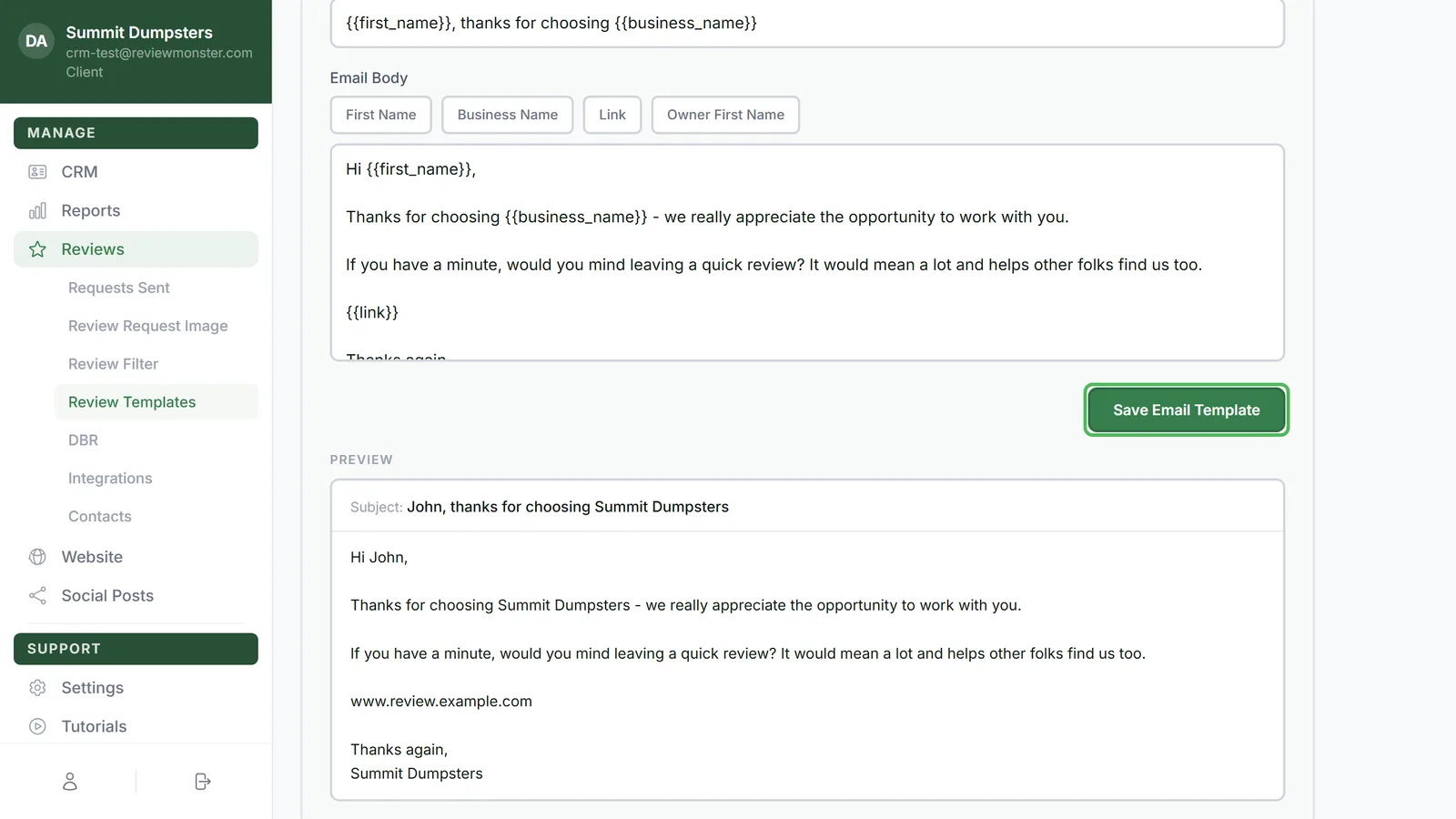
- Type the Email Body, using the same four buttons as the text, including Link.
- Click Save Email Template.
Checking the preview
Under each card is a Preview that fills in the buttons with sample details, addressed to a pretend customer named John.
- The text preview is shaped like a phone screen. Your picture sits on top if Include image in SMS is on.
- The email preview shows the subject line, then the body. Your picture sits on top if you're on HTML and Include image at top is on.
The preview updates as you type. Nothing changes for your customers until you click the save button.
Editing the same wording in the CRM
If you use the CRM, you can also edit this wording there. Go to Settings, then Templates, and find Review requests. You'll see Text 1, Text 2 — the follow-up, Email 1 and Email 2 — the follow-up. Both places edit the same messages, so a change in one shows up in the other.
The CRM version only changes the words. It adds your review link for you, and an email's sign-off is fixed. Turning messages on or off, delays and pictures all stay on the dashboard page.
Related articles
- How review requests work
- Setting when review requests and follow-ups go out
- Customizing your review request image
- Reviews menu overview
- Editing the messages sent with estimates and invoices