In this article, you'll learn how to turn the review filter on or off, and what your customers see either way. Every review request you send links to your review filter page, so this one switch decides the first thing a customer sees when they tap your link.
To open the review filter:
- In your dashboard menu, click Reviews.
- Click Review Filter.
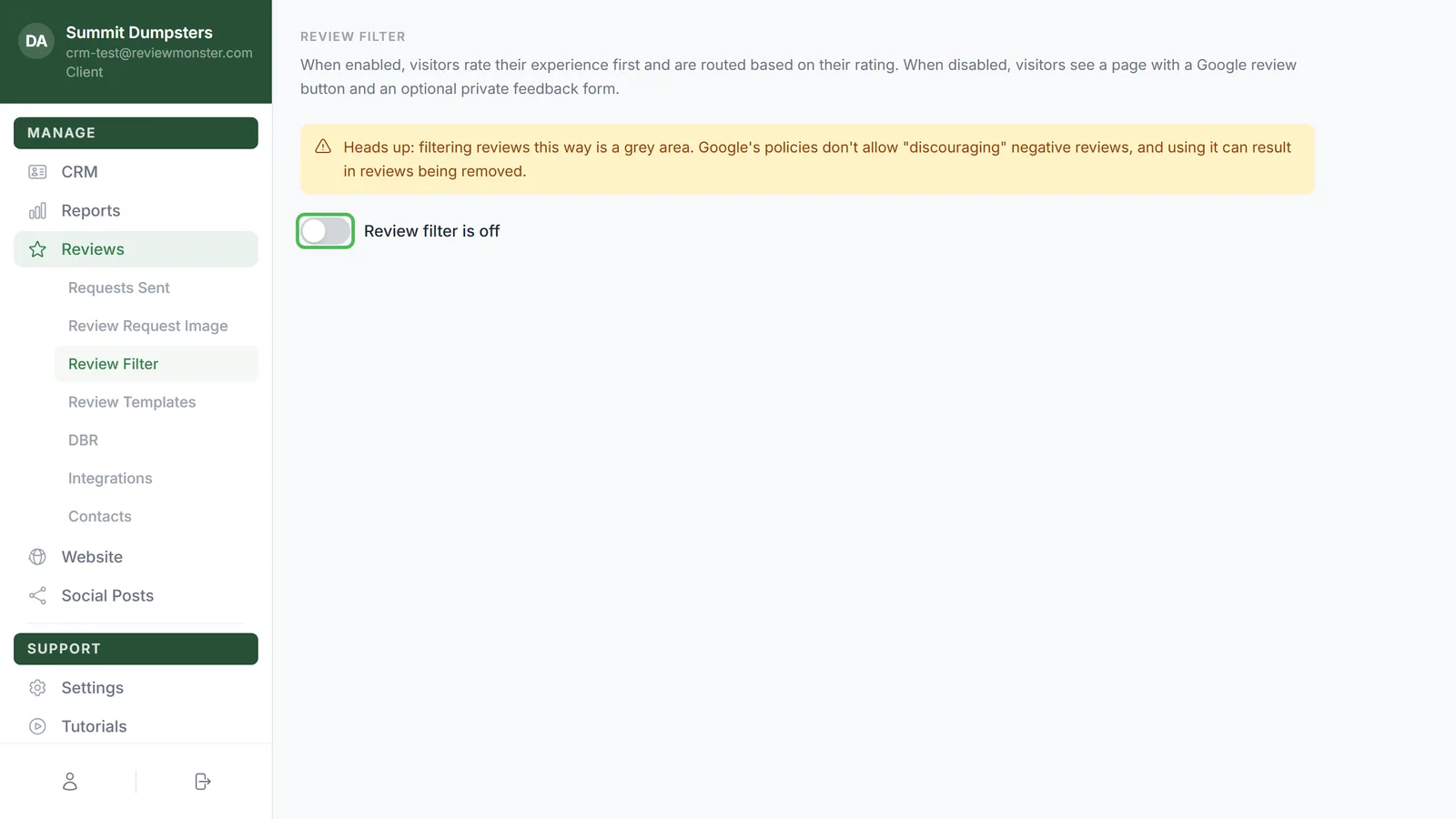
Read the Google warning first
Near the top of the page there's a yellow note. It's there for a reason: Google's policies don't allow businesses to discourage negative reviews, and filtering who gets sent to Google can count as that. If Google decides it does, reviews can be removed.
Turn the review filter on or off
- Click the switch next to Review filter is off (or Review filter is on).
- The label changes to show the new setting.
That's it. There's no Save button; the change is saved the moment you click the switch.
What customers see when the filter is on
Your page shows your logo and the question How was your experience with your business name, with four faces underneath: Excellent, Good, Ok and Bad.
- A customer who picks a face you've chosen to send to Google goes straight to your Google review page.
- A customer who picks any other face gets a short form instead: We'd love to hear your feedback., a box to type in, and a Submit Feedback button. When they send it, they see a thank-you message. Their feedback is saved for you and never posted publicly.
- Under the question there's a small Go straight to Google review here link, so anyone can still skip the faces and leave a Google review.
When the filter is on, a Review routing section appears below the switch. That's where you choose which faces go to Google and which collect feedback. See Choosing which ratings go to Google.
What customers see when the filter is off
Everyone sees the same page, with no rating question:
- Your logo and Thanks for choosing your business name.
- A green Continue to Google review button that takes them to your Google review page.
- Below it, or send us private feedback, a box that says only you'll see it, and a Send feedback button.
The feedback box is optional. After a customer sends feedback, the page thanks them and the Google button is still there, so they can leave a public review too.
Check the live preview
Under the switch, Your review filter page shows a small live copy of your actual page. It follows the switch: flip it and the preview changes straight away to the version your customers will now see.
Open or share your review filter page
- Click the preview, or the web address under it, to open your review filter page full size in a new tab.
- That web address is the same link your review requests use. You can copy it and share it anywhere you'd like customers to leave a review.
Related articles
- Reviews menu overview
- Choosing which ratings go to Google
- How review requests work
- Editing your review request texts and emails
- Customizing your review request image