In this article, you'll learn where your reports are, what each one covers, and how to choose who on your team can see them. Reports show your money: sales, payments, invoices, expenses. So it's worth checking who has access before you add someone new.
To open your reports:
- In the menu on the left, click Reports.
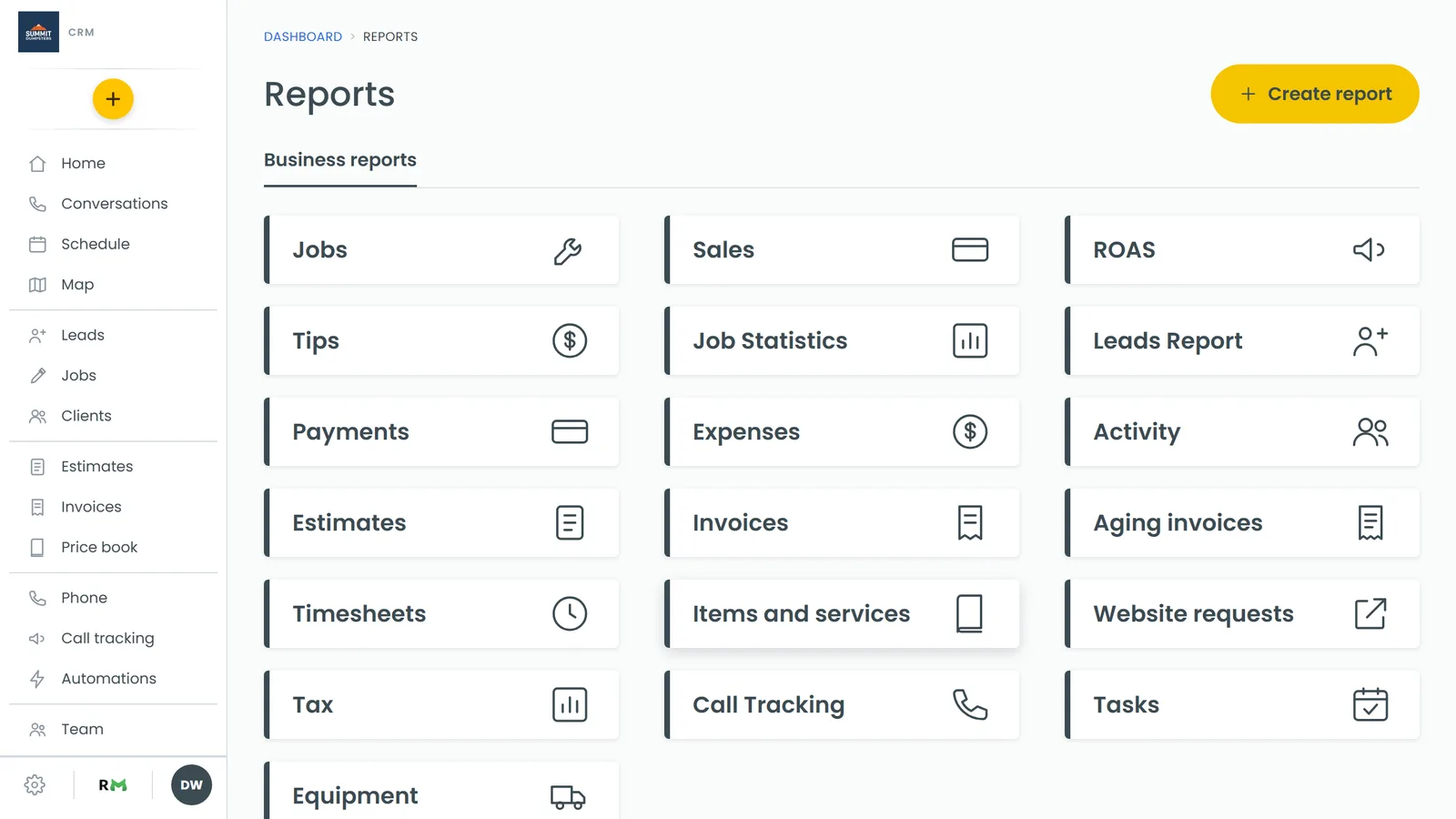
- Under Business reports, click any tile to open that report.
Who can see Reports
Reports isn't something you switch on in Features. It's in the main menu, but it only shows for people whose role has the Financial Data permission ("Can view prices, totals and costs on jobs and invoices."). The same permission decides who sees Estimates and Invoices in the menu.
It's one setting for all of Reports. If a role has Financial Data, everyone with that role sees the Reports menu item and every report on it. If it doesn't, the menu item doesn't show at all. You can't give someone one report and keep them out of another.
Here's where each role starts:
- Admin always has every permission, including Financial Data. You can't edit it.
- Tech and Subcontractor start with Financial Data turned on.
- A new role you create starts with every permission off, so it won't see Reports until you turn Financial Data on.
Turning Reports on or off for a role
You change permissions in the web CRM. The phone app doesn't have a roles editor.
- Click the Settings gear at the bottom of the menu, then under Users & roles click Roles & permissions.
- Click the role you want to change, for example Tech. (Admin can't be opened, since it always has everything.)
- In the Search box, type Financial, or scroll to Financial Data.
- Switch Financial Data on to show Reports, or off to hide it.
- Click Save.
The change applies to everyone with that role. To give one person different access, put them on a different role. How to add team members covers roles and who's on them.
The reports you can open
These tiles show your data today:
- Jobs: your most recent 100 jobs, newest first, with client, type, scheduled date, status and total, plus a total row at the top.
- Sales: revenue, jobs, average job, collected and outstanding, with revenue by month.
- ROAS: spend, leads, jobs booked, jobs paid and revenue for each source, so you can see what your marketing returns.
- Tips: tips collected, by month and by tech.
- Job Statistics: jobs created, done, canceled and unscheduled, by status, type and city.
- Leads Report: every lead that reached the CRM, website form leads included, with how many converted by source.
- Payments: the money that came in, by method and by who collected it.
- Expenses: the money that went out, by category.
- Estimates: estimates you've sent, their approval rate and how many became jobs.
- Invoices: invoiced, collected and outstanding, with every invoice listed.
- Aging invoices: unpaid invoices and how many days overdue each one is.
- Items and services: how many of each item you've used, and what they added up to.
Changing the date range
Most reports have a row of date buttons near the top:
- Last 30 days
- Last 90 days
- This year
- Last 12 months
- All time
A report opens on Last 12 months. Click another button and the report reloads for that window.
Jobs, Leads Report, Aging invoices and Items and services don't have these buttons. Jobs shows your latest 100 jobs, Leads Report your latest 300 leads, Aging invoices what's unpaid right now, and Items and services everything on record.
Reports on the phone app
The phone app has a Reports menu item too, with the same Financial Data rule and the same Business reports tiles. For now, opening a business report on the phone shows a note that the full report is on the web CRM, so open Reports in a web browser to read your numbers.
If your plan includes them, the app's Reports screen also has a Review Monster reports section with Reviews, Website and Ranking. Those are the same reports as in your Review Monster dashboard.
Good to know
- There's a Create report button at the top of the page, but you can't build your own reports yet.
- There's no export to PDF or CSV from Reports. If someone without access needs a figure, you'll have to share it yourself.