In this article, you'll learn how to read the Leads report: what the numbers at the top mean, how the source table shows which channels turn into work, and what each column in the lead list tells you.
The Leads page is where you work the leads in front of you. The Leads report steps back and puts all of them in one place, open, converted and lost, so you can see what came in and what happened to it.
To open the Leads report:
- In the menu, click Reports.
- Click the Leads Report tile.
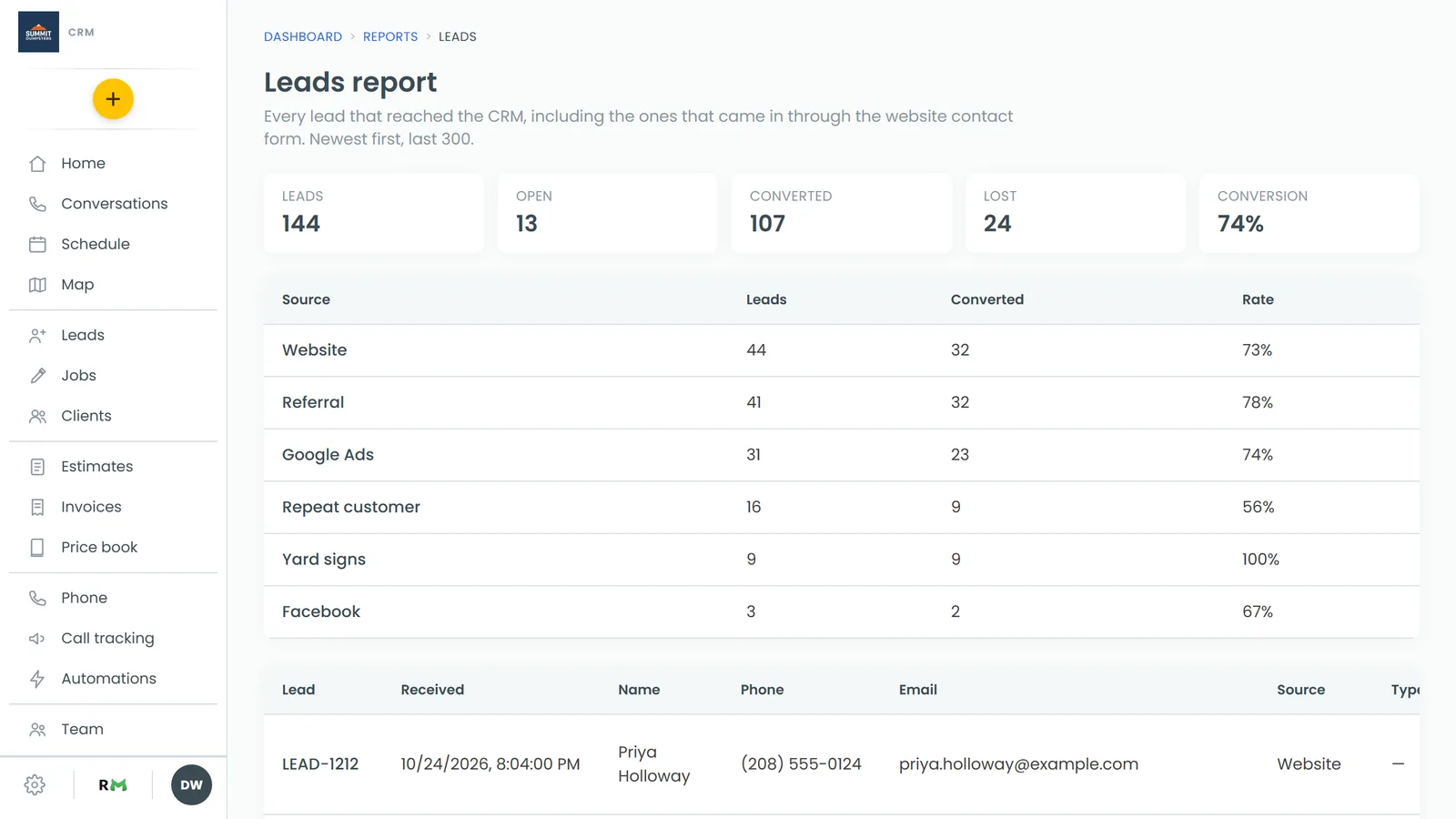
The page is called Leads report. It lists every lead that reached the CRM, including the ones that came in through your website contact form. The newest are at the top, and it shows the last 300.
The numbers at the top
Five tiles sum up the leads in the report:
- Leads: how many leads the report covers.
- Open: leads that haven't become a job and aren't marked lost.
- Converted: leads that became a job.
- Lost: leads marked lost.
- Conversion: the share of all leads that became a job.
There's no date picker on this report. The tiles always count the same leads shown in the list below them.
Which sources turn into jobs
Under the tiles is a table with one row per source:
- Source: where the leads came from. Leads with no source are grouped as Unattributed.
- Leads: how many leads came from that source.
- Converted: how many of those became a job.
- Rate: the share of that source's leads that became a job.
The busiest sources are at the top. This is the quickest way to see whether a channel is sending you real work or just inquiries. A source with plenty of leads and a low rate is worth a closer look.
The lead list
The last table lists each lead on its own row:
- Lead: the lead's number.
- Received: the date and time it came in.
- Name: the customer's name.
- Phone and Email: how to reach them.
- Source: where the lead came from.
- Type: the job type, if one was picked.
- Location: the city and state.
- Status: the lead's current status.
- Message: what the customer wrote, or the notes on the lead.
- Became: what happened to it in the end.
The Became column is where you see the outcome. For a converted lead, it shows the job number, and you can click it to open that job. For a lost lead, it shows the reason you gave when you marked it lost, or just "Lost" if no reason was entered. Open leads show a dash.
Related articles
- Finding your reports and who can see them
- Tracking where your customers come from
- Marking leads as lost
- Converting a lead into a job
- How to manage new leads