In this article, you'll learn what the Jobs report shows and how to read it. It lists your latest jobs in one place, including ones that are done or canceled, so you can look over recent work without opening each job.
To open the Jobs report:
- In the menu, click Reports.
- Click the Jobs tile.
You can also get there from the Sales report. At the bottom of that page, click Job-by-job list →.
What the report shows
The page is titled Jobs report. It's a single table of your 100 most recent jobs, sorted by scheduled date with the newest at the top. It includes every status, so open, done and canceled jobs all show up together.
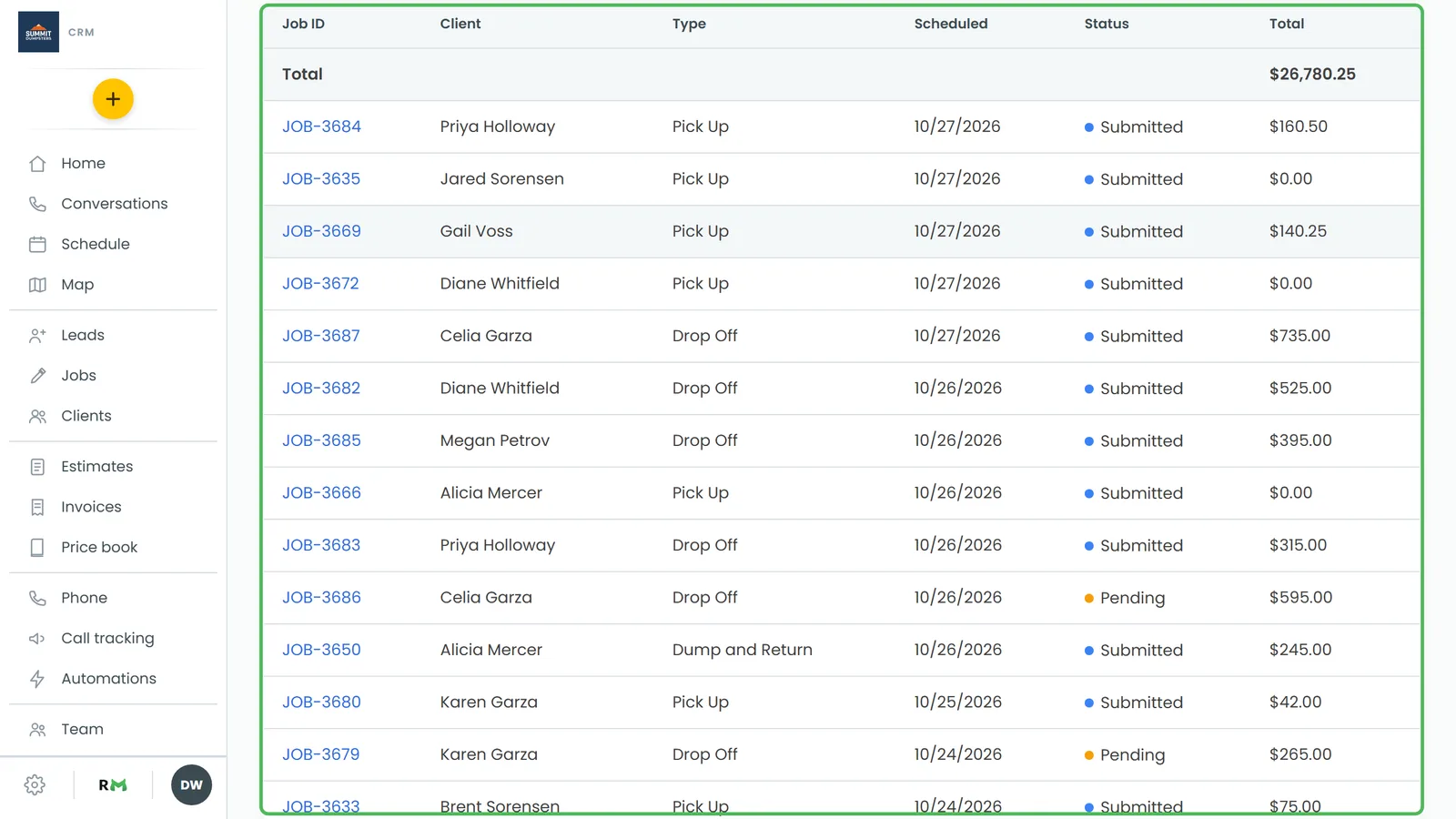
Each row has these columns:
- Job ID: the job's number. Click it to open the job.
- Client: who the job is for.
- Type: the job type, if the job has one.
- Scheduled: the date the job is scheduled for.
- Status: the job's status, with its colored dot.
- Total: the job's total.
Reading the Total row
The first row of the table, labeled Total, adds up the Total column for every job in the list. The list includes every status, so canceled jobs are in that number too. Use it as a quick sum of the jobs on the page, not as your revenue.
Opening a job from the report
- Find the job in the list.
- Click its number in the Job ID column.
The job opens on its own page, with its details, timeline, estimates and invoices.
What the report doesn't do
The Jobs report is just a list. You can't pick a date range, filter by status, team member or source, group rows, choose columns or export it. It always shows your latest 100 jobs.
If you need more than that:
- For counts and rates over a period, use the Job Statistics report.
- To find older jobs, or jobs that are done or canceled, see Finding done or canceled jobs.
Related articles
- Finding your reports and who can see them
- Reviewing business performance with the Job Statistics report
- Finding done or canceled jobs
- How to update a job's status
- How to view a job's timeline