In this article, you'll learn how to use the Payments report to see the money that actually came in: how much, how customers paid, who took each payment, and what went back out as refunds. It's the report to open when you want to know what's been collected, not what jobs are worth.
The report counts every payment recorded in the CRM. That means card payments taken online or in person, and also the cash, checks, Venmo, Zelle and other offline payments your team records by hand.
To open the Payments report:
- In the menu, click Reports.
- Click the Payments tile.
Picking a date range
The pills at the top right of the report set the window you're looking at:
- Last 30 days
- Last 90 days
- This year
- Last 12 months
- All time
The report opens on Last 12 months. Click any pill to switch, and everything on the page updates to match.
Payments are placed by their payment date, the day the money was received. The date of the job, estimate or invoice behind it doesn't matter here.
The totals across the top
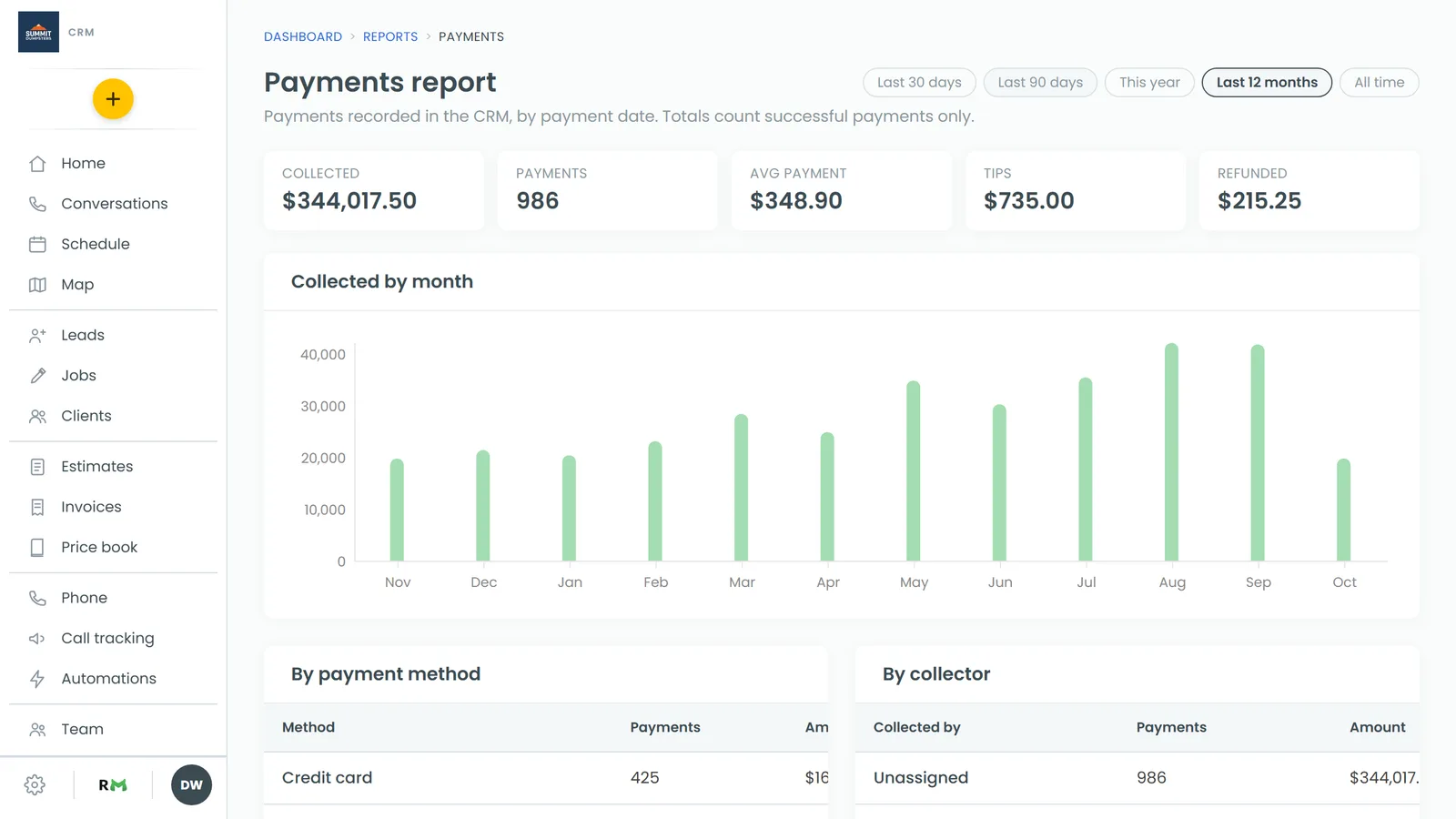
Five tiles sum up the window you picked:
- Collected: the total of all successful payments.
- Payments: how many successful payments there were.
- Avg payment: Collected divided by the number of payments.
- Tips: tips that came in on those payments.
- Refunded: money that went back to customers.
Only successful payments count toward Collected, Payments, Avg payment and Tips. A payment that's pending or failed shows up in the list further down, but it isn't counted.
How refunds are counted
A refunded payment doesn't vanish from the report. It stays in the All payments list with its status showing as refunded, so you keep the full record. It isn't counted in Collected, though. The amount goes into the Refunded tile instead.
A partial refund works a little differently. The payment still counts as collected, and the part that went back is added to Refunded. In the list, the payment's status shows how much was refunded next to it.
Collected by month
The Collected by month chart has one bar for each month in your window. A quiet month still gets its slot, so you'll see it as a short bar rather than a gap. Like the Collected tile, it only counts successful payments.
By payment method
The By payment method table breaks your collections down by how customers paid: Cash, Check, Credit card, Venmo, Zelle, Bank transfer (ACH) and so on. Each row shows the number of Payments and the Amount, with the biggest method at the top.
This is handy for checking cash and checks against your deposits, or seeing how many customers pay by card.
By collector
The By collector table groups payments by the team member recorded as having taken them. The Collected by column shows their name, along with the number of payments and the amount. Payments with nobody recorded against them are grouped under Unassigned.
All payments
At the bottom, All payments lists every payment in the window, newest first. The columns are:
- Payment: the payment number.
- Date: the payment date.
- Client: who paid.
- Job: the job the payment belongs to. Click the job number to open the job.
- Method: how they paid.
- Status: whether the payment succeeded, is pending, failed or was refunded.
- Amount: the payment, not counting the tip.
- Tip: the tip on that payment, if there was one.
Related articles
- Finding your reports and who can see them
- Tracking tips collected from clients
- Recording cash and other offline payments
- How to issue refunds
- Understanding your invoices report