In this article, you'll learn how to use the Aging invoices report to keep an eye on money you're still owed. It shows every invoice that still has a balance, groups them by how late they are, and puts the oldest at the top, so you know who to follow up with first.
To open the Aging invoices report:
- In the menu, click Reports.
- Click the Aging invoices tile.
Understanding the Aging invoices report
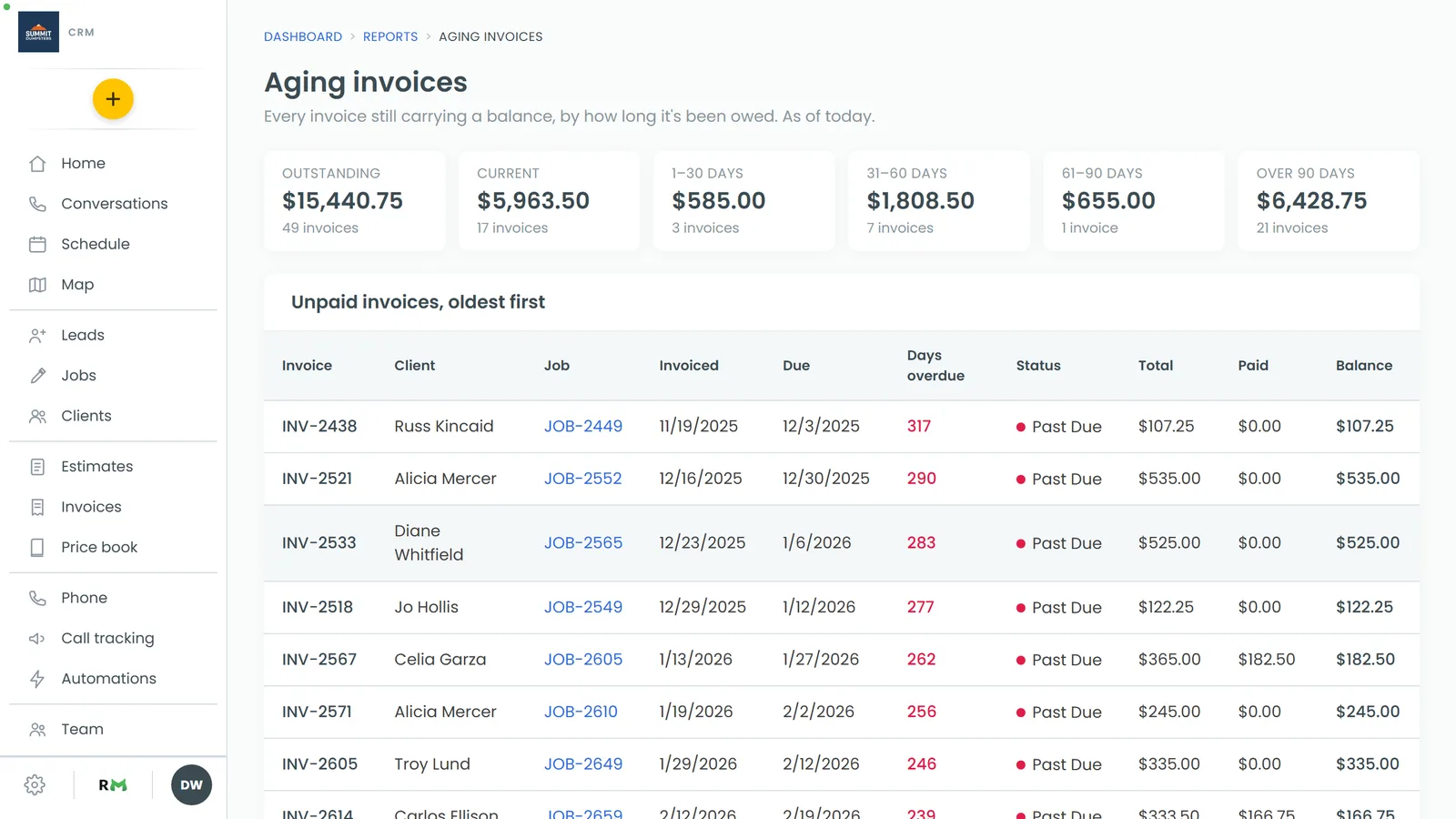
The report always shows things as they stand today. There are no date buttons to pick. Any invoice that isn't paid in full shows up here, whenever it was sent. Voided and deleted invoices are left out.
Along the top is a row of tiles:
- Outstanding is the total still owed across every unpaid invoice, with the number of invoices underneath.
- Current is the amount on invoices that aren't late yet. They're due today or later.
- 1–30 days is the amount on invoices up to a month past their due date.
- 31–60 days, 61–90 days and Over 90 days cover the older ones.
Each age tile shows the dollar amount, plus a count of invoices when there are any in it.
Reading the list of unpaid invoices
Below the tiles is Unpaid invoices, oldest first. The invoices that have waited longest sit at the top. Each row shows:
- Invoice: the invoice number
- Client: who it's billed to
- Job: the job number, which you can click to open the job
- Invoiced: the invoice date
- Due: the date it was due
- Days overdue: how many days past due it is. It shows a dash when the invoice isn't late yet, and turns red after 30 days.
- Status: the invoice's current status
- Total, Paid and Balance: what was billed, what's been paid so far, and what's left
If every invoice is paid, the list says Nothing outstanding — every invoice is paid.
Using the report to follow up
Start at the top of the list and work down. Click the job number to open the job, then check what's been sent and get back in touch with the client. Once a payment comes in and the balance hits zero, the invoice drops off the report by itself.
The report can't be filtered by client, and you can't add columns. To see everything one client owes, open their record instead. See Tracking what a client owes.
Related articles
- Finding your reports and who can see them
- Understanding your invoices report
- Sending automatic reminders for overdue invoices
- Tracking what a client owes
- Understanding invoice statuses