In this article, you'll learn how to turn off online booking so customers can't put themselves on your calendar. You might do this when you're booked solid, taking time off, or want every job to go through a phone call first.
Online booking can be switched all the way off whenever you like, and back on later. There are two separate switches, and they don't affect each other:
- Your website's booking page. You turn this off from your dashboard.
- Scheduling from an estimate. This is where a customer picks a time after approving an estimate. You turn it off in CRM settings.
Turn off one or both, depending on what you want to stop.
Turning off the booking page on your website
To open your scheduling settings:
- In the dashboard menu, click Website.
- Under Website, click Scheduling.
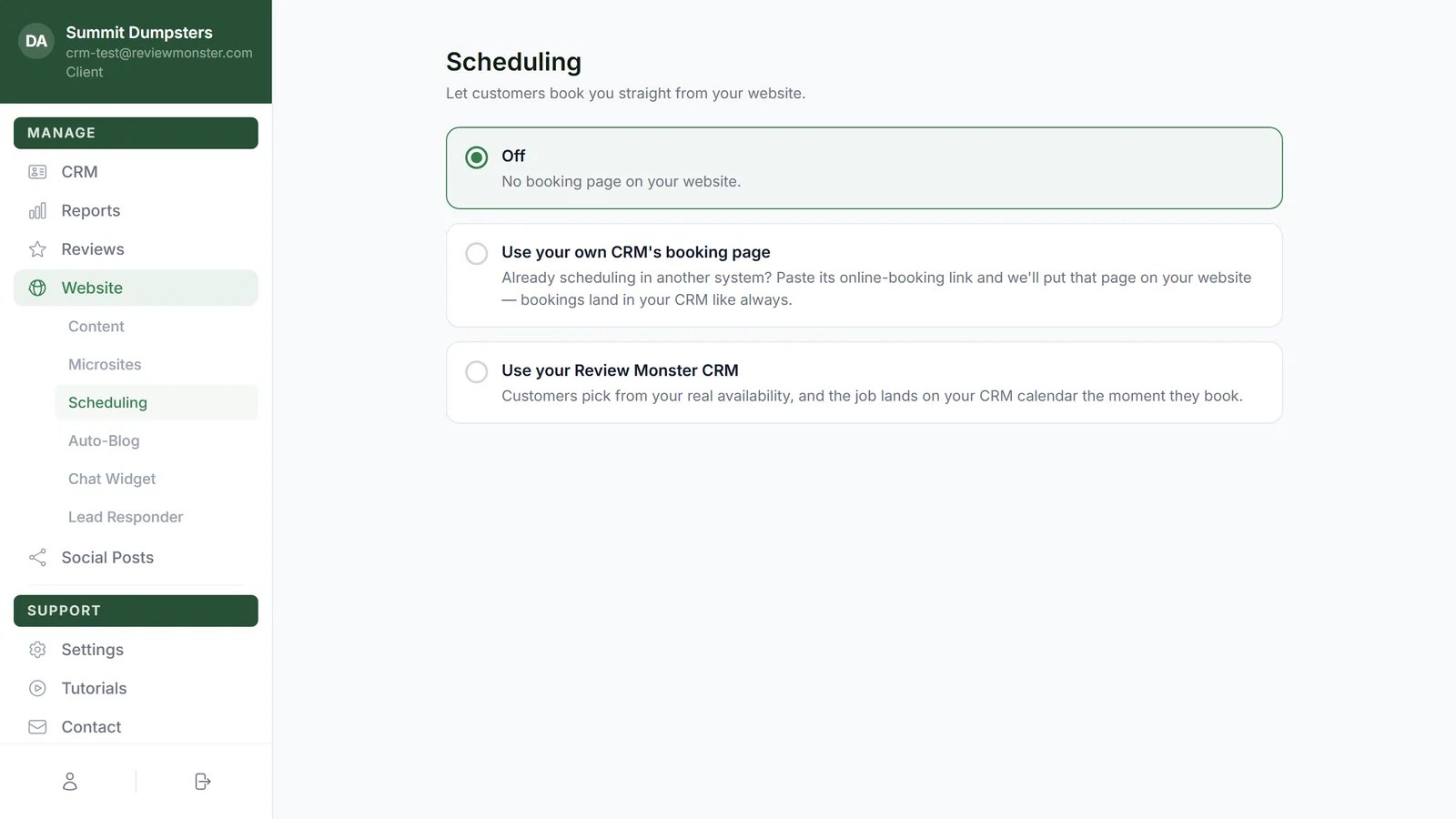
To turn the booking page off:
- Click Off. Underneath it says "No booking page on your website."
- Click Save changes in the top right corner. The button only shows up after you've changed something.
Here's what happens once you save:
- The /book page on your website goes away. Anyone who opens the old link gets a "page not found" page.
- Book Online is removed from your website's menu.
- If anyone tries to book through the old booking form, it's turned away.
Turning off scheduling from estimates in the CRM
To open Online booking settings:
- In the CRM, go to Settings.
- Under Phone & booking, click Online booking.
To turn it off:
- In the Availability box, untick Let customers schedule online.
- Click Save settings. You'll see Saved next to the button.
Once that's saved, customers can't pick a time from an estimate any more. Your appointment length, booking window and message settings stay saved, so they're all still there if you turn it back on.
On the phone app
- Go to Settings, then Online booking.
- Switch off Let customers schedule online.
- Tap Save settings.
What stays the same
Turning booking off only stops new bookings. Jobs and leads that came in through online booking stay right where they are on your calendar and in your leads list, and nothing about them changes.