In this article, you'll learn what the CRM does with a booking from your website or from an approved estimate, and how to turn a booking request into a job. It's worth knowing so nothing a customer books sits waiting on you.
What happens depends on one setting, New bookings are…. There's no separate inbox for booking requests. A booking either becomes a job right away, or it comes in as a lead (or a time saved on an estimate) that you confirm.
To check which way your bookings work:
- In the menu, click Settings.
- Click Online booking.
- Under New bookings are…, see which option is picked: Scheduled instantly or Requests you approve.
- If you change it, click Save settings.
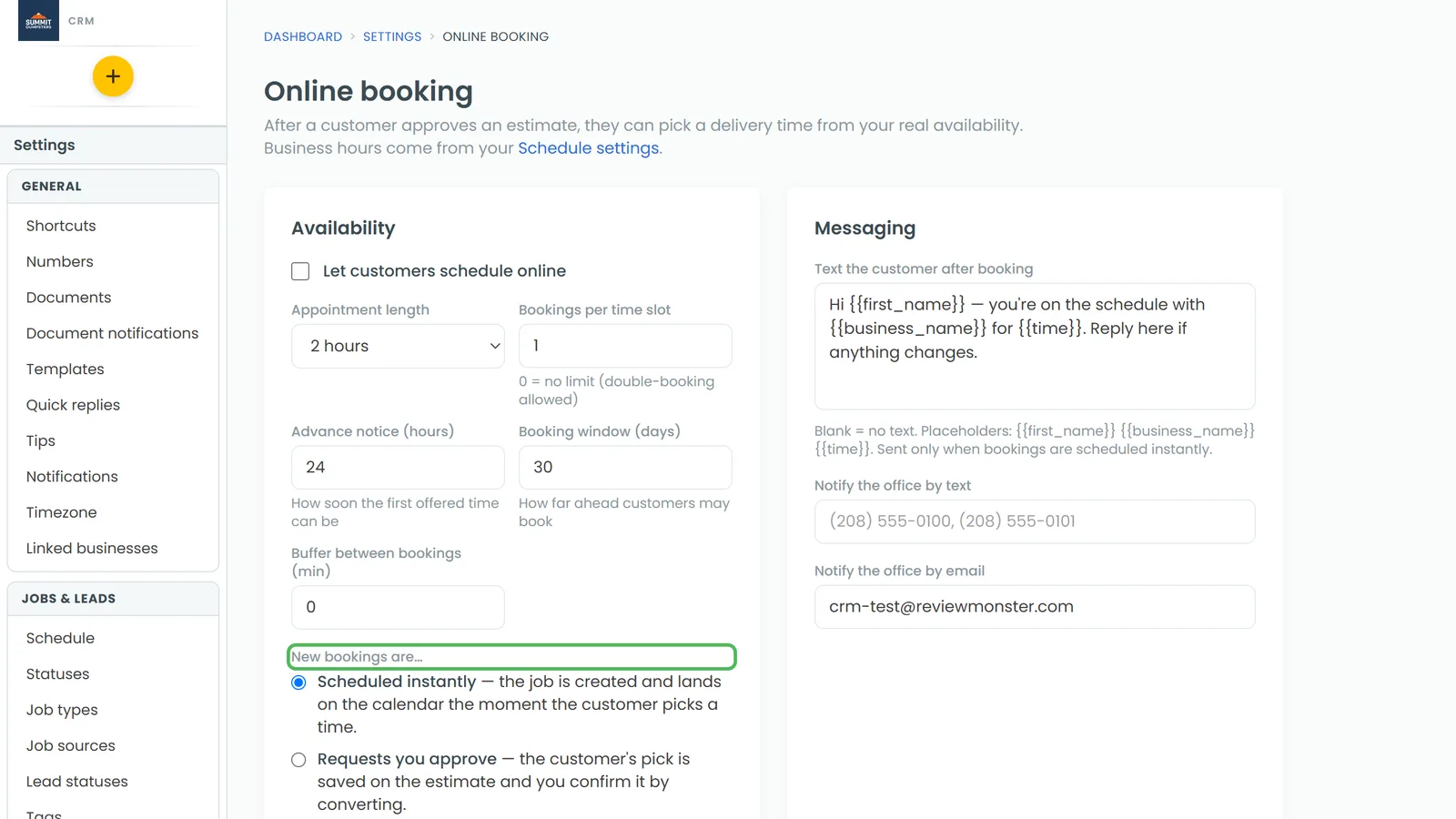
When bookings are scheduled instantly
With Scheduled instantly, a booking from your website goes on the calendar the moment the customer picks a time, and they see You're booked on the page. There's nothing for you to approve.
The new job:
- Is set for the time they picked, with the status Submitted.
- Is named after the service they chose, or Online booking if they didn't pick one.
- Carries the address and notes they typed in.
- Has its source set to where the visitor came from, or Website when the CRM can't tell.
- Gets your tech assigned automatically if your company has just one.
If you've written a confirmation text in your Online booking settings, the customer gets it too. Open the job from the schedule if you want to add anything.
When bookings are requests you approve
With Requests you approve, the customer sees Request received and a note that you'll confirm with them. Nothing goes on the calendar yet. Instead the request comes in as a new lead:
- The lead's notes hold the requested time, the service and anything the customer wrote.
- Its source is where the visitor came from, or Website, the same as an instant booking.
- A message from the customer shows up in Conversations reading "Asked to book <time> for <service>", so you can reply to them right there.
To confirm a booking request:
- In the menu, click Leads.
- Click the booking request to open it. The requested time is in its Notes.
- Click Convert to job. The new job opens.
- Set the job's date and time to what the customer asked for (or what you agreed with them), then save the job.
For more on this step, see Converting a lead into a job.
Bookings made from an approved estimate
Customers can also pick a time right after they approve an estimate in their portal.
- With Scheduled instantly, the estimate becomes a scheduled job on the spot.
- With Requests you approve, the time they picked is saved on the estimate and they're told you'll confirm shortly.
To find estimates waiting on a time:
- In the menu, click Estimates.
- Look for an approved estimate with wants <time> under its status. That's a customer who picked a time and doesn't have a job yet.
- Convert the estimate to a job, and schedule it for that time.
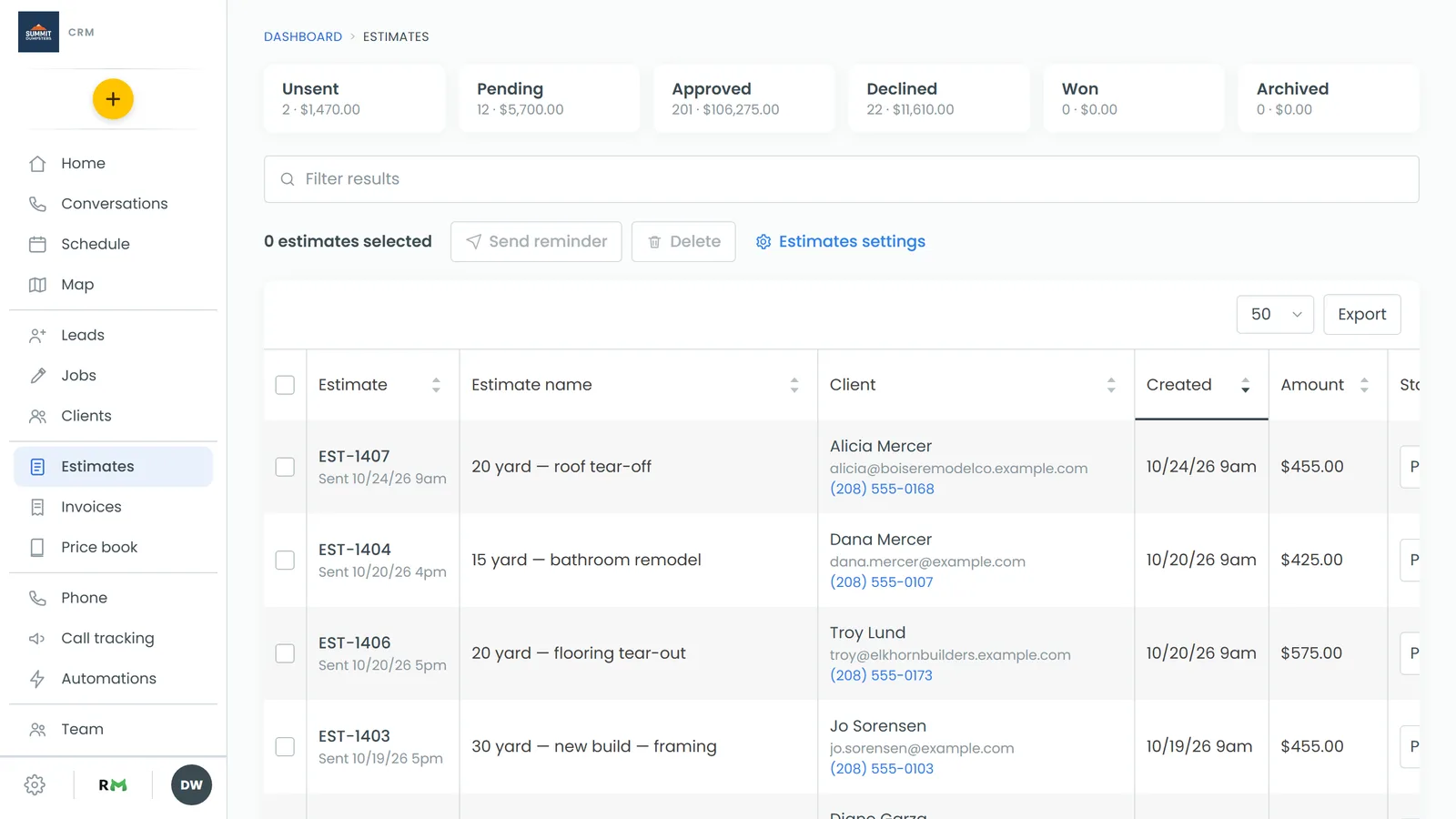
See Creating a job from an estimate for the steps.
Who hears about new bookings
Every booking and booking request sends a push to the phone app, and a text and email with the customer's details to your office alerts list. For a request, the text says it's in your CRM as a lead to confirm.
To choose who gets those texts and emails:
- In the menu, click Settings.
- Click Notifications.
- On the New online booking row, tick or untick Text and Email.
- Click the Text or Email column heading to see or change who's on that list.
While a list is empty, the alerts go to the account owner.
Related articles
- How to turn on online booking
- Seeing where your online bookings come from
- Online booking FAQ
- Converting a lead into a job
- Creating a job from an estimate