In this article, you'll learn where to look when you're stuck in the CRM. Most answers are a quick search away in the Help Center. When you need a person, the Contact page gets your note to Review Monster.
The Help Center
The Help Center is the CRM's library of how-to articles, sorted into topics like Jobs, Estimates, Payments and Calls. It's the same library on the web and in the phone app.
To open the Help Center on the web:
- In the menu, click Help Center.
To open it in the phone app:
- Open the menu.
- Tap Help Center.
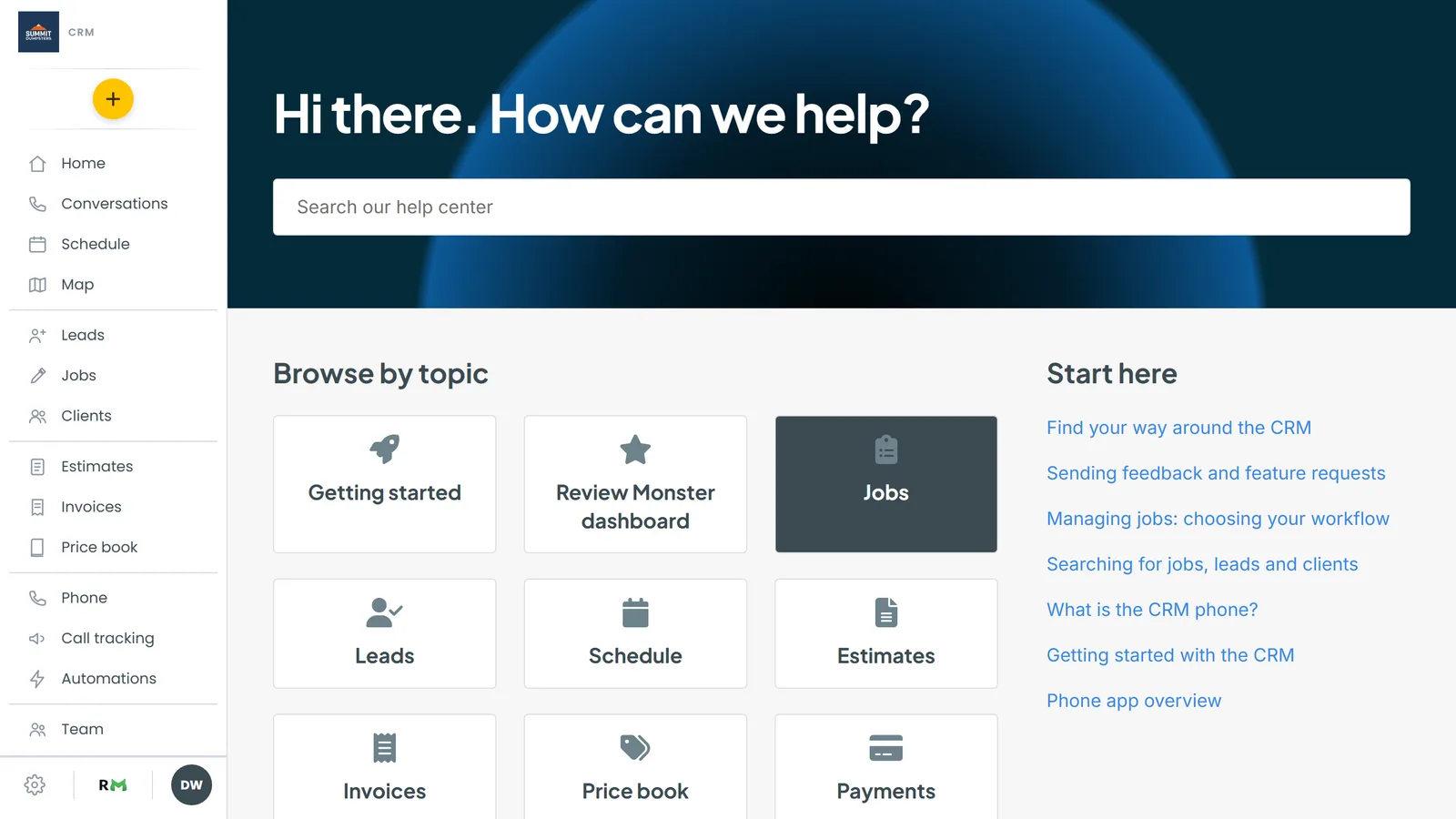
Search for an answer
- At the top of the Help Center, click the Search our help center box.
- Type a few words about what you're trying to do, like "on my way text" or "refund".
- Pick an article from the list that drops down under the box.
Titles that match show up right away. After you've typed three or more letters, the search also looks inside the articles themselves and adds anything else that fits.
Browse by topic
- Under Browse by topic, click a topic.
- The topic page lists its articles in sections. Click one to read it.
On the home page, Start here lists a few articles to begin with if you're new.
Inside an article, the trail at the top shows where you are. Click Help Center or the topic name in it to go back. On a wide screen, the In this article menu on the right jumps you to any section.
Contacting Review Monster
For anything the Help Center doesn't answer, use Contact. It sits in the + menu on both the web and the app.
To open Contact on the web:
- Click the +.
- Click Contact.
To open Contact in the phone app:
- Tap the + in the bar at the bottom.
- Tap Contact.
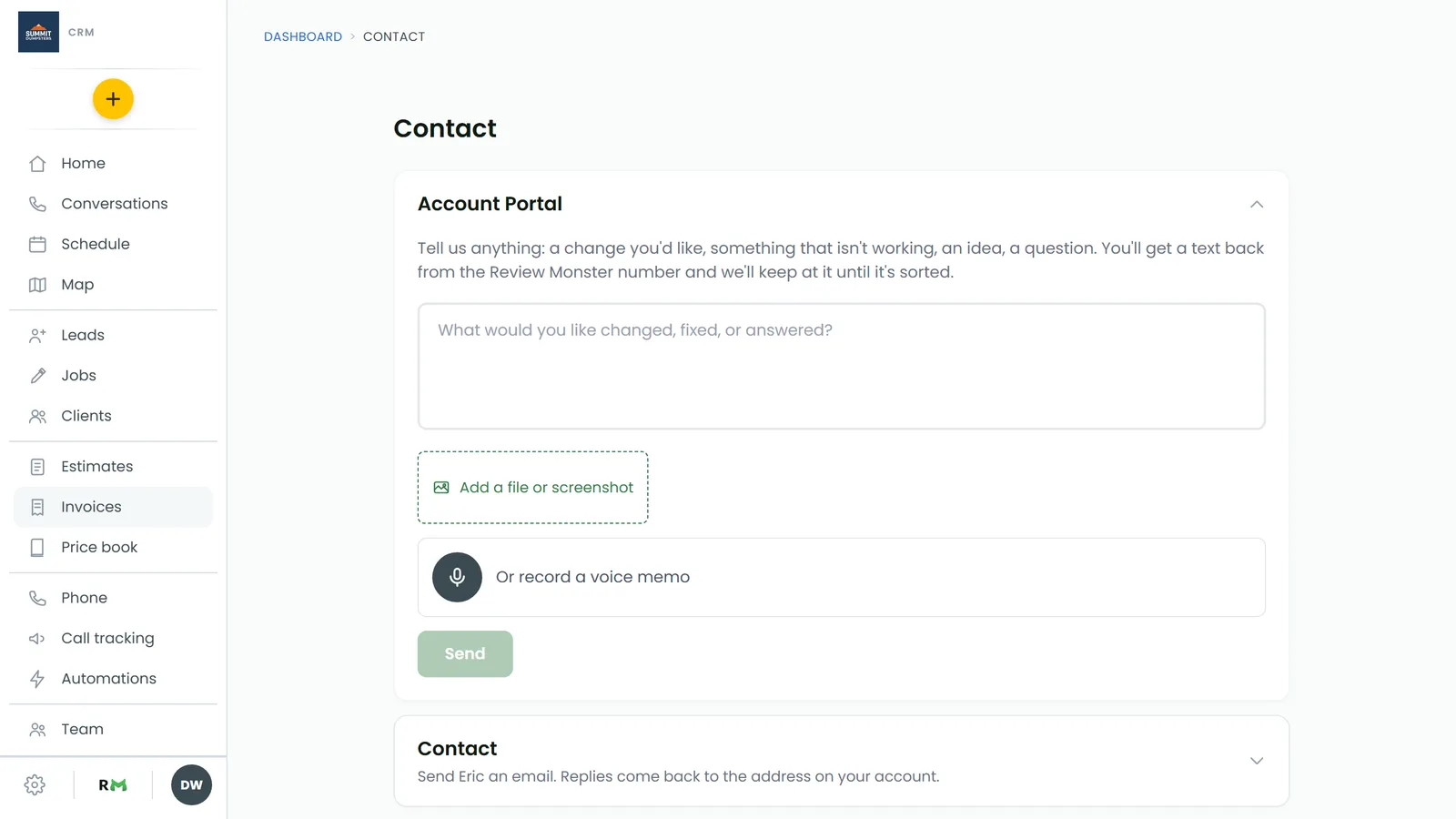
Send a note to the Account Portal
The Account Portal box is for anything at all: a change you'd like, something that isn't working, an idea or a question.
- Type your note in the box.
- If it helps, add a screenshot or attach a file, or record a voice memo instead of typing.
- On the web, click Send. In the app, tap Send feedback.
You'll get a text back from the Review Monster number, and the conversation carries on until it's sorted.
On the web, every note you've sent is listed under Your conversations, with our replies. Click one to read it, then type in its Reply box to keep going, even after it's been wrapped up.
Email Eric
If you'd rather send an email, use the email section of the Contact page. Replies come back to the email address on your account.
On the web:
- Click Contact to open that section.
- Fill in Subject and Message.
- Click Send.
In the app:
- Scroll down to Email Eric.
- Fill in the subject and your message.
- Tap Send email.
Book a support call (web only)
The web Contact page also has a Zoom Meet section for booking a call with us on Zoom.
- Click Zoom Meet to open it.
- Pick one of the open times.
- Click the Book button to confirm it.
The Zoom link shows once it's booked, or comes to you by email.