In this article, you'll learn where everything lives in the CRM's menu. Once you know the layout, you can get to any page in a click or two, on a computer or a phone.
On a computer or tablet, the menu stays down the left side all the time. On a phone-size screen it tucks away, and a bar along the bottom takes you to the places you use most.
To open the menu on a phone-size screen:
- Tap the three-line button at the top left.
- To close it, tap the X at the top of the menu or anywhere outside it.
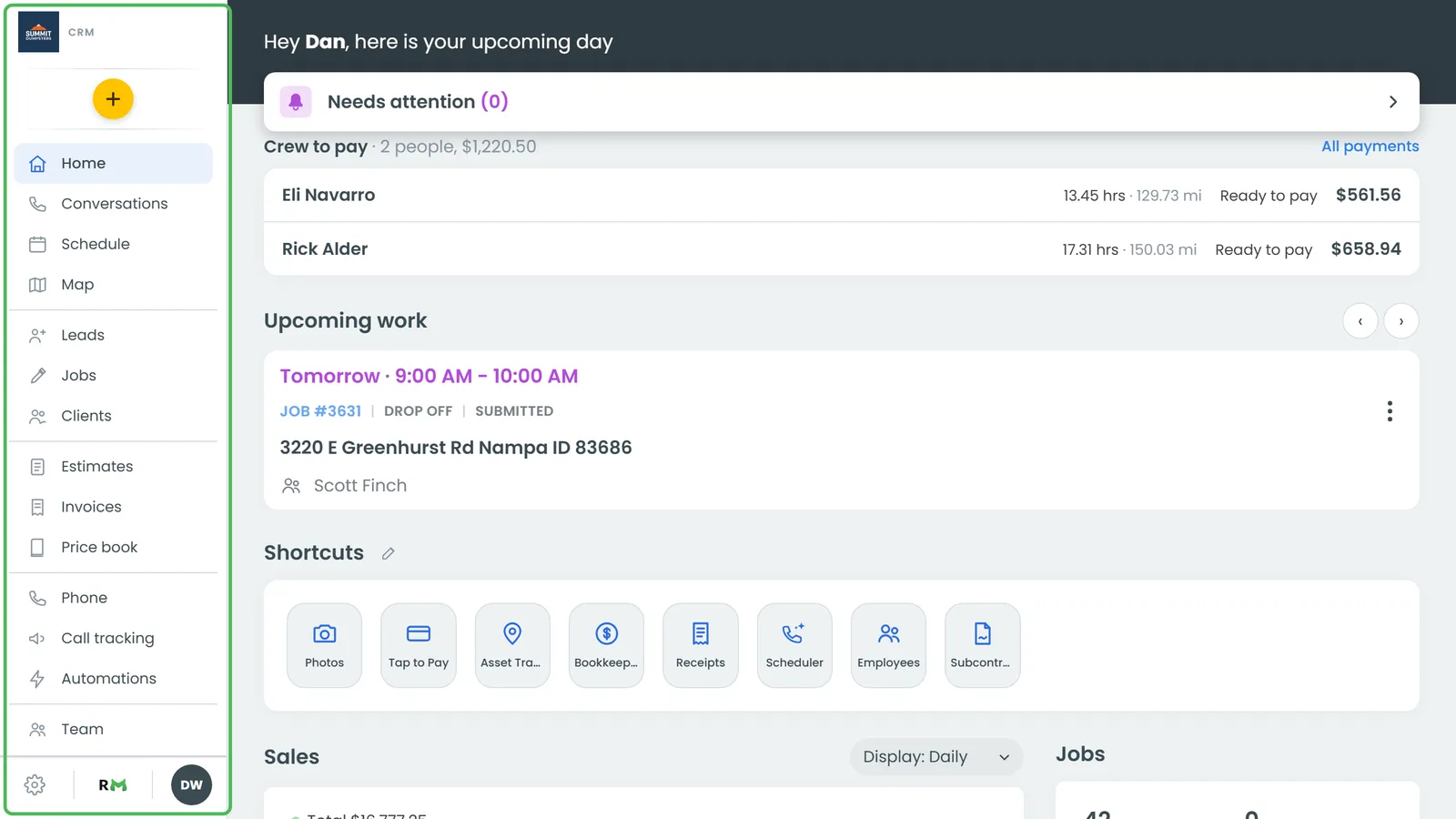
The sidebar
At the top is your logo, or your business name if you haven't added a logo. Under it is a round yellow + button. The rest of the menu comes in groups, split by thin lines:
- Home, Conversations, Schedule and Map: your day, your inbox, your calendar and your jobs on a map.
- Leads, Jobs and Clients: the work and the people it's for.
- Estimates, Invoices and Price book: the money side.
- Phone, Call tracking and Automations: your phone numbers, your tracking numbers and the rules that run on their own.
- Team: who's on your team. Team Schedule and Subcontractors show up here too, but only once you've switched them on in Features.
- Reports and Help Center.
You only see what your role is allowed to open. If someone on your team can't find Invoices or Reports, check their role in Settings under Roles & permissions.
Starting something new with the +
Click the yellow + to start something new. You'll get New job, New lead, New client and Contact.
If you're on a client's page when you click it, you get New job, New lead and New estimate for that client instead, already filled in, plus Contact.
To close the list without picking anything, click the + again, click anywhere else, or press Esc.
Features
Below the main groups is Features. Click the heading itself to open the Features store, where you switch extras on and off. Anything you've switched on, like Photos, Bookkeeping or Receipts, gets its own row under the heading. Some rows show a small number on the icon when something new is waiting there.
Team members only see the features you've let them use.
Settings, your dashboard and your user menu
At the very bottom of the sidebar is a row of icons.
To open Settings:
- Click the gear.
- The list slides up above the icons, sorted into boxes: General, Jobs & leads, Money, Phone & booking, Data, Users & roles and Account.
- Click the gear again, or anywhere outside the list, to close it.
The gear only shows if your role can open Settings, and inside it you only see the pages your role allows.
Next to the gear is the Review Monster logo. Click it to go back to your Review Monster dashboard.
The round button with your initials is your user menu. It shows your name and whether you're an Admin or a User, plus Account and Log out. Everyone gets this menu, so anyone can reach their own Account.
On a phone-size screen
The sidebar tucks away and you get two bars instead.
- Top bar: the three-line button on the left opens the full menu. On the right are a refresh button, a search button and your initials (the same user menu as above). Search finds job, invoice, estimate and lead numbers, names, phone numbers, emails and addresses. Type at least two characters.
- Bottom bar: Home, Conversations, Schedule and Contacts, with the yellow + on the right. The + opens the same list as the sidebar's.
When you open a single conversation or a single job, both bars step aside so that screen gets the whole phone. Use its back arrow to get out.
Good to know
- The phone app has the same four tabs on its bottom bar. Its + also offers New note, which the website's doesn't, but it doesn't offer New estimate from a client's page.
- If Manual Review is switched on in Features, the menu shrinks to Manual Review and Conversations, with Features under them and no +. The bottom bar becomes Home and Conversations. Switch Manual Review off in Features and everything comes back.
Related articles
- Getting started with the CRM
- Searching for jobs, leads and clients
- Choosing your shortcuts and features
- Phone app overview
- Customizing team roles and permissions