In this article, you'll learn what the most common words in the CRM mean. If a label on a screen doesn't make sense, look it up here first.
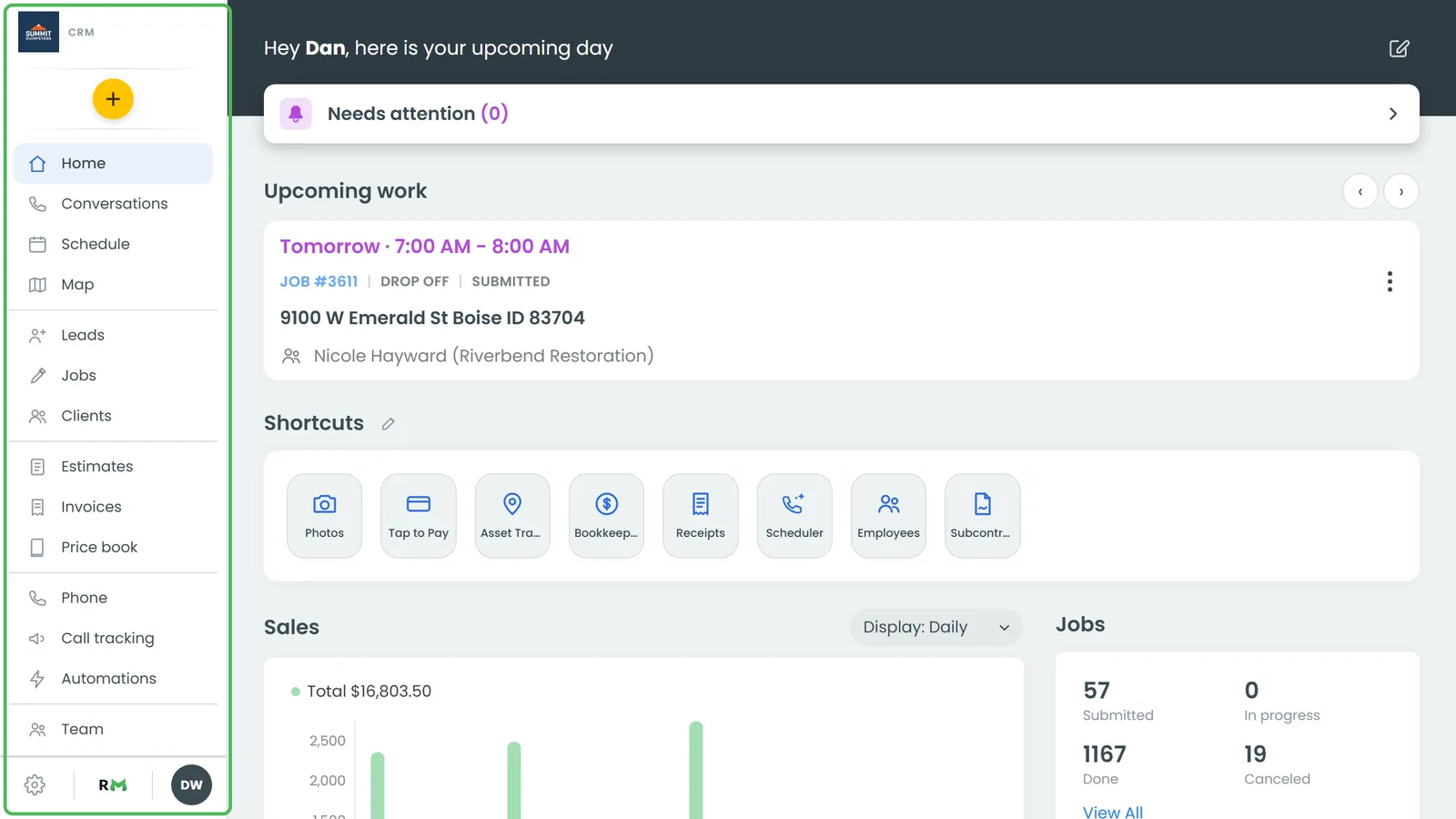
To find most of these in the CRM:
- Use the menu down the left side of the screen. On a phone, tap the menu button to open it.
- For settings, click the gear at the bottom of the menu.
A
- Automations: Rules that do a job for you when something happens, like texting a customer when a job's status changes. Every account has them. Click Automations in the menu.
C
- Call tracking: Extra phone numbers you put on an ad, a sign or a website, so you can tell which one made the phone ring. Each number can feed its own source. Click Call tracking in the menu.
- Channel: How a customer reached you the first time: a phone call, a text message, a quote request, a contact form, online booking, the chatbot, in person or other. Someone can change it by hand on the customer's page.
- Client: A customer you do work for. Each client has one record with their contact details, addresses, jobs, estimates, invoices and history, all under Clients in the menu.
- Conversations: Your inbox. Texts, calls, voicemails and emails with customers sit here, one thread per person.
- Customer portal: A web page where your customers see the estimates and invoices you've sent them, approve and sign estimates, pay, and download receipts. They sign in with their last name and the last four digits of their phone number.
E
- Estimate: A price you send a customer before the work is booked. They approve it by signing it in the customer portal, or they can decline it there.
F
- Features: The store of optional extras, like Bookkeeping, Receipts, Scheduler and Subcontractors. Click Features in the menu and turn one on with the switch on its tile. Once it's on, it shows up in your menu.
I
- Invoice: The bill for a job. When you send it, the customer gets a link straight to that invoice in the customer portal, where they can pay it.
J
- Job: A piece of work you've booked. It has a customer, an address, a date and time, the people doing it, the items you're charging for, and a status. Jobs live under Jobs and on the Schedule.
L
- Lead: Someone who might become a job but hasn't booked yet. Leads sit on the Leads page and move through your lead statuses. When they book, open the lead and click Convert to job.
O
- OMW (On My Way): A text telling the customer you're headed their way. When vehicle trackers or phone location are set up, it includes a link to a live map so they can watch you coming. You'll find it under Settings › OMW.
P
- Price book: Your list of the services and products you sell, with their prices. Add items from it to jobs, estimates and invoices so you're not typing the same lines over and over. It's under Price book in the menu.
S
- Shortcuts: The places pinned along the bottom of the screen on a phone. You pick up to four of them under Settings › Shortcuts. Your home page also has a Shortcuts row of tiles for the features you've turned on.
- Source: Where a customer came from, like Website, Google, Referral, AI search or one of your microsites. It's set from their very first contact and kept for life, so everything they pay you later counts toward that source in your reports. The list lives under Settings › Job sources. Only a person can change a customer's source, on their page.
- Status and sub-status: Where a job sits right now, like In progress or Done. A sub-status splits a status more finely, like a truck name under In progress. You manage them under Settings › Statuses. Leads have their own list under Settings › Lead statuses.
- Subcontractor: Someone you pay as a contractor rather than an employee. Turn on Subcontractors in Features to collect their W-9s, track their hours and pay them. They don't get a regular CRM login. They use their own crew page, signed in with their phone number and the password they picked when they signed their W-9.
T
- Tags: Short colored labels you put on jobs, and on clients too, so you can spot and filter them quickly. You create them under Settings › Tags, and add one to a job with the + next to Tags.
- Team: The people who log in to your CRM. Add them under Team in the menu. What each role can see and do is set under Settings › Roles & permissions.
Tip: Your menu only shows what you have permission to see and what's switched on. If a term here points to something you can't find, ask whoever runs your account.
Related articles
- Find your way around the CRM
- Understanding clients vs leads
- Tracking where your customers come from
- How to create sub-statuses
- Choosing your shortcuts and features