In this article, you'll learn how to send us a feature request, a bug report or a plain question from inside the CRM. Everything goes through one page, Contact. Most notes are answered by text, and we keep at it until it's sorted.
To open the Contact page on the web:
- Click the yellow + near the top of the menu. On a phone-size screen it's the yellow + on the bottom bar.
- Click Contact.
To open it in the phone app:
- Tap the yellow + on the bottom bar.
- Tap Contact. It's the last item, set apart under a heavier line.
Check Features first
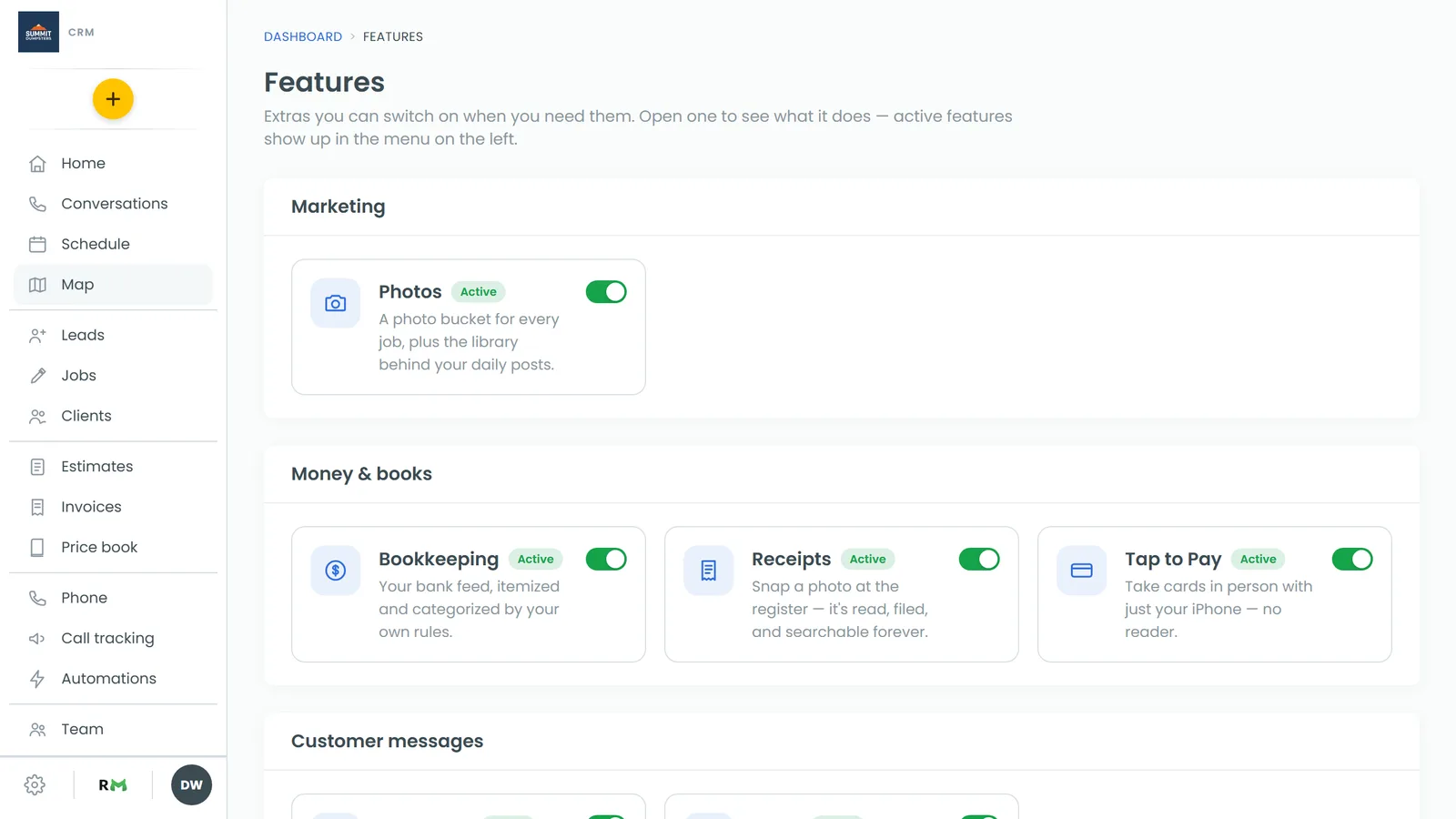
Before you ask for something new, check whether it's already built. If you see Features in the menu, click it to open the store. A lot of tools are already there and only need switching on.
Send a request or report a problem
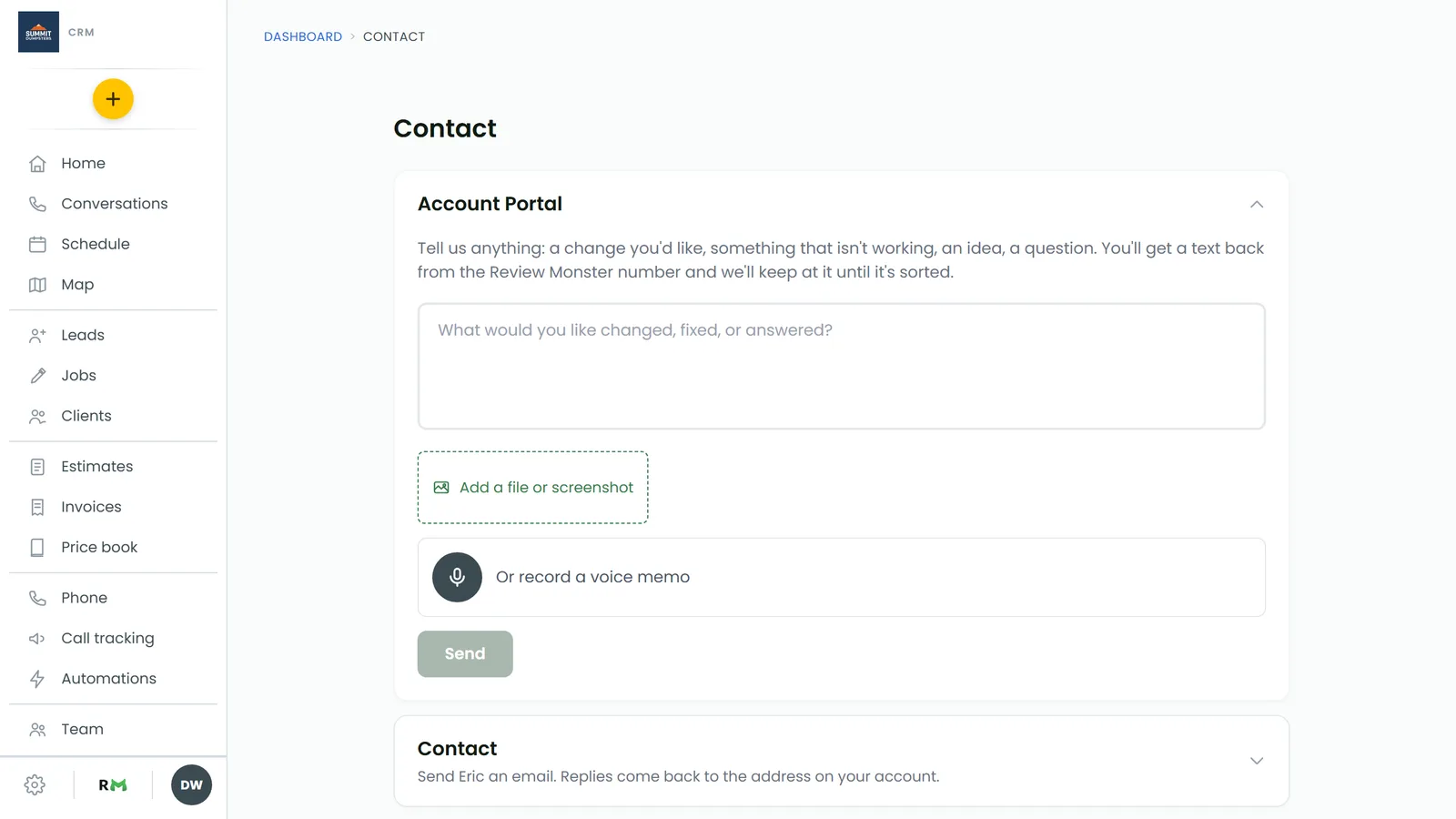
The top card on the Contact page is Account Portal. It's open when the page loads. Use it for anything: a change you'd like, something that isn't working, an idea or a question.
On the web
- In the box, type what you'd like changed, fixed or answered.
- To show us what you mean, click Add a file or screenshot. You can add up to five. A zip, a PDF or a spreadsheet is fine, but not a program.
- To talk it through instead, click the microphone next to Or record a voice memo. Click it again to stop. You can play the memo back, or click Record again to redo it.
- Click Send.
You'll see Sent — we'll text you shortly. The reply comes by text from the Review Monster number.
In the phone app
- In the Account Portal card, type what's on your mind.
- Tap Add a screenshot to pick pictures, or Attach a file for anything else on your phone. You can add up to five in total.
- To record a voice memo, tap the microphone. Tap it again to stop. Tap Remove if you want to drop the memo.
- Tap Send feedback.
You'll see Thanks — that's with us. Tap Send another if you have more.
Email Eric directly
Prefer a regular email? It goes to Eric, and his reply lands in the email address on your account.
On the web:
- Click the Contact card to open it.
- Fill in Subject and Message.
- If you like, click Add a screenshot to attach pictures. This form takes images only.
- Click Send. You'll see Sent. Eric will reply to your email.
In the app:
- Scroll down to EMAIL ERIC.
- Fill in Subject and the message box.
- Tap Send email.
Follow up on what you've sent
On the web, everything you've sent through Account Portal is listed under Your conversations, newest first. Each one has a status:
- we're on it: we're working on it.
- with a person: a team member has picked it up.
- waiting on you: we've answered and need something from you.
- done: it's sorted.
- Click a conversation to open it and read every message.
- Type in the box at the bottom. You can add files here too.
- Click Reply, or press Enter.
A conversation marked done can be picked up again from the same box.
Related articles
- Getting help with the CRM
- Choosing your shortcuts and features
- Find your way around the CRM
- Phone app overview