In this article, you'll learn what happens to texts when your company has more than one phone number: which texts land in Conversations, and which number your customers see when you write back. It helps to know this before a customer asks why your reply came from a different number than the one they texted.
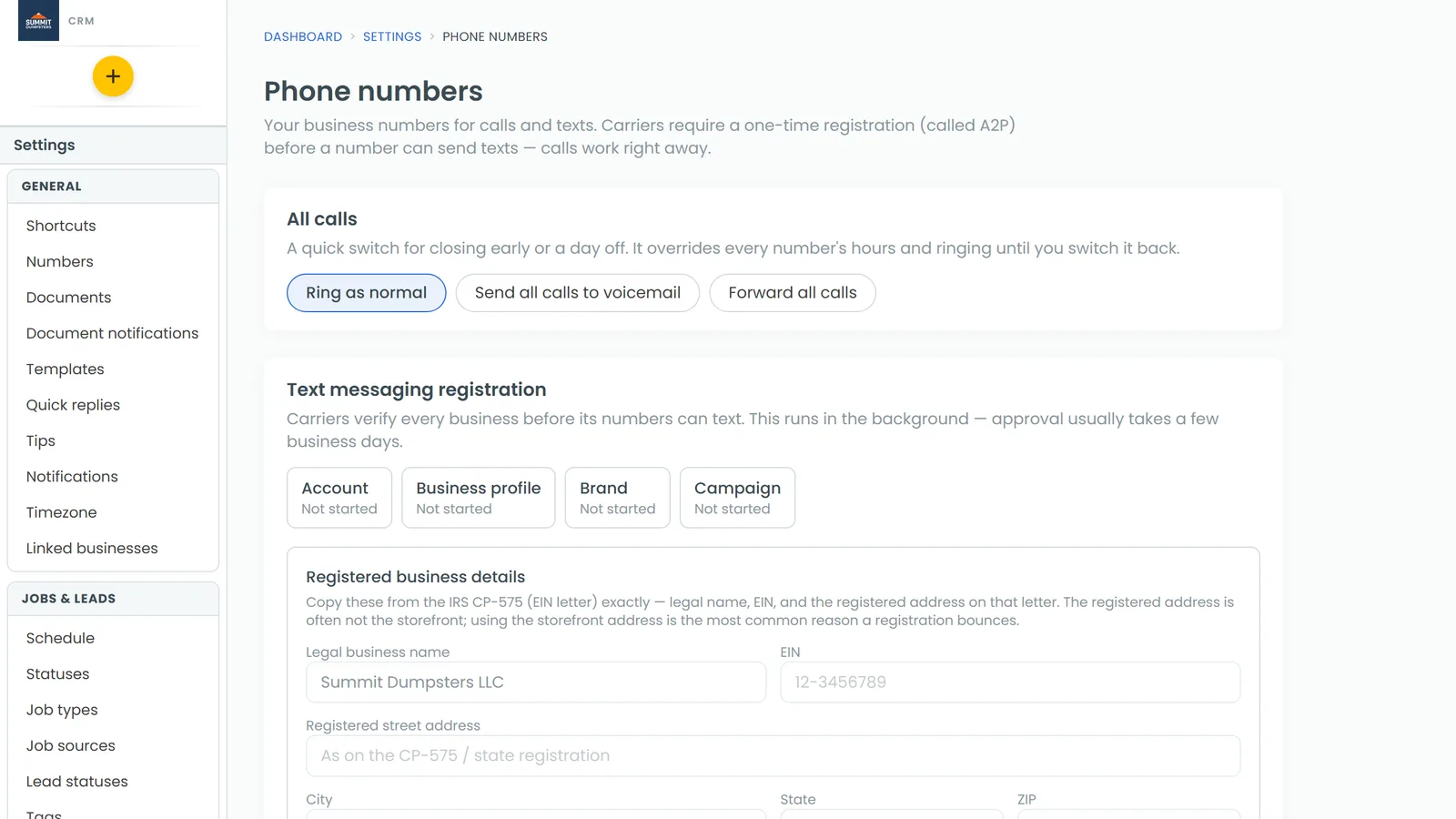
To see your numbers:
- In the menu, click Settings.
- Click Phone numbers.
Your numbers are grouped into cards. CRM number is your main line for the office. Review requests is the line your review requests go out on. Anything else, like call tracking numbers, sits under Other numbers.
Your CRM line and your Reviews line
Every company gets two lines when it signs up. They do different jobs, and the CRM keeps them apart on purpose.
- The CRM line is the number for everyday calls and texts with customers. Texts to it show up in Conversations.
- The Reviews line is only for review requests. When a customer replies to a review request, that reply goes to the review reply handling, which works out whether they left a review, asked to stop, or need a person. Those replies never show up in your Conversations inbox.
Receiving texts
Texts to every one of your numbers except the Reviews line land in Conversations. That includes:
- Your CRM line.
- Your call tracking numbers. A text to a tracking number is filed in the inbox like any other text, so you can answer it the same way.
Conversations are kept by the customer, not by which of your numbers they used. If someone texts your CRM line one day and a tracking number the next, it all ends up in the same thread, as long as they text from the same phone.
Sending texts
Every reply you send from Conversations goes out from your main CRM line, the one marked with a filled star on the Phone numbers page. That's true whichever of your numbers the customer texted. If someone texts one of your tracking numbers, your answer still comes from your CRM line.
That means a customer who texted a tracking number may see your reply arrive from a number they don't recognize, and on their phone it can start a new thread. It's worth saying who you are in your first reply, something like "Hi, it's Dave from Acme Junk Removal, answering the text you just sent us."
Review requests are the one exception. They always go out from your Reviews line, so the customer's answer reaches the review reply handling and not your inbox. If your company doesn't have a Reviews line, review requests go out from the CRM line instead.
Changing your main CRM line
The star next to a number marks the default number your texts go out from.
- Go to Settings > Phone numbers.
- In the CRM number card, click the empty star next to the number you want to use.
The star fills in on that number. You can only change this on the web. The phone app's Phone numbers screen labels your default number Outbound caller ID, but it doesn't let you change it.
Texts from your linked businesses
If you run more than one business from one login, threads from your other businesses can show up in your Conversations. When you open one, you'll see a line under the customer's name that says <business> · replies go out from <business>.
That line tells you whose conversation it is. When you reply, the text leaves on that business's own line, not the business you're signed into. You'll see the same line at the top of the thread in the phone app.