In this article, you'll learn your way around Conversations, the one inbox where every text, call, voicemail, email, Facebook message and AI chat with a customer lands. Each customer gets one thread with everything in it, so you never have to dig through your phone and your email to work out what was said.
To open Conversations:
- In the menu, click Conversations.
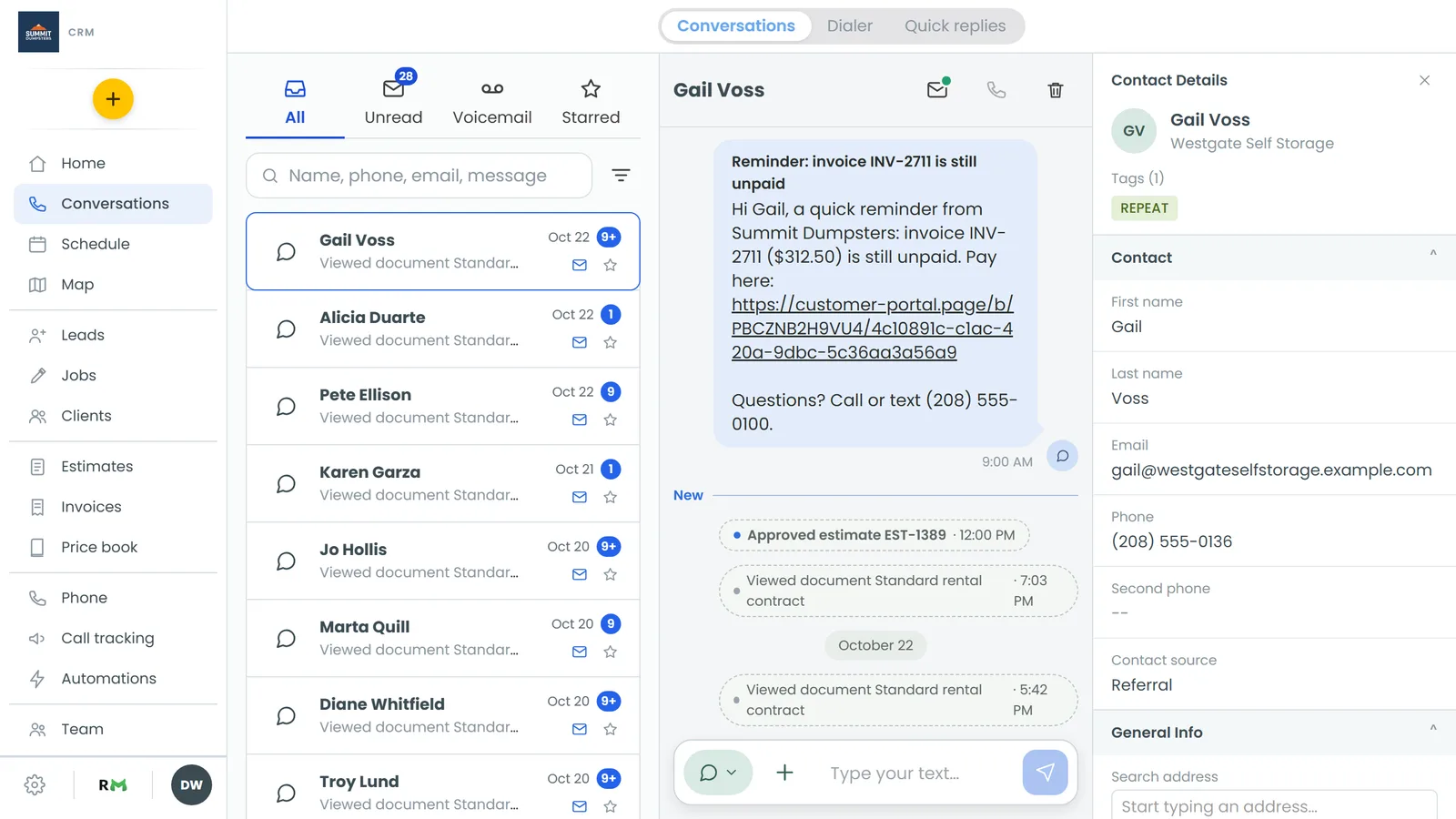
Across the top you'll see three pages: Conversations (the inbox), Dialer and Quick replies. The phone app has the same three.
What's in a thread
Every row in the list is one person. The icon on the left shows what happened last: a green handset for a call that went through, a red one (with red text) for a missed call, a tape icon for a voicemail, and an envelope or chat bubble for an email or a message.
For a call, the second line shows the time and how long it lasted. If the call was transcribed, a short AI summary follows, so you can see what a voicemail was about before you play it. For a message, you see the first few words, with "You:" in front of the ones you sent.
Click a row to open the thread. On a computer it opens beside the list, and on a wide screen a third column shows who you're talking to. On a phone it opens on its own screen.
Inside the thread, calls and voicemails show up as cards. Each one has a player, the summary under it, and View transcript to read the whole call. The ⋮ on a card lets you Forward by text, Forward by email or Download the recording.
The tabs
The four tabs above the list narrow down what you're looking at:
- All: every conversation, newest first.
- Unread: only threads with something you haven't read. The badge shows how many.
- Voicemail: every call that left a voicemail. The badge counts the unread ones.
- Starred: threads you've starred so you can find them again quickly.
The search box above the list looks through names, phone numbers, emails and the words in messages.
Filtering by channel
Click the filter icon next to the search box to show only one kind of conversation: Calls, SMS, Email, Facebook or AI chat. Pick All to go back to everything. (In the phone app the sheet is titled Show, its first option is Everything, and it doesn't have the AI chat option.)
Under the channels are three checkboxes:
- Active: your normal inbox. It's ticked by default.
- Deleted: threads you've deleted, plus ones that went away when you blocked the number. They wear a grey "Deleted" tag.
- Hidden: voicemails you've hidden from the Voicemail tab.
Hiding a voicemail
Once you've dealt with a voicemail, you can clear it off the Voicemail tab without deleting anything.
- Click the Voicemail tab.
- Swipe the voicemail to the left. On a computer, hover over it with your mouse and click the Hide button that slides in.
It disappears from the list and the count. The call, recording and transcript all stay on the customer's history. To bring it back, open the filter, tick Hidden, then swipe the voicemail again (or hover) and choose Unhide.
Marking a thread read or unread
The envelope shows where a thread stands: closed means unread, open means read. Opening a thread marks it read.
- On a computer: click the envelope on the right side of the row. The same envelope sits at the top of an open thread, next to the call button and the bin.
- In the phone app: swipe the row to the right, or press and hold it and choose Mark as read or Mark as unread.
Marking something unread is handy when you've glanced at a message but still need to deal with it later.
Quick replies
Quick replies are saved messages for the things you type over and over, like "Sorry we missed your call, how can we help?"
To set them up:
- Click Quick replies at the top of Conversations, or go to Settings › Quick replies.
- Give the reply a name and type the message. Put {first_name} anywhere you want the customer's first name to go.
- Click Add quick reply.
To use one:
- Open a thread.
- Click + next to the message box and choose Quick reply.
- Pick the reply. It drops into the message box, and you can edit it before you send it.
Sending a text or email
Replies go out from the box at the bottom of the thread. For the full walkthrough, see Text a customer from the CRM.
Related articles
- Filtering and sorting your conversations
- Creating quick replies
- Text a customer from the CRM
- Deleting conversations or marking them unread
- Transcribing and summarizing your calls