In this article, you'll learn how to work several businesses or locations from one place. If your login opens more than one company, you can pick one as home base and pull the others into it, so you're not switching back and forth all day to answer texts or check the schedule.
This isn't an add-on, and you won't find it in Features. Each business is still its own company in the CRM. You just decide what each one shows inside the business you work from.
To open Linked businesses:
- In the menu, click Settings.
- Under General, click Linked businesses.
You can only do this on the web. The page isn't in the phone app, but what you set here applies in the app too.
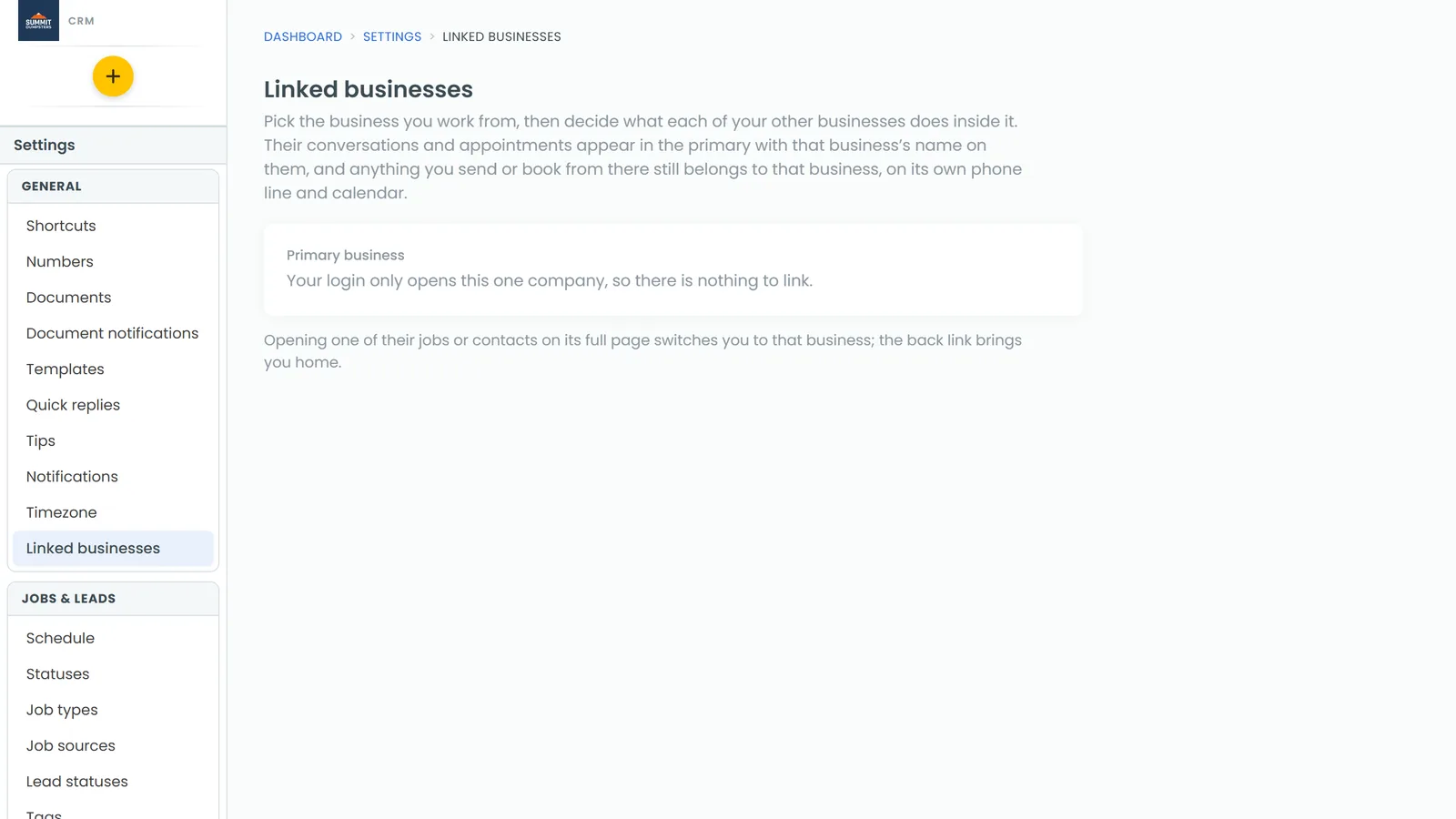
Choose your primary business
The primary is the business you work from. Every other business's calls, texts and appointments get pulled into this one.
- Open the Primary business dropdown.
- Pick the business you want as home base.
You can only have one primary. If you pick a different one later, every link moves over to it. Changes on this page save as you make them. There's no Save button.
Decide where each business's calls and texts go
Each of your other businesses has its own row, with a coloured dot next to its name. That colour stays with the business everywhere it shows up in the primary.
- Find the business in the list.
- Open its Calls & texts dropdown.
- Pick one of these:
- Ring and show in your primary: texts to that business's line show up in the primary's inbox, and its calls ring there labelled with that business's name. This overrides any call forwarding set on that line.
- Forward to a number: type the number in the box that appears. Calls forward there, and texts follow as copies.
- Keep in that business: its calls and texts stay in its own CRM.
Show or hide a business inside the primary
Whether a business's conversations, calls, voicemails and appointments show up in the primary is controlled by one switch: the eye next to its name in the business list on your Home page. It only appears when you're in your primary business.
- In the menu, click Home.
- Click the business card at the top of the page to open your list of businesses.
- Click the eye to the left of a business:
- A green eye shows that business's conversations and appointments in the primary.
- A red, crossed-out eye hides them.
The same eye is on the phone app's Home screen. One switch covers both, and every screen that shows other businesses: Conversations and the schedule.
What linked businesses look like
- Conversations: a thread from another business carries that business's name in a coloured pill. Inside the thread, the header says replies go out from that business.
- Schedule: that business's appointments show with its colour down the left side and its name on the card.
- Replies and bookings still belong to that business. A text you send goes out on its own phone line with its own templates, and an appointment lands on its own calendar.
- Full pages: opening one of its jobs or contacts on its full page switches you into that business. The back link at the top brings you home.
To book a new appointment for a linked business, see Booking jobs for another of your businesses.
Good to know
- Nothing is copied between companies. Each business keeps its own settings, team, payments and reports.
- To unlink a business, set its Calls & texts to Keep in that business, then turn its eye red on the Home page.
Related articles
- Switching between your businesses
- Booking jobs for another of your businesses
- Setting up call forwarding
- Filtering and sorting your conversations
- Getting help with the CRM