In this article, you'll learn how to text a customer from the page you're already working on. You don't have to go to Conversations first. The customer's thread slides in from the side, you send your message, and you're right back where you were.
Texts go out from your business number, never your own phone, and the customer's reply lands in the same conversation.
Where you'll find the text button
- Client page: the chat icon next to the customer's phone number. On the web, the History button on the right edge opens the same thread.
- Job page: on the Details tab, the chat icon next to the customer's phone number. It's there on the web and in the app.
- Schedule and job map (web): click a job, then the chat icon beside the customer's phone number in the popup.
- Clients list (app): swipe a customer's row to the right and tap Text.
Text from a job or client page
This opens the customer's whole conversation, with your texts, emails and calls in one place.
To text a customer from their page:
- Open the job or the client.
- Click the chat icon next to their phone number.
- The conversation slides in from the right. Type in the message box at the bottom.
- Click the send arrow. On the web, pressing Enter also sends, and Shift+Enter starts a new line.
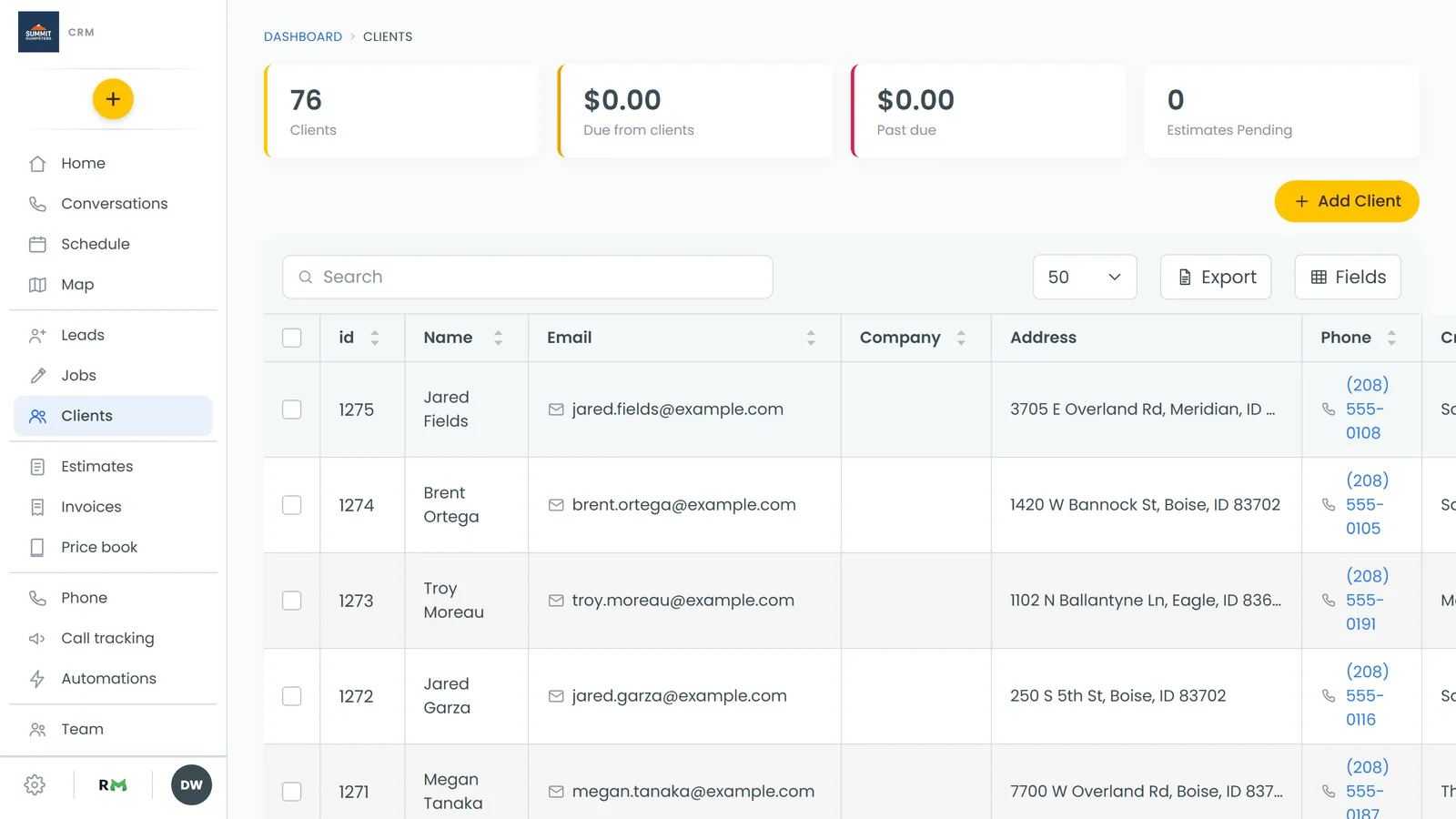
When you're done, click the arrow at the top left of the panel. On the web you can also press Esc or click anywhere outside the panel. You're back on the job or client page, right where you left off.
Add a photo or a saved message
Tap + next to the message box:
- Camera takes a photo and attaches it.
- Photos and videos lets you pick files to send.
- Quick reply drops one of your saved messages into the box.
On the web you can also drag a file onto the conversation to attach it. You can attach up to five photos or videos at a time. On the web, attachments only go out with a text, not an email.
Reply by email or Facebook instead
If the customer can be reached more than one way, you can pick how your reply goes out. On a computer, click the round button at the left of the message box and choose Message, Email or Facebook message. On a phone, the same choices are at the top of the + menu (in the app, text shows as Text). Pick Email and a Subject box appears.
Mark it read or unread
Opening the thread doesn't mark it read. Click the envelope at the top of the panel to switch it between read and unread.
Send a quick text from the schedule
On the web, the schedule and the job map give you a smaller Send message panel. It's for a quick one-off text and doesn't show the conversation history.
To send a quick text from the schedule:
- In the menu, click Schedule.
- Click a job to open its popup.
- Click the chat icon next to the customer's phone number.
- Check the Phone number, then type in Message. Click Quick reply if you want one of your saved messages.
- Click Send text.
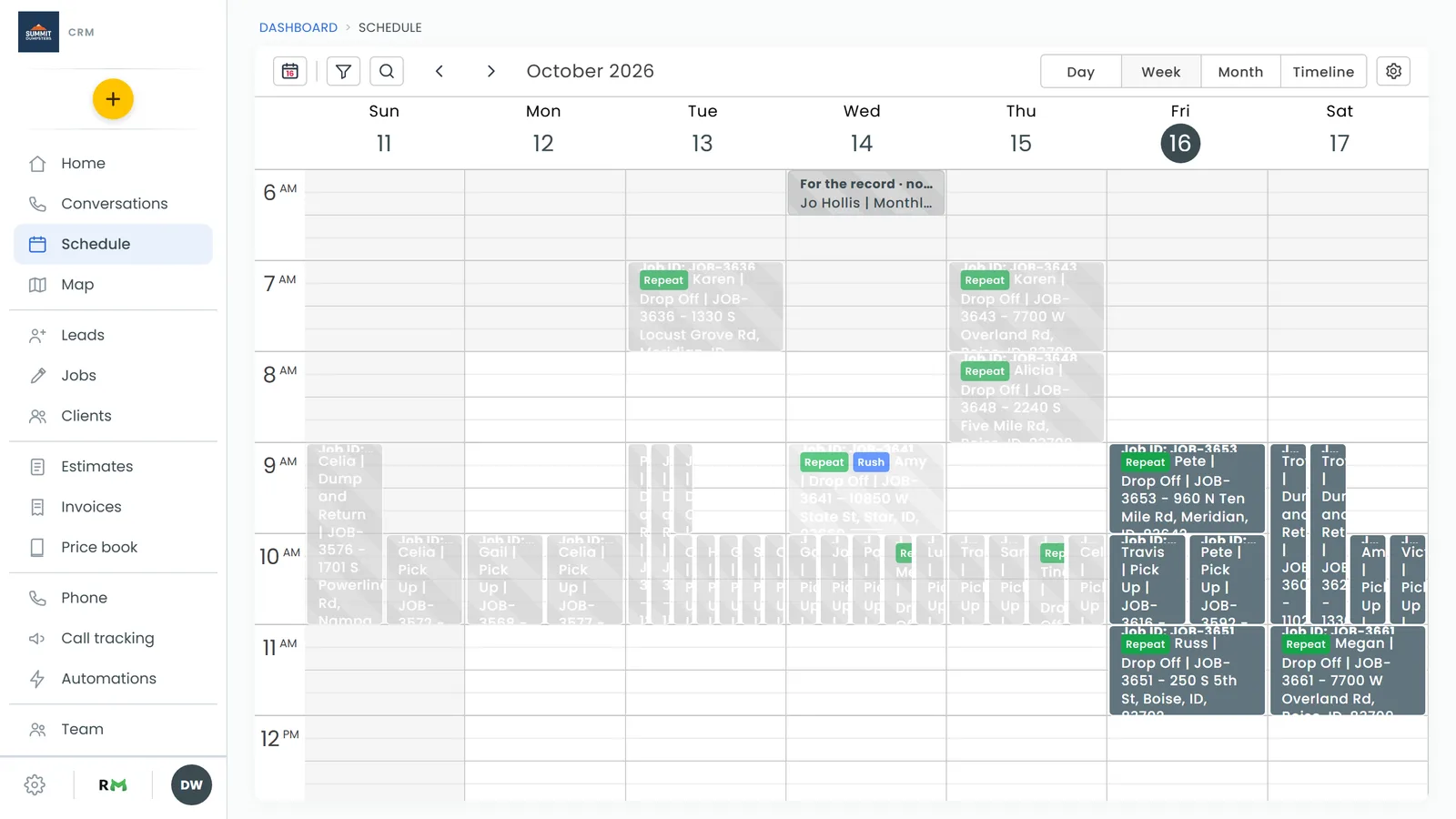
The text still shows up in that customer's conversation, like any other.