In this article, you'll learn how to buy a new business phone number in the CRM and set up who it rings. You might want one for a second line, a new location, or a number for the office to text and call from.
You buy numbers in the web CRM. The phone app shows your numbers and lets you change their settings, but buying and bringing over numbers happens on the web.
To open your phone numbers:
- In the menu, click Phone.
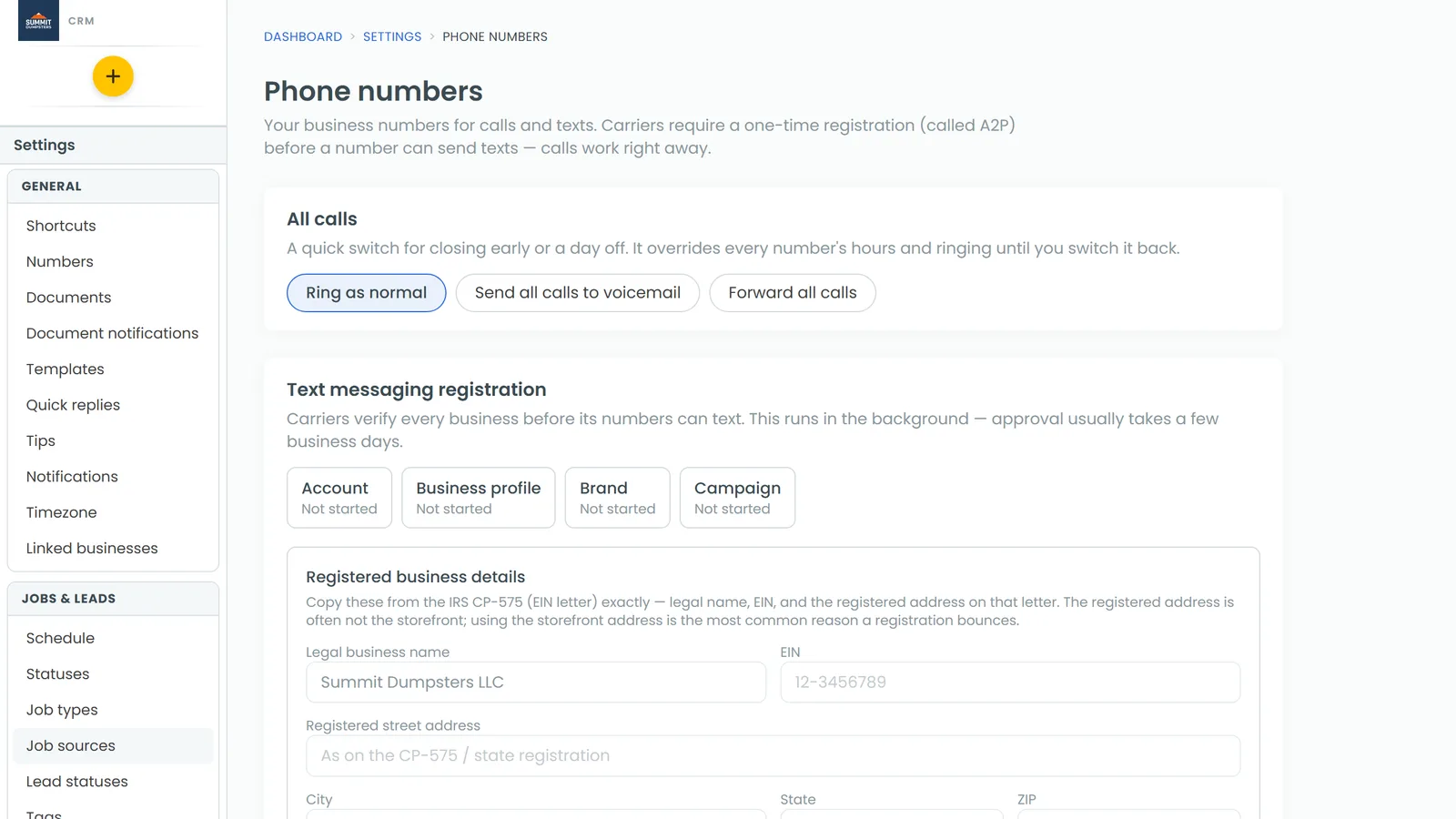
You'll see the registration cards at the top, then your numbers grouped under CRM number, Review requests and Other numbers.
Before you buy
New numbers go into your company's own phone account, and the first step of your texting registration is what creates that account. If you open the buying panel before that's done, you'll see a note telling you to start the registration above first.
If you see that note, go to the Text messaging registration card at the top of the page, fill in your business details and start the registration. Then come back and buy your number.
Buying a number
- At the bottom of your numbers, click Buy a number.
- Type an Area code (three digits, like 208).
- If you'd like certain digits in the number, type them in Contains (optional).
- Tick Toll-free if you want a toll-free number instead of a local one.
- Click Search numbers.
- Under Pick a number, click the one you want. Each one shows the town and state it belongs to, and you'll see up to 12 choices.
- If you like, type a name in Name this number (optional), such as "Main line". This is the name you'll see in the CRM, not something callers see.
- Click Buy this number.
If the search says Nothing matched — try a nearby area code., try a neighboring area code or clear the Contains box.
Changed your mind? Click Cancel in the top corner of the panel to close it without buying anything.
Choosing who your new number rings
Your new number shows up under Other numbers, under the name you gave it. Next, tell it who to ring.
- Next to the new number, click Edit.
- Open the Ringing & forwarding tab.
- Under Calls go to, pick A team member, An external number, or Only the people ticked below, then fill in who.
- Save your changes.
The same window has tabs for Hours, Phone menu and more. Choosing who your calls ring walks through all of it.
Making it your default outbound number
Each number has a star next to it. A filled star marks your default outbound number. To switch, click the empty star next to the number you want.
Numbers for tracking ads
If you want a number just to see which ad, sign or listing brings in calls, use a call tracking number instead. Those are set up on their own page and cost $5 a month each. See Using call tracking to see which ads bring in calls.
Related articles
- Setting up your CRM phone
- Choosing who your calls ring
- Bringing your existing phone number over
- Using call tracking to see which ads bring in calls
- Understanding texting registration (A2P)