In this article, you'll find short answers to the questions people ask most about the CRM phone. Each answer tells you which switch or tab to check, so you can usually sort it out yourself in a minute or two.
Most of the settings mentioned here are on one page.
To open your phone settings:
- On a computer, click Phone in the menu. You can also open Settings and click Phone numbers under Phone & booking.
- Your numbers are grouped under CRM number and Review requests. To change how a number rings, click Edit next to it.
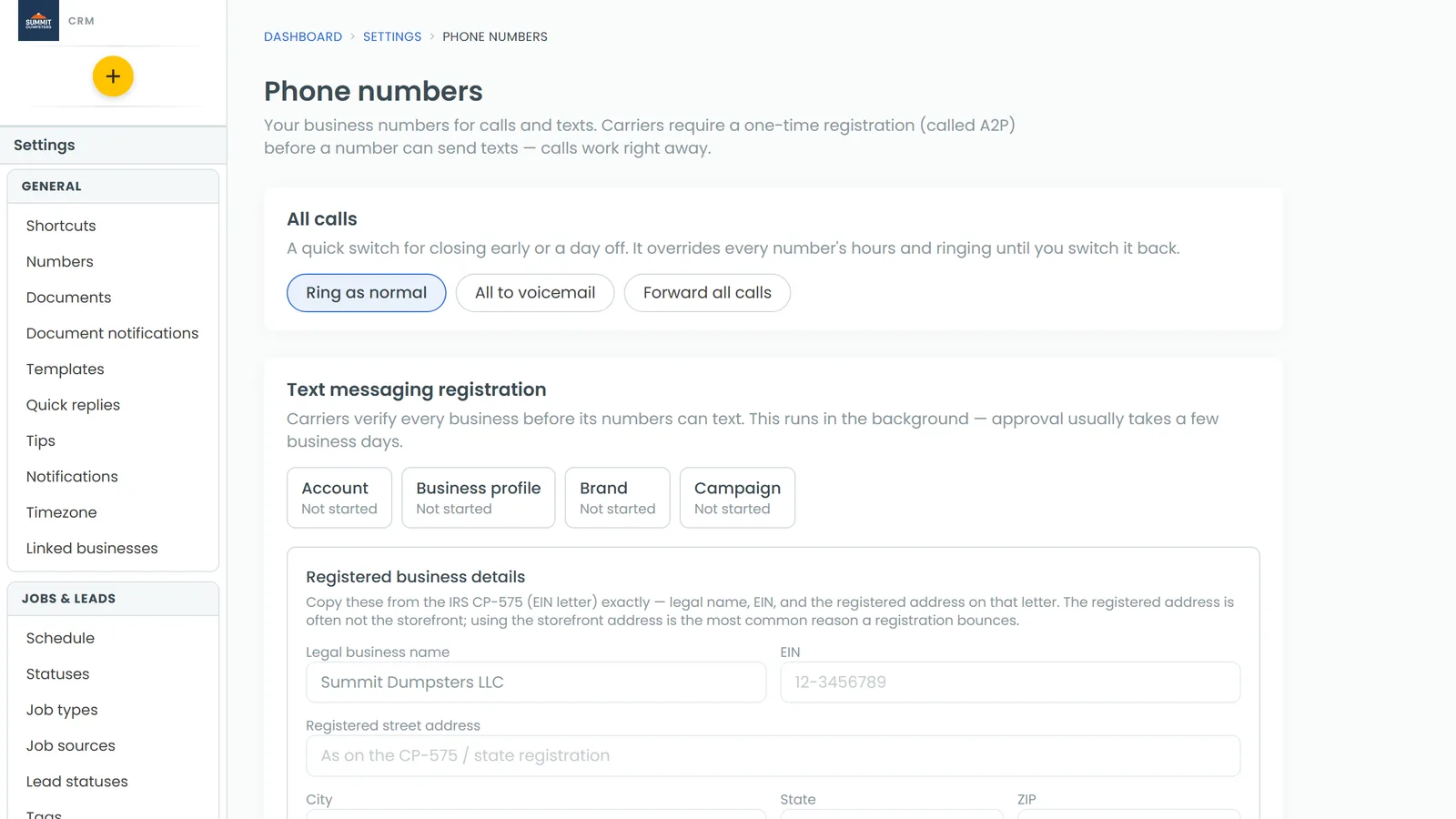
Why can I call but not text yet?
Carriers make every business register once before its numbers can send texts. This is called A2P registration. Calls don't wait for it, so your number can make and take calls as soon as you have it.
While the registration is in review, your permanent number shows an A2P pending badge. On the web, the Text messaging registration card shows four steps: Account, Business profile, Brand and Campaign. Click Refresh status to check on progress. Approval usually takes a few business days. The app's card shows the brand and campaign status, plus a Continue registration button.
If you also have a temporary number, texts go out from it until carriers approve your permanent number. After that, the permanent number takes over.
Why doesn't my Reviews number ring?
It isn't supposed to. The number under Review requests only sends review requests, so replies to it never land in your inbox. If someone calls it, they hear a few seconds of silence and then the call ends. Nobody's phone rings and no voicemail is taken. The ringing, hours and voicemail settings don't apply to this number, and its settings window tells you that at the top.
Why didn't my phone ring?
Go through this list in order. Any one of these can stop a call from reaching you.
- On the Phone numbers page, find the All calls card and make sure it's on Ring as normal. While it's set to All to voicemail or Forward all calls, it overrides every number's hours and ringing.
- In Who's taking calls, the person who should have rung needs to show Taking calls. Anyone set to Not taking calls gets skipped.
- Click Edit on the number and open the Ringing & forwarding tab. Check Calls go to. Under Also ring these team members, make sure the person is ticked, along with where they answer: Web app, Mobile app or Phone number.
- On the Hours tab, check that the number was open when the call came in. Outside your hours, callers get the after-hours greeting and nobody rings.
- Check Closed days on the Phone numbers page. On a closed day, every number answers with the after-hours greeting all day.
What happens to suspected spam?
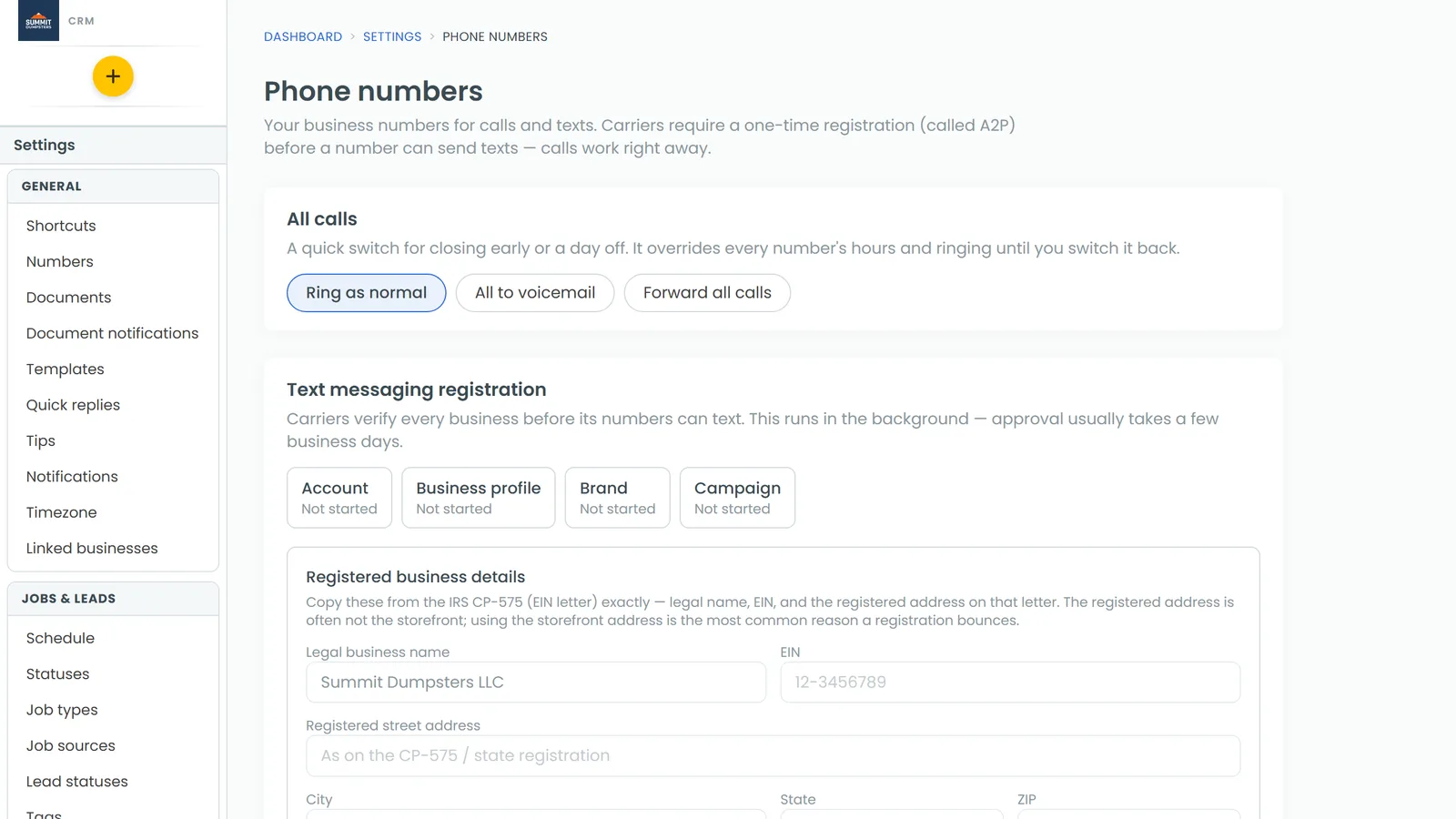
The Spam filtering card on the Phone numbers page has two switches. Both are on unless you turn them off.
- Send suspected spam calls to voicemail catches calls whose caller ID fails the carriers' spoofing check. Those calls go to voicemail instead of ringing your phones, and they show in Conversations labelled Suspected spam.
- Ask unknown callers to press 1 is for callers you haven't saved whose number the carriers don't fully vouch for. They hear "press 1 to be connected" before your phones ring. A real person presses it and a robocaller can't. This switch only works while the first one is on.
Anyone saved as a customer always rings straight through, no matter how these are set.
Can I text from the number customers call?
Yes. Texts you send from Conversations go out from your CRM number, which is the number customers call. On the web, it's the number with the filled star on the Phone numbers page. In the app, its line reads Outbound caller ID. Only review requests go out from the Reviews number.
Where do voicemails go?
Open Conversations and click the Voicemail tab. Every voicemail is listed there with its recording, and the tab shows how many you haven't read yet. The phone app has the same tab.
Can I close for a holiday?
Yes. On the Phone numbers page, find the Closed days card.
- Pick the Date.
- Type a Name, such as Christmas.
- Click Add closed day.
For that whole day, every number answers with the after-hours greeting, even numbers set to always open. To take a day off the list, click Remove next to it.
Do texts follow call forwarding?
Yes. If a number has a Call forwarding number set on its Ringing & forwarding tab, texts to that line go to the same phone, pictures included. The same goes for Forward all calls on the All calls card. It also covers an after-hours forward (Forward to another number on the Hours tab), but only while the number is closed.
Can I make calls from my computer?
Yes, right in your browser, with nothing to install. Open Conversations and switch to Dialer at the top to place a call. Incoming calls ring in the browser for anyone who has Web app ticked on that number. On your phone, use the CRM app.