In this article, you'll learn how to block a phone number so it can't call or text your business, and how to unblock it later. It's the quickest way to stop one pesky caller or a run of junk texts from cluttering your inbox and ringing your crew.
Every blocked number lands on one list, whether you block it from a conversation or type it in by hand. The list lives in Settings, on the web and in the phone app.
To open your blocked callers list:
- In the menu, click Settings. In the phone app, tap the gear at the bottom of the menu.
- Under Phone & booking, click Blocked callers.
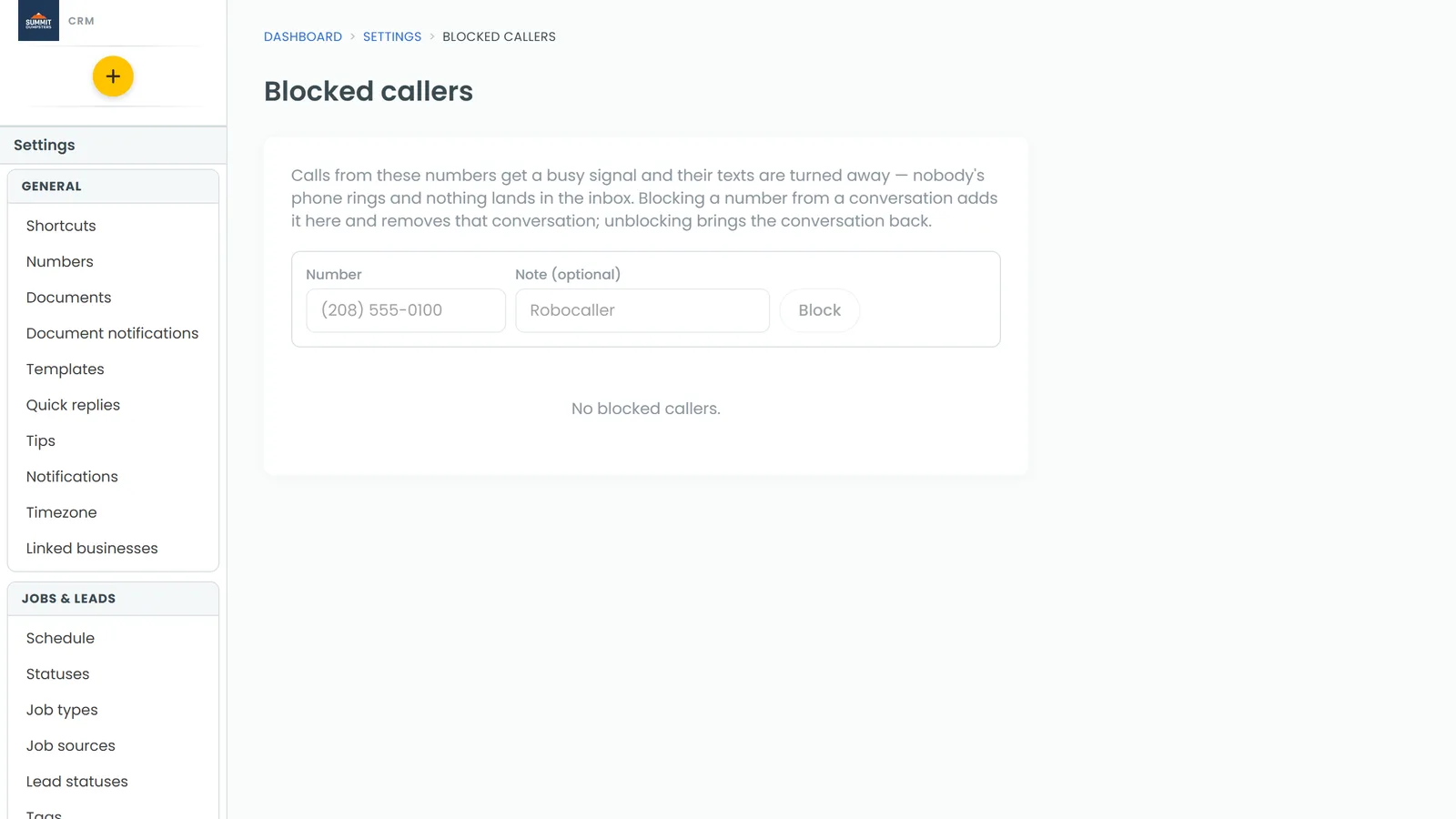
What blocking does
Once a number is on the list:
- Their calls get a busy signal. They're turned away before anyone's phone rings, and nothing is logged.
- Their texts are turned away. Nothing lands in Conversations and nobody gets a notification.
- Their conversation is taken out of your inbox.
Unblocking undoes all of it. Their calls and texts come through again, and their conversation comes back to the inbox.
Blocking from Conversations
This is the fastest way when the number has already called or texted you.
On the web
- In the menu, click Conversations.
- Find the conversation with the number you want to block.
- On the right side of the row, click the circle-with-a-line icon (it says Block this caller when you hover over it).
The conversation leaves the inbox right away and the number is added to Settings › Blocked callers.
On the phone app
- Open Conversations.
- Swipe left on the conversation.
- Tap Block.
Blocking a number by hand
Use this for a number that hasn't reached you yet, like one a customer warned you about.
- Open Settings › Blocked callers.
- Type the phone number into the number box.
- If you like, add a note so you remember why, like "Robocaller". On the web the box is Note (optional).
- Click Block (on the phone app, tap Block number).
The button stays greyed out until you've typed a full 10-digit number. Each blocked number shows its note and the date it was added. Numbers you blocked from Conversations show the note "Blocked from the inbox".
Unblocking a number
- Open Settings › Blocked callers.
- Find the number in the list.
- Click Unblock. On the phone app you'll be asked to confirm. Tap Unblock again.
Their conversation comes back to Conversations, and their next call or text comes through as normal.
Stopping robocalls you can't block one by one
Robocallers often switch numbers, so blocking each one is a losing game. Spam filtering handles those for you. Both switches are on by default.
To check your spam filtering:
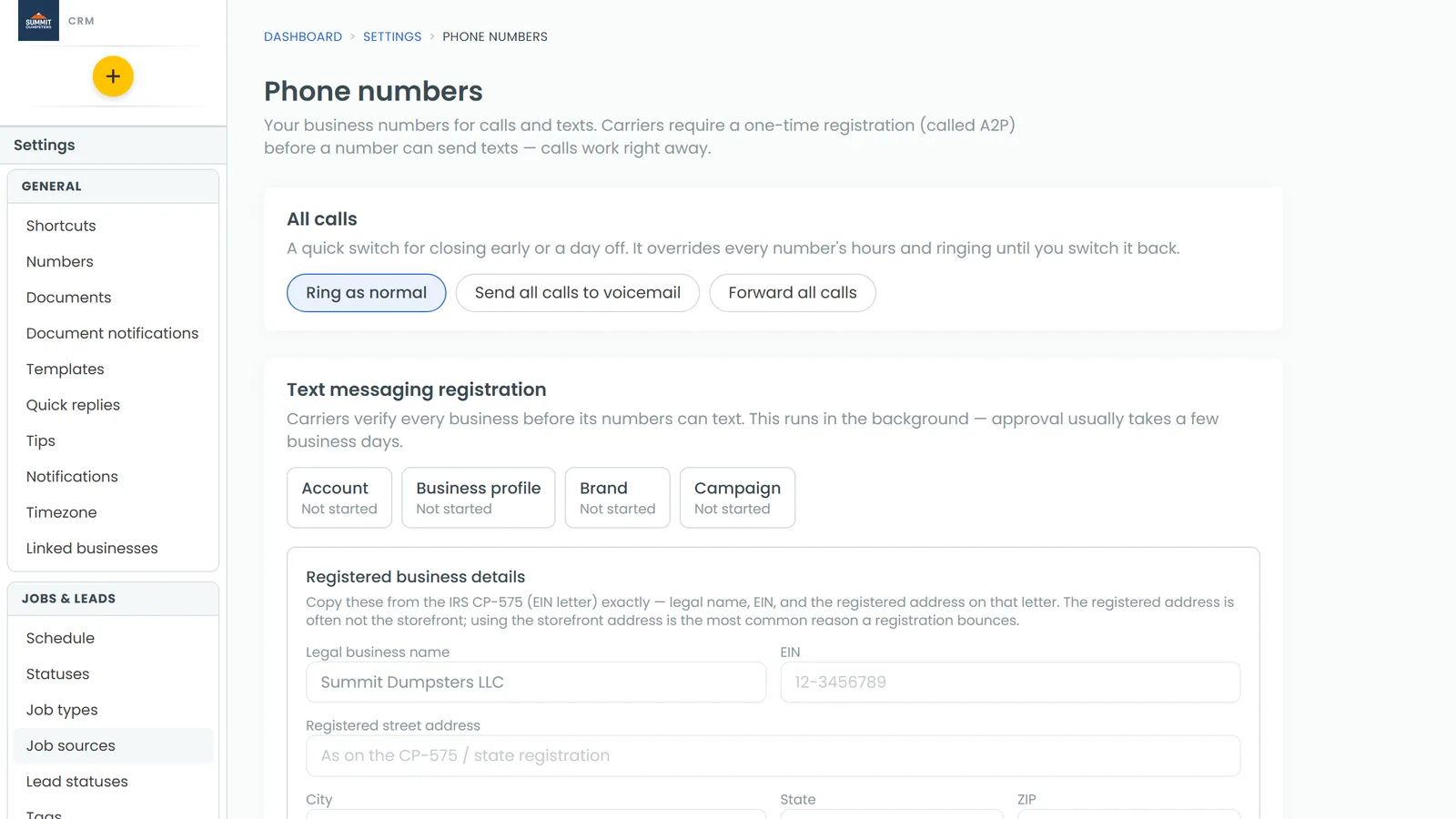
- Open Settings › Phone numbers.
- Scroll to Spam filtering.
- Send suspected spam calls to voicemail sends calls whose caller ID fails the carriers' spoofing check straight to voicemail.
- Ask unknown callers to press 1 makes callers you haven't saved hear "press 1 to be connected" before your phones ring, unless their carrier fully vouches for their number. Real people press it; robocallers can't. This one only works while the first switch is on.
Filtered calls can still leave a voicemail, and they show in Conversations marked "Suspected spam".
Related articles
- Managing your calls
- Setting your caller ID name to avoid looking like spam
- Setting up a phone menu
- Deleting conversations or marking them unread
- CRM phone FAQ