In this article, you'll learn your way around the page where you set up the CRM phone. You'll see what's already done for you, what's left to finish, and where each call setting lives.
Every company has the CRM phone, so there's nothing to switch on in Features. When you sign up you get two numbers:
- CRM number: calls and texts to this line come into the CRM.
- Review requests: this line sends your review requests. Calls to it get a few seconds of silence and then hang up. It never rings anyone.
Calls work as soon as a number is set up. Texting waits for a one-time carrier registration. For the bigger picture, see What is the CRM phone?.
To open the phone settings:
- In the menu, click Phone.
- Or open Settings and, under Phone & booking, click Phone numbers.
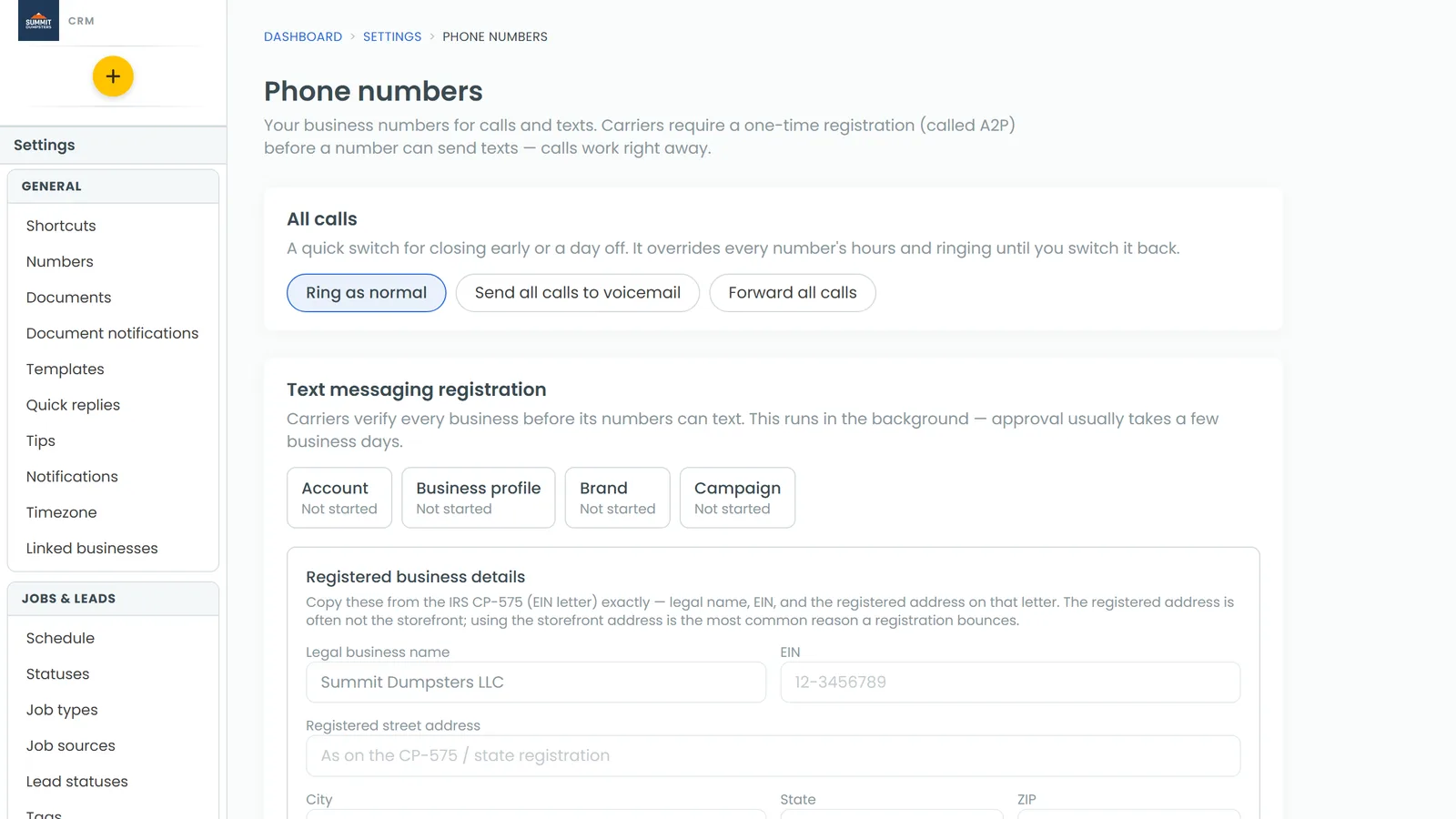
The sections below follow the page from top to bottom.
All calls
This is a quick switch for closing early or taking a day off. It overrides every number's hours and ringing until you switch it back.
- Ring as normal: calls follow each number's own settings.
- Send all calls to voicemail: no phone rings.
- Forward all calls: type a phone number and click Turn on. Texts, pictures included, are forwarded to that number too.
While it's on, the card shows who switched it on and when.
Text messaging registration
Carriers check every business before its numbers can send texts. This runs in the background, and approval usually takes a few business days. The card shows four steps: Account, Business profile, Brand and Campaign.
If you see Registered business details, copy the legal name, EIN and registered address exactly from your IRS EIN letter (the CP-575), then click Save details. Click Continue registration to move it along, and Refresh status to check where it stands. Once texting is approved, the card shows A2P Verified. See Understanding texting registration (A2P).
Calling registration
This card lists Trusted calls, Caller ID name and Spam protection. They file themselves once your business profile is approved. Fill in Employees and Outbound calls per business day (whole numbers, your best guess is fine), plus an optional Caller ID name, and click Save. See Setting your caller ID name.
Your numbers
Under Phone numbers, your lines are grouped as CRM number, Review requests and, if you have any, Other numbers. A group can show a Temporary number above the permanent one. The temporary number sends your texts until carriers approve the permanent one, and then the permanent one takes over.
- The star marks your default outbound number. Click an empty star to make another number the default.
- The badges show Setting up, Active or Porting, plus A2P Verified, A2P pending or A2P failed.
- Click Edit to open a number's settings. It has five tabs: Basic, Ringing & forwarding, Hours, Phone menu and Advanced.
Your CRM number starts out open Monday to Saturday, 8am to 8pm. You can change that on the Hours tab.
Each tab has its own article:
- Setting up call forwarding
- Choosing who your calls ring
- Setting up a phone menu
- How to turn on call recording
Adding a number
Under your numbers, click Buy a number to search by area code. Or click Bring a number you already have to move over a number you already use. See How to get a new phone number and Bringing your existing phone number over.
Voicemail greetings
One set of greetings is used on every number: During business hours, After hours, and After-hours urgent prompt (for numbers that let callers press 1 after hours). Edit the words and click Save and record. See Updating your voicemail greetings.
Who's taking calls
Untick someone when they're off shift or on a job, and calls skip them. Their settings stay as they are. Everyone can switch their own in the phone app.
Closed days
Pick a Date, add a Name and click Add closed day. On those days, every number answers with your after-hours greeting all day.
Voicemail alerts
Choose who gets an app notification about a new voicemail, add any phone numbers and email addresses that should hear about it, and click Save. See Getting voicemail alerts by text and email.
Spam filtering
- Send suspected spam calls to voicemail catches callers whose caller ID fails the carriers' spoofing check.
- Ask unknown callers to press 1 makes callers you haven't saved press 1 before your phones ring.
Anyone saved as a customer always rings through. Below this card there's a link to Settings → Blocked callers. See Blocking unwanted calls and texts.
On the phone app
In the app, open Settings and tap Phone numbers under Phone & booking. It edits the same settings, but each number's button says Call settings instead of Edit.
Related articles
- What is the CRM phone?
- Understanding texting registration (A2P)
- Setting up call forwarding
- Choosing who your calls ring
- CRM phone FAQ