In this article, you'll learn how to choose who rings when someone calls one of your business numbers, in what order, and what happens when nobody picks up. Set it up right and callers reach a real person fast, while whoever's off for the day isn't bothered.
Every number has its own ringing settings. You don't build call groups first. You tick the people a number should ring and set the order right there.
To open a number's call settings on the web:
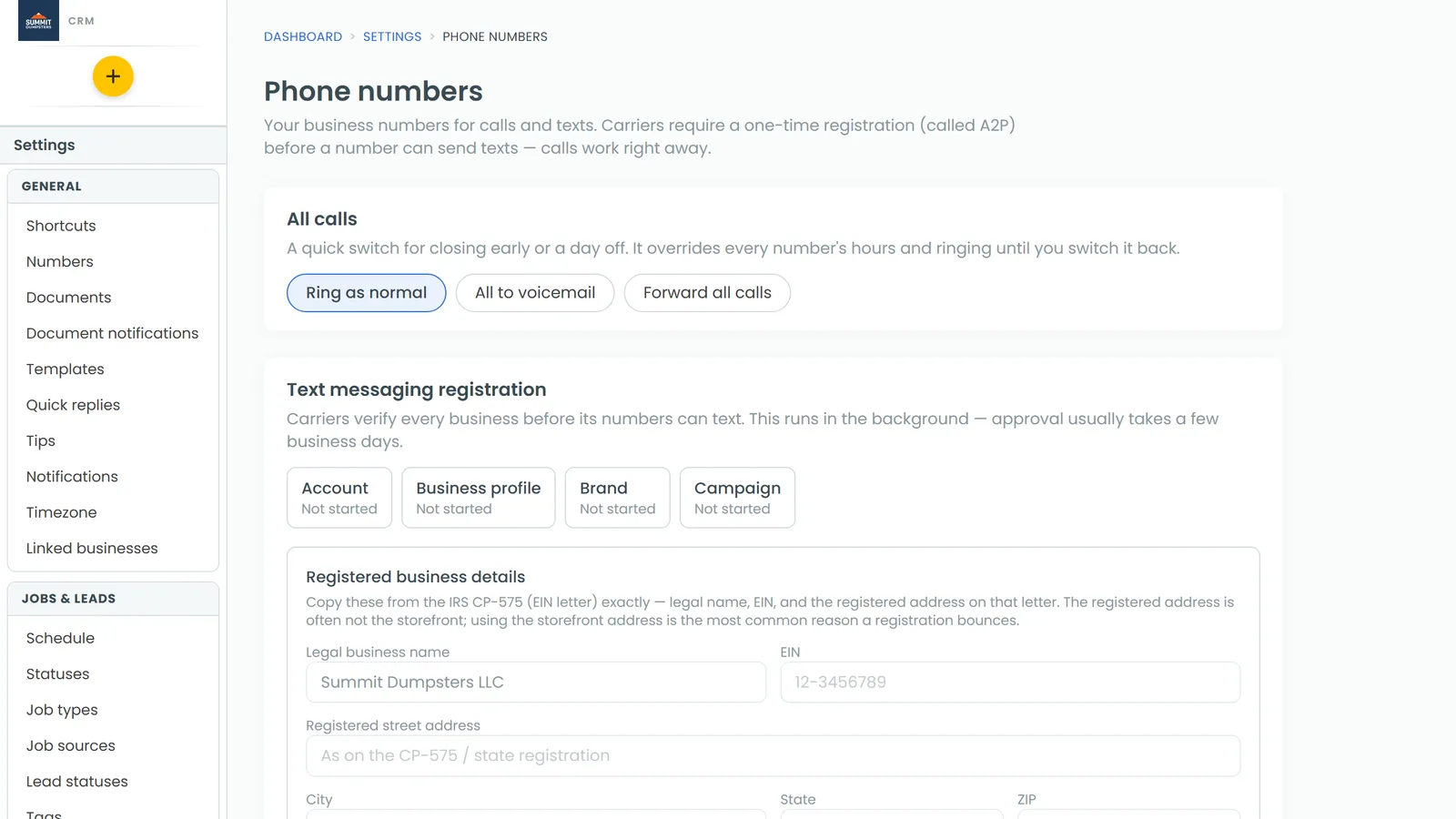
- In the menu, click Phone. You can also open Settings and click Phone numbers.
- Find the number under Phone numbers and click Edit. On a phone-sized screen the button is Call settings.
To open them in the phone app:
- Open the menu, tap the gear at the bottom, then tap Phone numbers.
- Tap Call settings under the number.
How a call moves through your settings
When a call comes in during business hours, the CRM works through it in this order:
- It rings the people: whoever Calls go to points at, then the team members you ticked.
- If nobody answers, it rings your Call forwarding number, if you set one.
- If that isn't answered either, it does what If nobody answers says: take a voicemail or hang up.
Anyone switched off under Who's taking calls gets skipped. More on that below.
Picking who rings
Open the Ringing & forwarding tab. In the app it's called Ringing.
- Under Calls go to, pick one:
- A team member, then choose the person.
- An external number, then type the number. The app calls this An outside number.
- Only the people ticked below, if you only want the list underneath to ring. The app calls this Only the people below.
- Under Also ring these team members, tick each person who should ring.
- For each person, choose where they answer: Web app, Mobile app or Phone number. If you pick Phone number, type the number they should ring on. In the app these are two switches, In the apps and On a phone number.
- Click Save.
Setting the ring order
Under Ring order, choose:
- Everyone at once — whoever answers first gets the call. Everyone rings together for the full ring time.
- One at a time, in the order listed above. People ring in the order they appear on the page, not the order you ticked them. Then set how many rings each person gets before it moves on: 2, 3 or 4.
If there's only one person to ring, they ring for the full ring time either way.
Ring time, forwarding and what happens next
- In Call forwarding, type a number to ring if nobody above answers. Leave it blank to skip this step. Texts to this line, pictures included, get passed on to that number too.
- In Ring time (seconds), set how long the call rings when everyone rings at once. It's also how long the forwarding number rings.
- In Outgoing call timeout (seconds), set how long your outgoing calls ring before giving up. The app calls this Outgoing timeout (seconds).
- Under If nobody answers, pick Take a voicemail or Hang up. With voicemail, callers hear your company's greeting, which you set under Voicemail greetings on the Phone numbers page.
- Click Save.
Setting your business hours
Calls only ring during your hours, in your business's time zone. Outside them, callers get your after-hours greeting.
- Open the Hours tab.
- To ring at any hour, tick Always open — ring at any hour. In the app, it's the Always open switch.
- Otherwise, click Add hours on each day and set the start and end times. Add a second range for a split day, like a lunch break. Click Remove to take a range off. A day with no hours shows Closed.
- Under After hours, choose what happens when you're closed:
- Take a voicemail
- Forward to another number, then type the number. While you're closed, texts to the line go there too.
- Take a voicemail and text the caller back
- If you didn't pick forwarding, you can tick Let after-hours callers press 1 for something urgent and type the number that pressing 1 rings.
- Click Save.
The app has the same choices with shorter names: Voicemail, Forward, Voicemail + text back and Press 1 for urgent.
Switching people on and off for the day
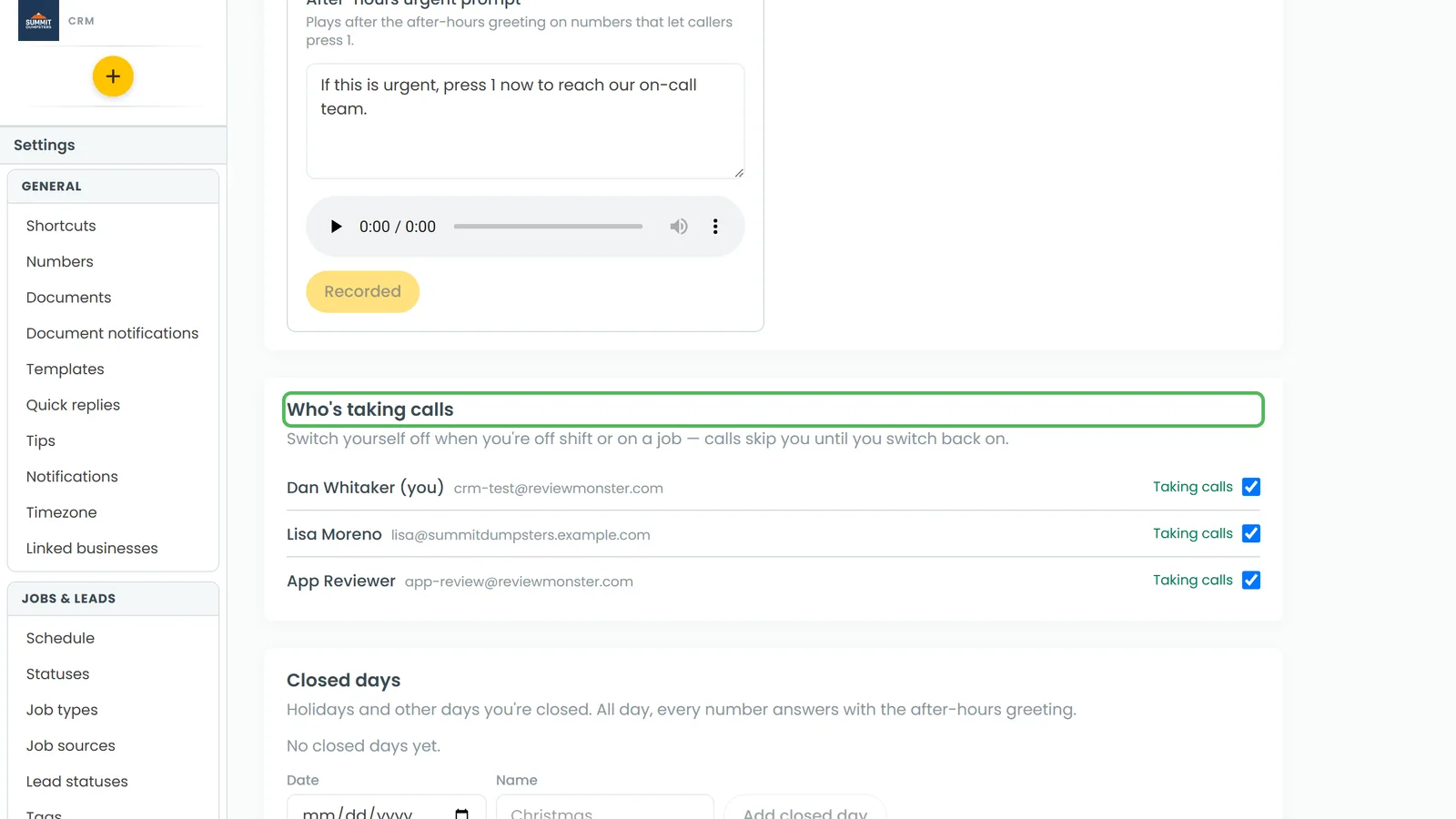
The Who's taking calls card on the Phone numbers page covers every number at once. Switch someone off when they're off shift or out on a job, and calls skip them until they're switched back on. You don't have to touch any number's settings.
- On the Phone numbers page, find Who's taking calls.
- Untick the person, or switch them off in the app. Their line then reads Not taking calls.
Anyone can switch themselves on and off. Only an admin can switch someone else.