In this article, you'll learn how to make and answer calls from the CRM in your web browser. Calls go out on your business line, so customers see your company's number and not your cell.
There's nothing to install. While you're signed in, the browser tab is the phone: you can place calls from it, and incoming calls can ring there too.
Making a call from the Dialer
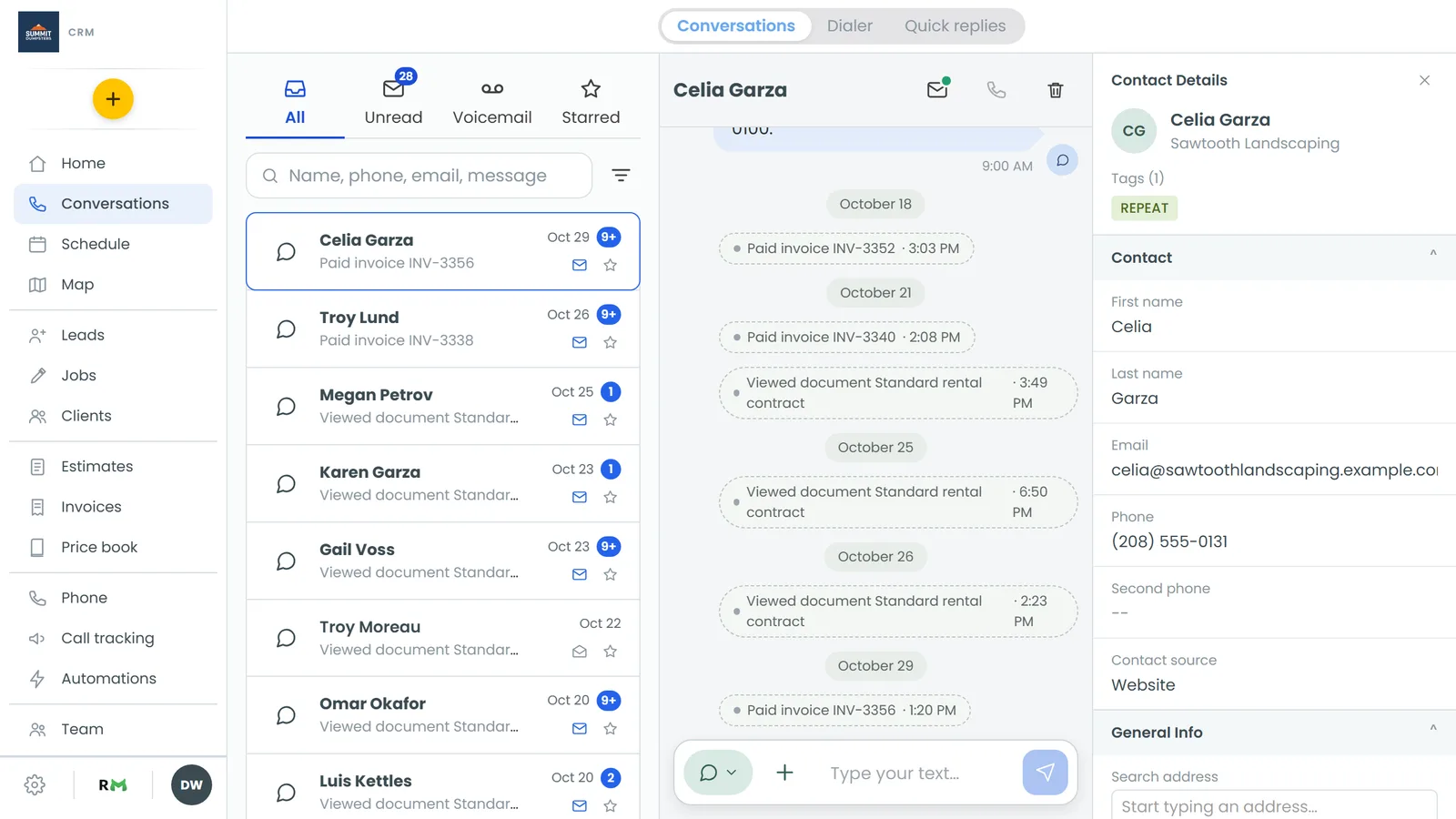
The Dialer is a keypad that lives inside Conversations.
To open the Dialer:
- In the menu, click Conversations.
- In the switch at the top of the page, click Dialer. It sits between Conversations and Quick replies.
To place a call:
- Make sure Call is picked in the switch at the top of the Dialer.
- Type or paste the number into the number box, or tap it in on the keypad.
- Click the green phone button under the keypad.
The green button stays greyed out until there's a full 10-digit number in the box. To fix a typo, click the delete key to the right of the number. Hold it down to clear the whole number.
Calling from a client, job, lead, estimate or invoice
You don't have to go to the Dialer every time. Wherever a customer's number shows, you can usually call it from right there:
- Client page: click the phone icon next to the client's number, under Contact.
- Job page: click the round phone button beside the job contact's number.
- Leads list: click the lead's phone number.
- Estimates and Invoices lists: click the phone number under the client's name. The CRM asks you to confirm before it dials.
- A conversation: click the phone icon at the top of the thread.
Each of these goes out the same way as the Dialer: from your business line, through the browser.
While you're on a call
Once the call starts, the call page fills the screen. At the top you'll see who you're calling, their number and, once they pick up, a timer. While it connects it says Calling…, then Ringing….
If the number belongs to one of your clients, a card shows their address, how many jobs they've had, their last job and whether they owe anything. Up to three buttons sit under it:
- Client opens their client page.
- Last job opens their most recent job.
- Text opens a text to them.
Their customer notes show under the card, so you can read and add to them while you talk. If the number isn't one of your clients yet, the card says Not one of your customers yet. You can still text them from there.
Below that is the Schedule job switch. Turn it on and, the moment you hang up, the Scheduler opens for this caller and fills in the job from the call. There's more on that in Scheduling a job from a live call.
At the bottom are the call controls:
- Mute turns your microphone off and on.
- Keypad opens number keys, for when you reach a phone menu.
- End hangs up.
Mute and Keypad wake up once the other person answers.
Hiding the call page
Need to look something up mid-call? Click Hide at the top right of the call page. A green bar stays across the top of every page with the caller's name and the timer. Click the bar (it says Click to return) to bring the call page back, or click the red button at the right end of the bar to end the call.
Answering incoming calls
For a call to ring in your browser, you have to be set up to take calls there. In Settings, on the number's Ringing & forwarding tab, you either need to be the team member picked under Calls go to, or be ticked under Also ring these team members with Web app checked. Choosing who your calls ring walks through it.
When a call comes in, a card pops up in the CRM tab. On a computer it sits in the bottom right corner. It says Incoming call and shows the caller's name, or their number if the CRM doesn't know them.
- Click Answer to pick up. The call page opens, the same as for a call you placed.
- Or click Decline to turn it down.
The CRM has to be open in a tab for a call to ring there. If it's closed, the call still rings wherever else it's set to ring for you, like the phone app.
Related articles
- Choosing who your calls ring
- Scheduling a job from a live call
- Managing your calls
- Making and answering calls on the phone app
- Text a customer from the CRM