In this article, you'll learn what texting registration (A2P) is, how the CRM handles it for you, and what you need to fill in so your number can text customers. US carriers won't deliver business texts from a number that isn't registered. Knowing where your registration stands tells you when texting from your CRM number goes live.
To open your registration:
- In the menu, click Phone.
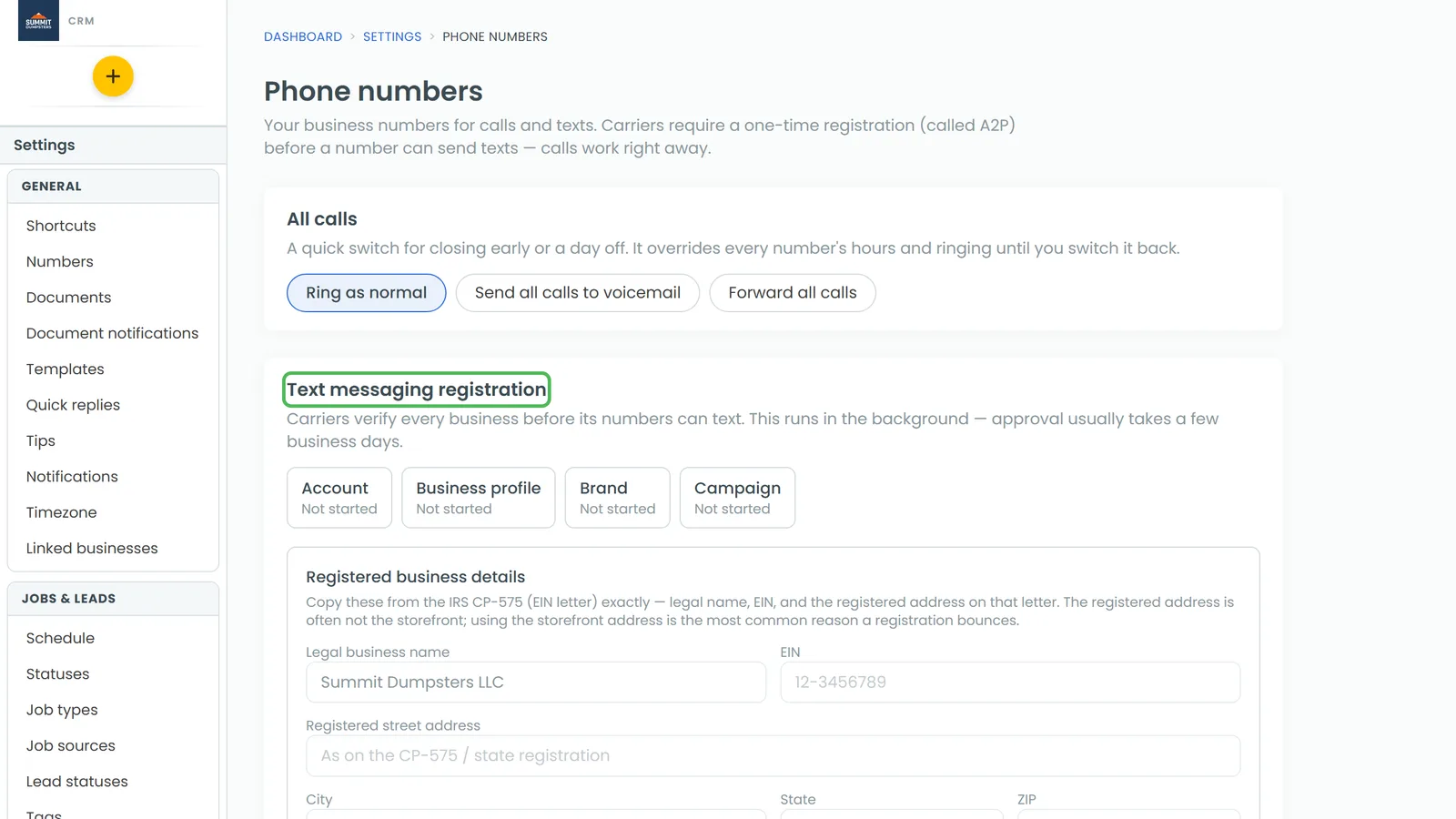
- Find the Text messaging registration card near the top of the page.
What A2P registration is
A2P stands for application-to-person. It's the text a business sends from software like this CRM, as opposed to one person texting another from their own phone. US carriers want to know who's behind every business number before they'll carry its texts. So each business gets registered once with its legal details and a description of the texts it sends.
Calls aren't part of this. Your number can make and take calls as soon as you have it. Only texting waits for registration.
How registration works in this CRM
You don't fill out a separate application. Registration starts when you sign up and moves along in the background. It finishes each step as soon as the one before it allows. The Text messaging registration card shows four steps, each with its current state:
- Account: your own phone account, created at signup.
- Business profile: your registered business details, sent to carriers for review.
- Brand: your business, registered with the carriers.
- Campaign: the kind of texts you send and how customers agree to get them.
When the campaign is approved, the card shows an A2P Verified badge. Each number in your list has its own badge too: A2P Verified, A2P pending or A2P failed.
Adding your business details
Carriers check your registration against your IRS records, so the details have to match your EIN letter (the CP-575) exactly. The Registered business details box shows on the card until your business profile has been sent.
- Type your Legal business name exactly as it's printed on the CP-575.
- Type your EIN.
- Fill in the Registered street address, City, State and ZIP from that same letter.
- Click Save details.
Calling registration and your caller ID name
Right under the texting card is the Calling registration card. It files three things that help your calls get answered instead of flagged: Trusted calls, Caller ID name and Spam protection. Each shows Not filed, In review, Approved or Rejected. They file on their own once your business profile is approved, and every number you add is included.
- In Employees, enter how many people work for you.
- In Outbound calls per business day, enter about how many calls you make on a normal day.
- If you like, type a Caller ID name. It's up to 15 characters. Leave it blank and it's taken from your business name.
- Click Save.
Use whole numbers for employees and calls. Your best estimate is fine. Spam protection won't file until both are filled in.
Checking on your registration
You don't have to do anything for registration to move forward, but you can nudge it or check on it:
- Click Continue registration to run any step that's ready right now. Below the buttons you'll see which steps ran and which are waiting.
- Click Refresh status to get the latest status from the carriers.
If a step is waiting on carrier review, you'll see a yellow note that starts with Waiting on review. If something was rejected, the reason shows in red on the card. Check that your legal name, EIN and registered address match your EIN letter character for character, fix anything that doesn't, and click Save details if the box is still showing.
How customers agree to get your texts
Carriers want to know that customers agreed to hear from you. Your registration tells them customers agree out loud, when they book or when you do the work, in person or over the phone. So get a yes before you text someone, and save their mobile number on their record once they agree.
If your website is one we host, its contact and quote forms also have a texting consent box. It starts unticked, and the form sends whether or not they tick it. Visitors who don't tick it don't get an automatic text.
Every customer can reply STOP at any time to stop your texts.
Related articles
- How customers opt out of your texts
- Understanding message statuses and failed texts
- Setting your caller ID name to avoid looking like spam
- What is the CRM phone?
- How to get a new phone number