In this article, you'll learn how your subcontractors clock in and out, fix their own times and add mileage, and where the office checks and corrects their hours. You need this so pay comes out right without anyone keeping a paper timesheet.
To open the office side:
- In the menu, click Subcontractors.
- The page opens on the Day board tab.
Clocking in and out
Subcontractors don't log in to the CRM. They use the crew portal at /pay, signing in with their phone number and the password they picked on the W-9 form. They can also use the phone app: on the app's login screen they type their phone number instead of an email, with the same password, and the app opens the same crew dashboard.
On the dashboard, under their hours for today, they'll see the clock:
- Tap Clock in to start the day. The badge at the top changes to Clocked in.
- Tap Start break when you stop for a break. The badge shows On break.
- Tap End break to get back on the clock.
- Tap Clock out when you're done.
The top of the dashboard shows the hours worked today and what they come to, and the line under the buttons shows your hourly rate and any break time.
Fixing today's times
Forgot to clock in on time? You can fix today's times yourself on the Today tile.
- On the Today tile, tap the work or break line you want to change.
- Change Start and End. If you're still clocked in, tap Set an end time to add one, or Leave clocked in to undo it.
- Tap Save, or Cancel to leave it as it was.
You can only change today's times, and only ones that haven't been paid. A time can't be later than now, and the end has to come after the start. For any other day, ask the office.
Adding mileage
Mileage only shows up for people the office pays by the mile.
- To add miles for today, tap Mileage under the Today tile.
- Type the miles and, if you want, what they were for.
- Tap Add.
For an earlier day, open it under Recent days and tap + Add mileage. Miles you typed in for today can be taken off with Remove until they're paid. Once a day is paid, you can't add miles to it.
Checking and fixing hours on the Day board
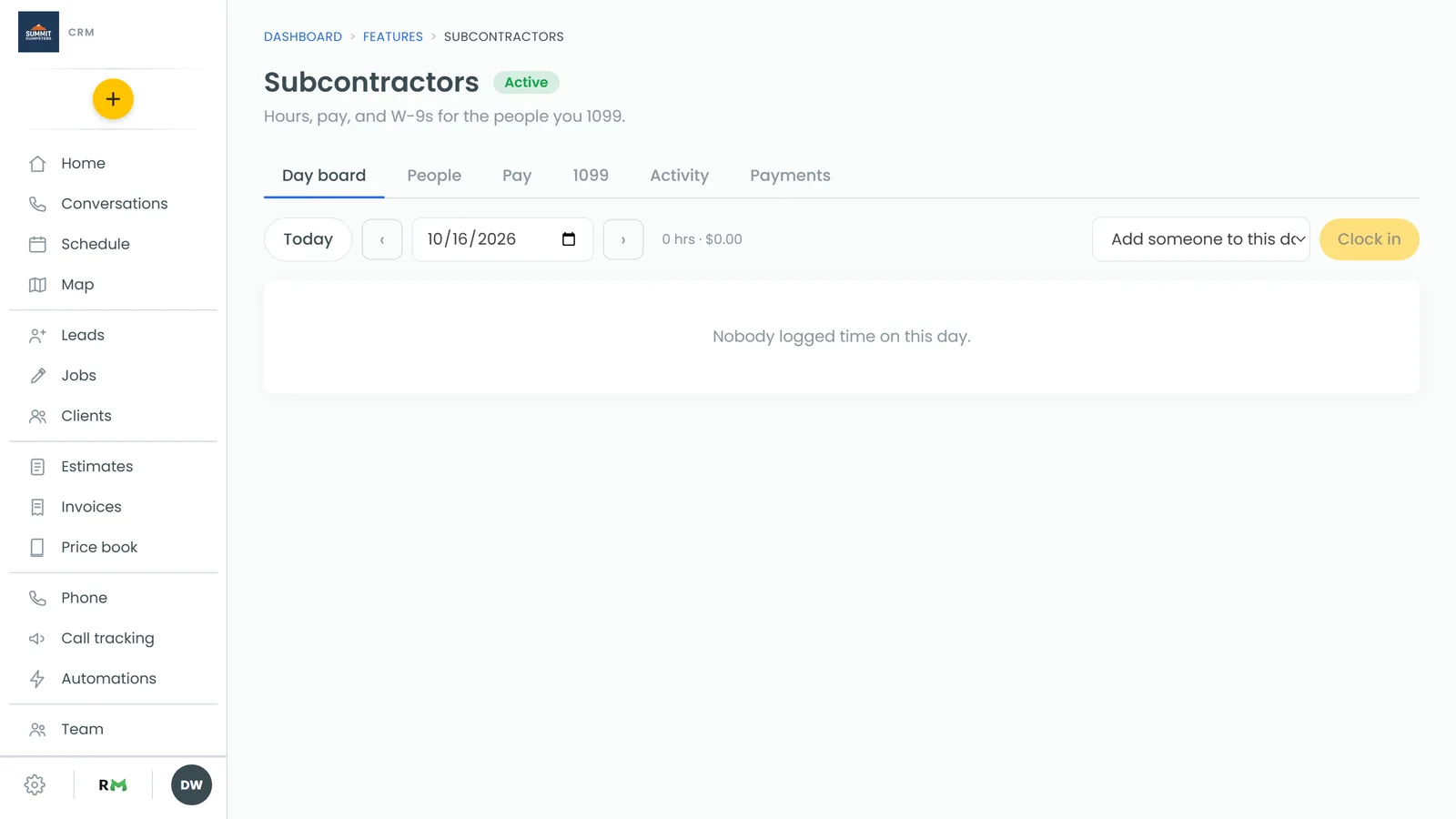
The Day board shows everyone who logged time on one day, with their hours, breaks and pay.
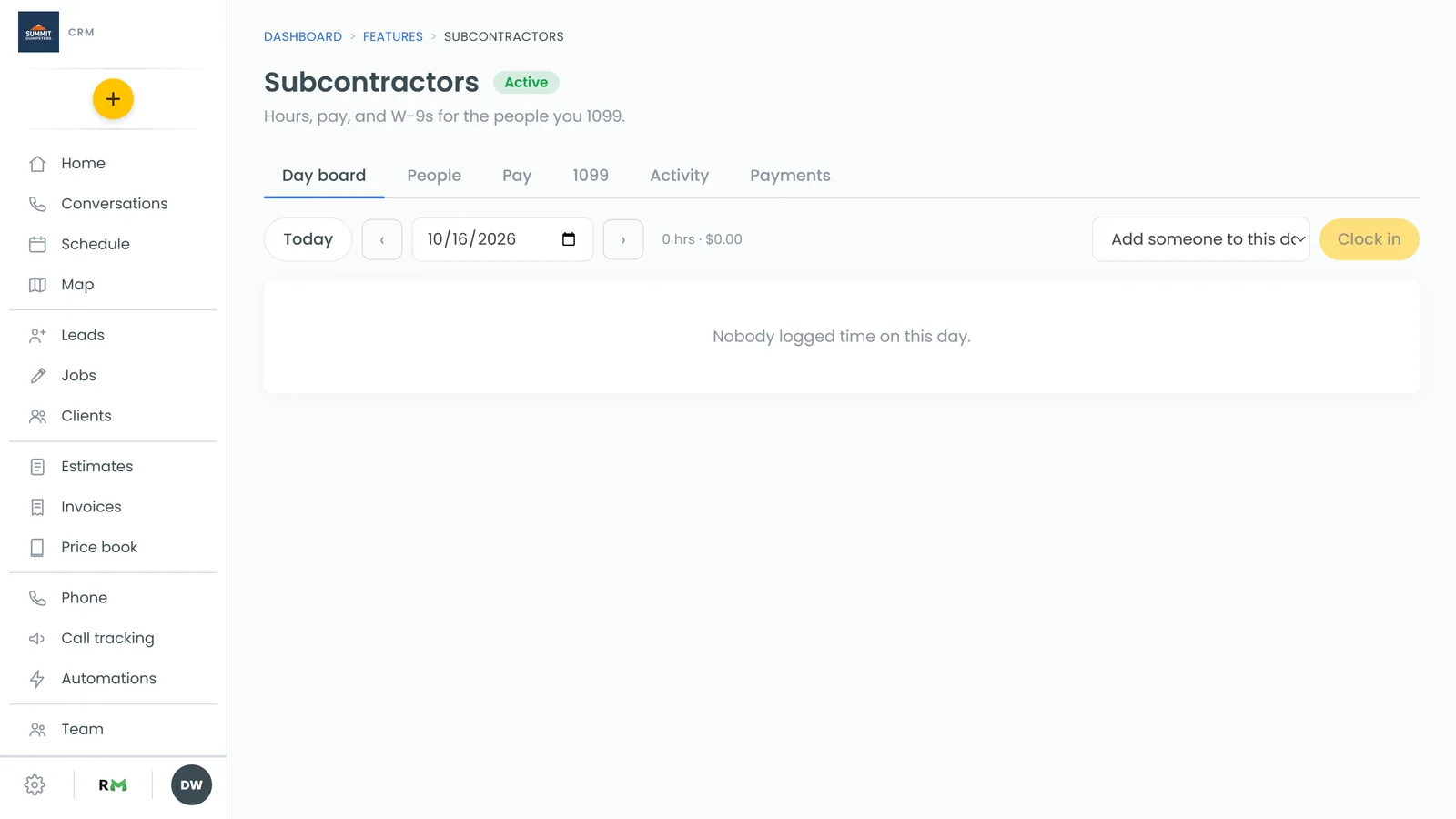
- Use Today, the arrows or the date box to pick a day.
- To clock someone in from the office, pick them in Add someone to this day… and click Clock in. Each card also has Clock in, Break, End break and Clock out.
- To change a time, click edit on the line, change the two times and click Save.
- To add time they forgot to log, click + entry, pick Work or Break, set Start and End, and click Add.
- To remove a line, click delete. It stays in the activity log.
Fixing hours in Crew to pay
When someone is owed money, a Crew to pay block shows up on your home page. Each person is one row with their hours, status and pay.
- Click a person's row to open it.
- Under Hours worked, click edit on a line.
- Set the start and end, then click Save.
Lines the subcontractor changed themselves carry an "edited by" tag showing what they were before. You can also click a mileage line to change or delete it.
Seeing someone's full history
- In the menu, click Team.
- Click the person.
- Open the History tab.
You'll see the total days, hours and earnings, then every day with the time in, time out, hours worked, break and pay. This tab is for reading. To change a time, use the Day board or Crew to pay.
Related articles
- How to add team members
- What's on your Home screen
- Choosing your shortcuts and features
- Phone app overview
- Snapping and saving a receipt