In this article, you'll learn how to choose which extra features show up in your menu and on your Home screen, how to put your Home Shortcuts in order, and how to hide features from a team member. If you only keep what you actually use in front of you, there's less hunting and fewer taps.
Everyone gets the same main menu (Home, Conversations, Schedule, Jobs, Clients and so on), and you can't change it. You also can't change the bar along the bottom of a phone screen: it's always Home, Conversations, Schedule and Contacts, plus the + button. What you do control is the Features section at the bottom of the menu and the Shortcuts tiles on your Home screen. You set both in the same place, the Features store.
To open the Features store:
- In the menu, click Features.
You can also click the pencil next to Shortcuts on your Home screen.
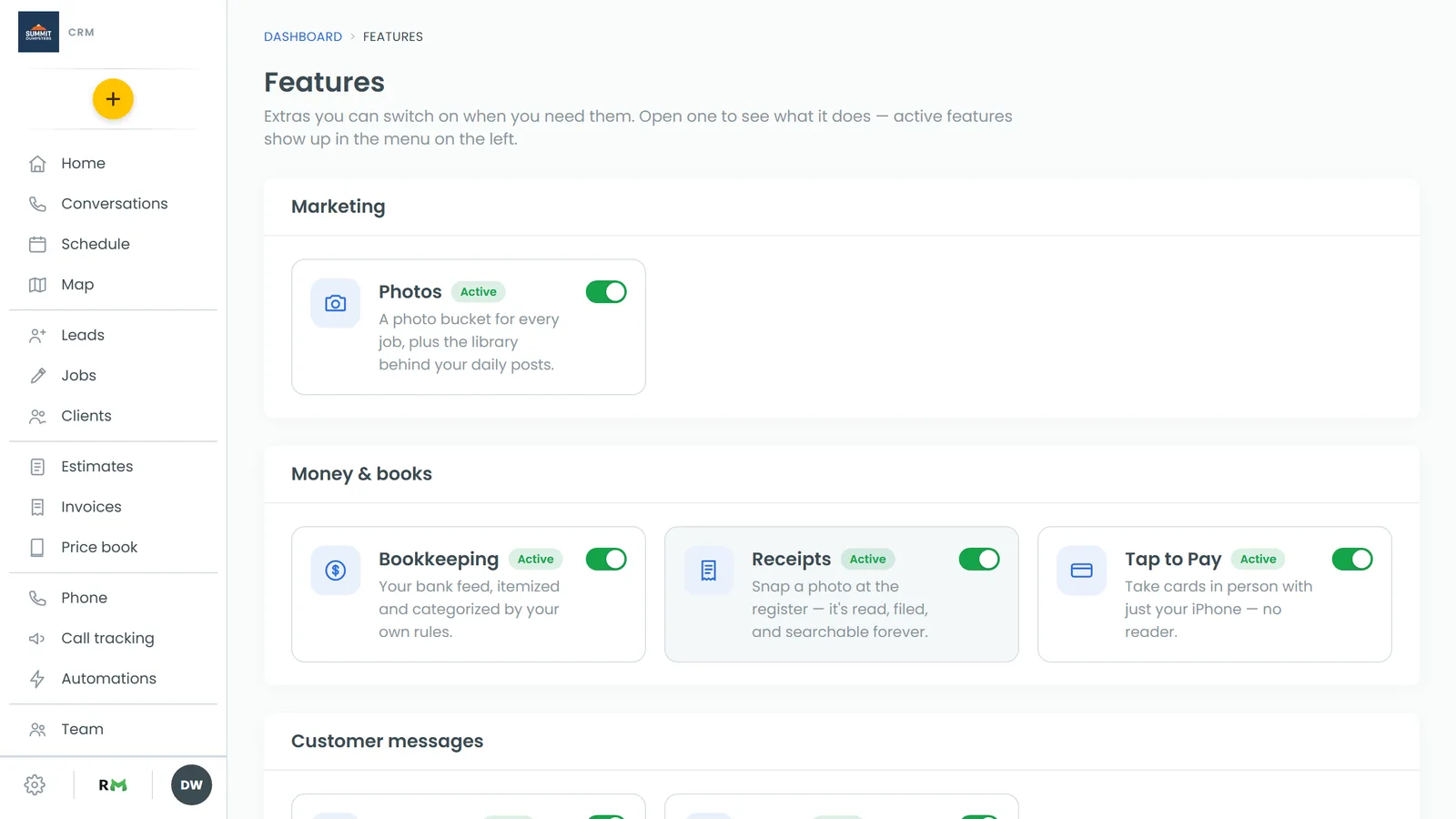
Switching a feature on
Features are grouped by what they're for, like Marketing, Money & books and Your crew. Each card has a switch on its right.
- In the menu, click Features.
- Find the feature you want. If you'd like to know what it does first, click the card. You'll get a page with What it does and Highlights.
- Click the switch on the card so it turns green.
The card now says Active, and the CRM takes you straight to that feature's page. If the feature needs setting up, that page walks you through it.
Once a feature is on, it gets its own row under Features in the menu and a tile in your Home Shortcuts. A few work differently:
- Employees and Subcontractors: on the web, these show up with your team pages instead. Employees appears as Team Schedule under Team, and Subcontractors sits there too. In the phone app's menu, both are listed under Features.
- OMW doesn't get a menu row or a Home tile. You'll find it under Settings, in the Phone & booking group.
Switching a feature off
- In the menu, click Features.
- Click the green switch on the feature's card.
The feature disappears from the menu and from your Home Shortcuts. Nothing you entered in it gets deleted, so you can switch it back on whenever you want.
Ordering your Home Shortcuts
Your Home screen has a Shortcuts section with one tile for each feature you're using. The web Home screen and the phone app's home use the same list, so once you set it, it's the same everywhere.
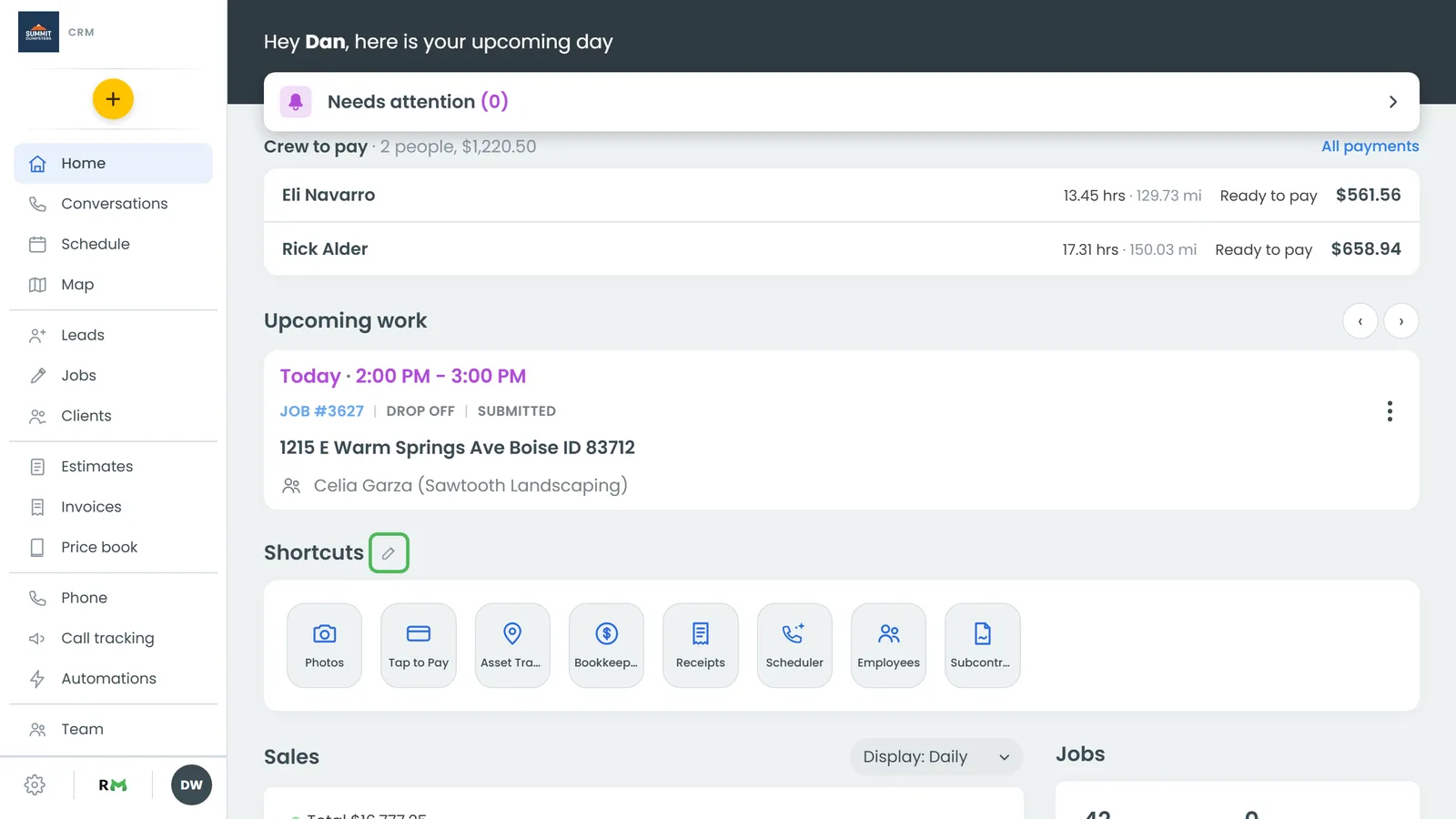
- In the menu, click Features. You can also click the pencil next to Shortcuts on your Home screen.
- Scroll down to On your phone. There's a numbered list of every feature you're using, next to a small preview of a phone.
- Use the up and down arrows on a row to move it.
- To keep a feature off the Home screen, click the green switch at the end of its row. The row gets marked hidden, but the feature stays in your menu.
Changes save as you make them. The first 8 tiles fit on a phone screen without scrolling, so put the ones you open most at the top. The preview tells you how many more tiles are below those.
Choosing which features a team member sees
You can hide features from a team member who doesn't need them. You set this per person, on the web.
- In the menu, click Team.
- Click the team member's row. Their User Profile opens on the Profile tab.
- Scroll down to CRM features this login sees (unticked = hidden) and untick anything they shouldn't see.
Each tick saves right away. Unticked features drop out of that person's menu and their Home Shortcuts.
Related articles
- Find your way around the CRM
- What's on your Home screen
- How to add team members
- Phone app overview
- How to customize your account settings