In this article, you'll learn what each part of the Home screen shows and what you can do from it. Home is the first thing you see when you sign in: anything that slipped through, who you owe, the next job up, and how sales are going. The web and the phone app draw the same Home from the same data, so you can check it on either one.
To open Home:
- On the web, click Home in the menu. The app opens on Home when you sign in.
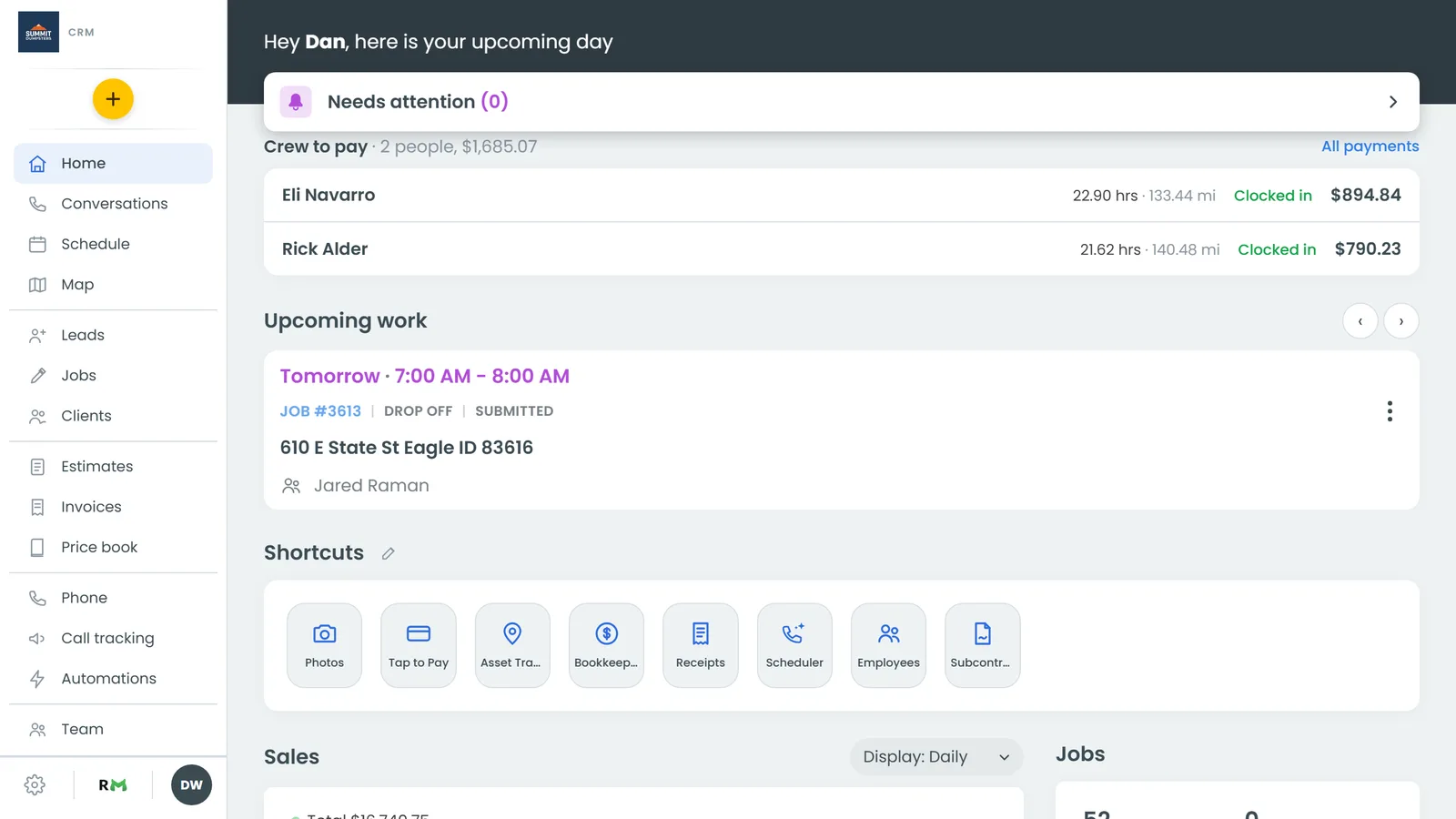
Needs attention
A dark band at the top says "Hey (your name), here is your upcoming day". The white Needs attention card sits over its bottom edge, with a count of everything waiting on you.
- Click or tap Needs attention to open it.
- Jobs from an earlier day that were never marked Done or Canceled are listed here. Each one says in red what's wrong, like "Never closed out — still In progress".
- Click View on a job to open it. On a phone or touchscreen, you can also swipe the card left for Mark done, Cancel job and, if your company keeps an on-my-way status, On my way. Each one asks you to confirm first.
- Other notices, like a declined estimate, have a Dismiss button. Dismiss clears it from the list and from the app icon's count. Notices without Dismiss go away on their own once you deal with them.
When there's nothing waiting, the card says "Nothing outstanding." Click anywhere outside the card to close it.
Crew to pay
If a subcontractor is owed money, Crew to pay shows next, with one row per person: their hours, a status (Clocked in, Ready to pay or No hours yet) and what they're owed. Click a row to open it.
- Under Hours worked, click a segment to fix its start or end time.
- The Owed block adds up receipts, mileage and hours, less anything paid earlier.
- Pick how you paid them, enter the amount, then click Done to record it. When Venmo is picked and they've shared their Venmo link, Pay in Venmo opens Venmo with the amount filled in.
On the web, All payments takes you to the full Subcontractors page. When nobody is owed, this section doesn't show at all.
Upcoming work
Upcoming work shows one job card at a time. It opens on the job that's happening now or the next one due. Swipe to go back to earlier jobs or forward to later ones. On a computer, use the arrows next to the heading. Each card has the day ("Today", "Tomorrow", a date), the time, the job number, job type, status, address and customer.
- Click the job number or the address to open the job.
- Click the ⋮ button for quick actions: open the job, on my way, Directions, Mark done and Cancel job. Mark done and Cancel job ask you to confirm.
When nothing is booked, the card says "Nothing scheduled."
Shortcuts
Shortcuts is a grid of tiles for the features you've turned on. The pencil next to the heading opens Features, where you turn features on or off and change their order. The same tiles in the same order show on the web and in the app.
Sales
Sales is a bar chart of job totals by date, with the total for the period above it. Use the Display dropdown to switch between Daily, Weekly and Monthly. View All under the chart opens your Jobs list.
If Bookkeeping is connected to your bank, the link is replaced by Income, Expenses and Both buttons. Both shows what you billed against what you spent, with the net figure. On the web, an Expenses block also sits under the chart with the biggest expense categories for any of the last 12 months.
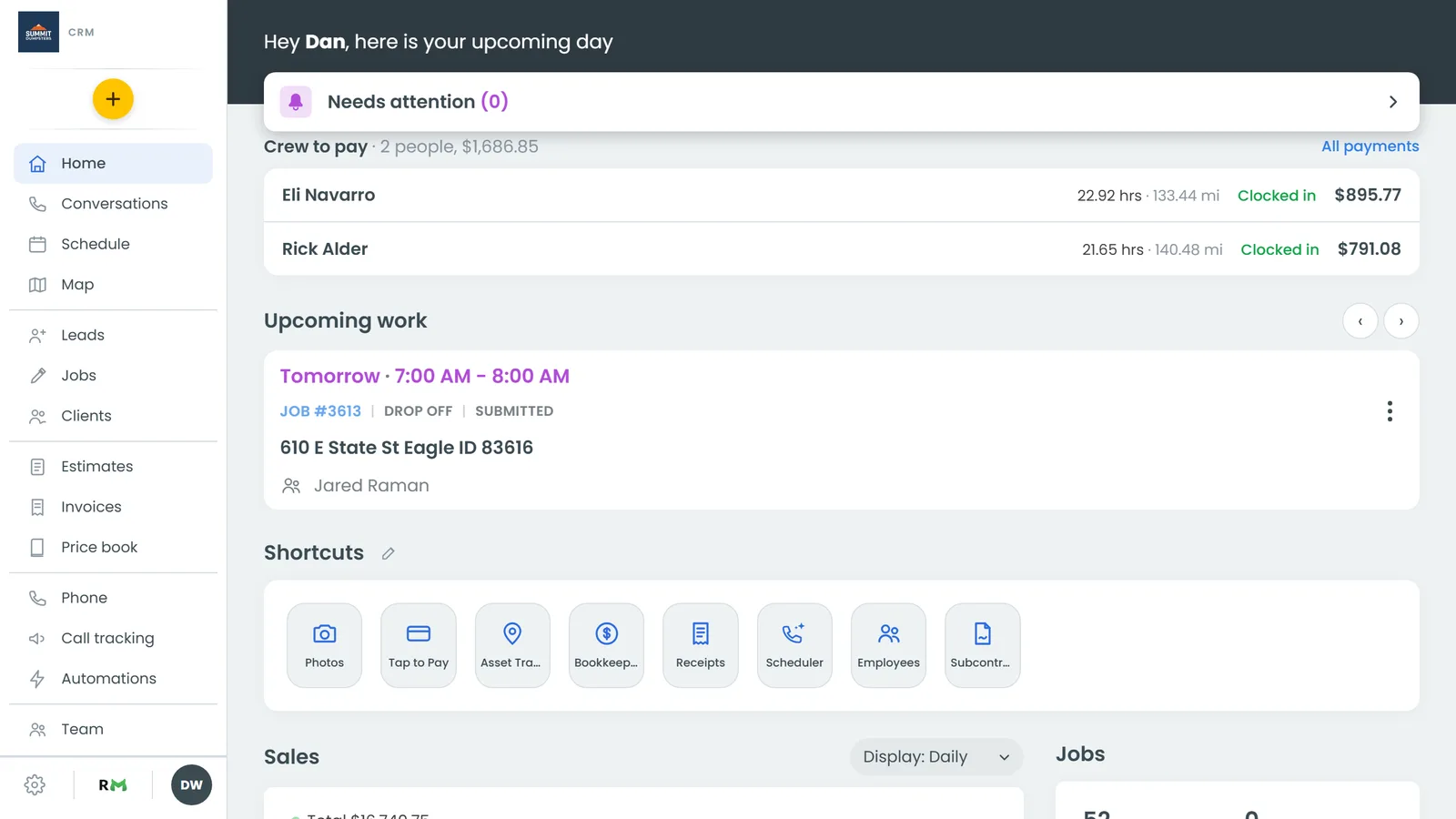
The smaller blocks
- Jobs counts your jobs that are Submitted, In progress, Done and Canceled, with a View All link to the Jobs page.
- Cash to deposit is the cash taken on jobs less what's gone to the bank. Click Record deposit to log a trip to the bank. It pre-fills the full balance, and recent deposits list underneath.
- Leads shows your total leads with a View All link.
- Estimates lists your estimates by status and flags how many are approved and ready to convert. Declined estimates are left out. This block is on the web only.
- Jobs by status lists every status you use with a count and a total.
Good to know
- Whether past-due jobs show in Needs attention is your call. Turn Job past its day, not closed on or off in Settings › Notifications.
- If your login has more than one company, the card on the band becomes a company picker and Needs attention moves just below it.
- In the app, the band also has a refresh button, the Automations bolt and search. The page doesn't refresh when you pull down. Use the refresh button.
- A role without the Dashboard permission opens on the Schedule instead of Home.
Related articles
- Find your way around the CRM
- Phone app overview
- Choosing your shortcuts and features
- Hiding the Home dashboard from team members
- Working with subcontractors