In this article, you'll learn how to keep the Home dashboard away from team members who don't need it. Home shows your sales chart, job counts, cash to deposit, leads and more. Your office staff may need all of that. A tech usually doesn't.
Who sees Home is decided by one permission on each role: Dashboard. Admins always have it. The built-in Tech role starts with it off, so a new tech already lands somewhere else. A custom role you create starts with every permission off, including this one. Roles are edited on the web only.
To open Roles & permissions:
- In the menu, click the gear at the bottom, labeled Settings.
- Under Users & roles, click Roles & permissions.
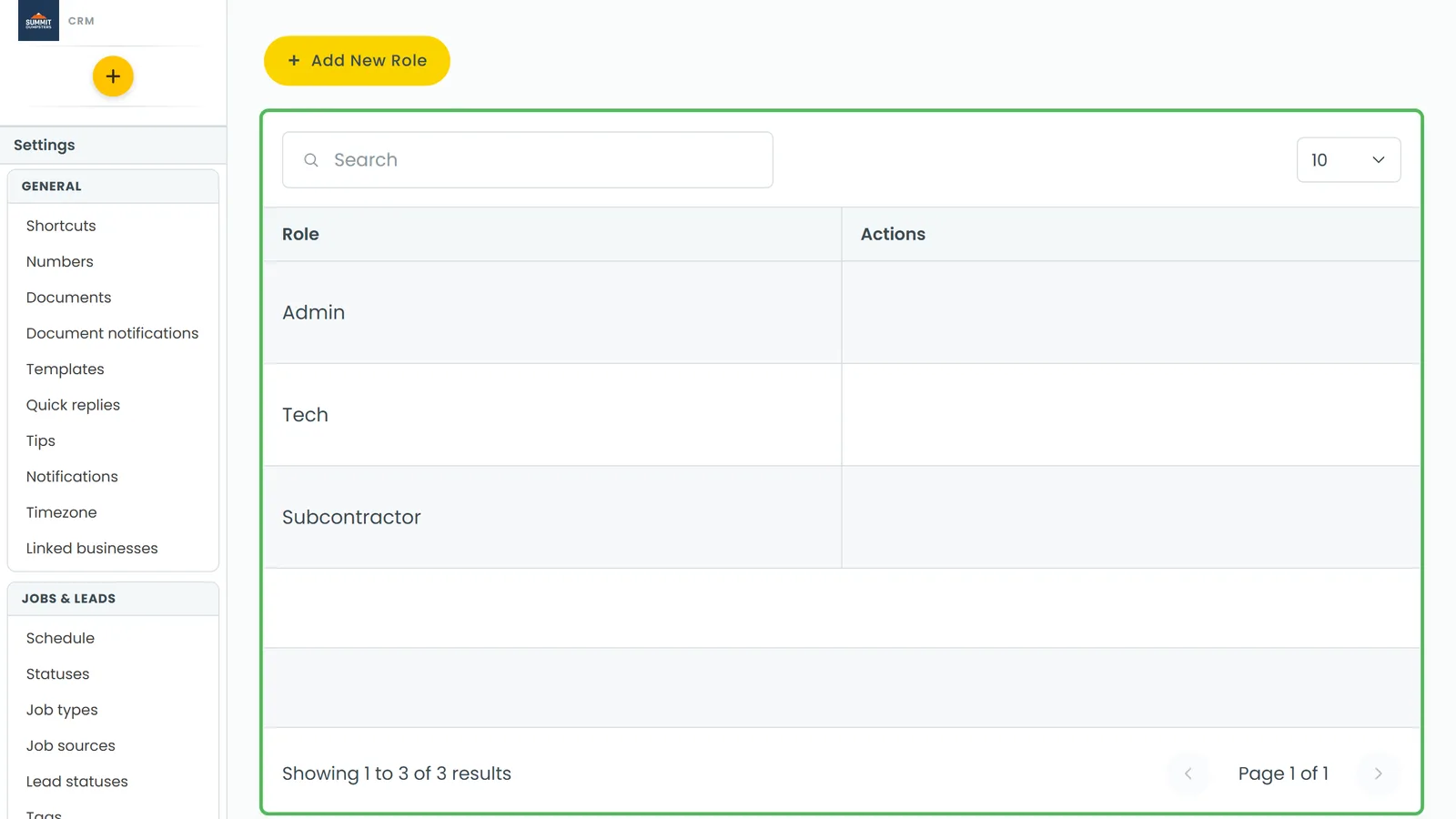
Turning the dashboard off for a role
- On the Roles & Permissions page, click the role you want to change. Admin can't be opened, because every permission is always on for admins.
- A panel opens called Edit permissions for role, followed by the role's name. Under Enable permissions by switching them on, find Dashboard. Its description reads View dashboard statistics. You can type "dashboard" in the Search box to jump to it.
- Click the switch so it turns grey.
- Click Save. You'll see a Permissions saved message.
Everyone holding that role is affected at once. You don't change anything per person.
What a team member sees with it off
- Home disappears from their menu on the web and from the phone app's side menu.
- If they open the CRM at its front door, it opens on the Schedule instead of Home.
- On a phone browser, the Home tab is gone from the bottom bar too.
Everything else they're allowed to see stays where it was. The switch only hides the dashboard page and its numbers.
Giving the dashboard back
- Open Roles & permissions again and click the role.
- Click the Dashboard switch so it turns green.
- Click Save.
Home returns to their menu the next time the page loads.